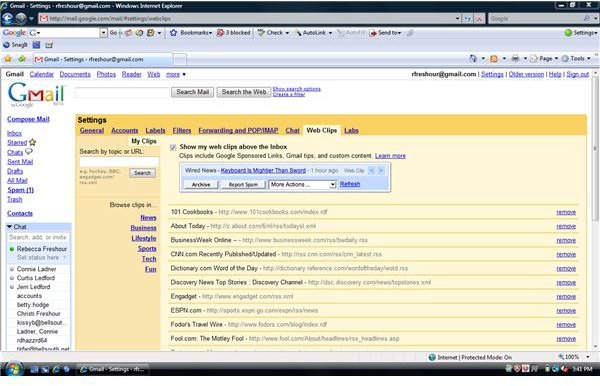
Gmail Web Clips are news and entertainment feeds that run across the top of your inbox when enabled. Gmail automatically sends Web Clips but you can change them to include information which interests you. You can also disable Web Clips if you prefer not to use them. Read more about working with Gm
Understanding and Using Gmail Web Clips
Gmail Web Clips are news and entertainment snippets that appear at the top of any open Gmail page above your inbox. Web Clips allow you to view news headlines, sponsored links, RSS and Atom feeds, and blog posts. Once you are familiar with Gmail Web Clips, they are easy to understand and use.
Web Clips display when the clip was published, a link to access the story in its entirety, and the source from which the Clip comes from. To scroll through Web Clips, click the right arrow (>). To return to a Web Clip that you have already seen, click the left arrow (<).
Gmail Web Clips can be customized to show feeds that interest you. A list of feeds from popular web sites or you can add your own.
To customize your Gmail Web Clips to your interests:
-
Log into your Gmail account.
-
Click the Settings link in the top right corner of any Gmail window.
Advertisement -
Click the Web Clips tab (seventh from the right) to open the Settings page.
-
Select a topic link from those on the left of the page or search for feeds by entering keywords for your interests.
Advertisement -
Click Add when you find clips that you would like to have displayed in your Gmail Web Clips.
You can also add your favorite news or blog feeds to Gmail Web Clips:
-
Log into your Gmail account.
-
Click the Settings link.
Advertisement -
Choose the Web Clips tab.
-
Enter the feed URL into the Search by topic or URL box.
Advertisement -
Click the Search link to locate the news feed or blog.
-
Once you’ve found it, click the Add button to add the desired feed or blog to your Gmail Web Clips.
Advertisement
You’re also not stuck with Gmail Web Clips that no longer interest you. To delete a Web Clip:
-
Log into your Gmail account.
Advertisement -
Click the Settings link.
-
Select the Web Clips tab.
Advertisement -
Find the Web Clip you want to delete and click the Remove option.
For some people. Web Clips is just a distration. But you can disable it. Simply go into the Web Clips tab on the Settings page and deselect the box next to Show my web clips above the Inbox. If you change your mind later, turning Web Clips back on is as easy as selecting that box.
If you spend a lot of time in Gmail and you want to keep up with your news or interests, Web Clips is a great way to do it. And once you start using it, you may find that it’s a tough addiction to break away from.


