Need an invitation for your latest party? Create one in Google Docs! You can easily create and send your holiday and party invitation to all of your friends and family.
Your Own Party Invitation
Party invitations are easier than ever with Google Docs. With a simple template, you can start advertising to all your friends your next birthday or holiday party, social events or corporate occasion.
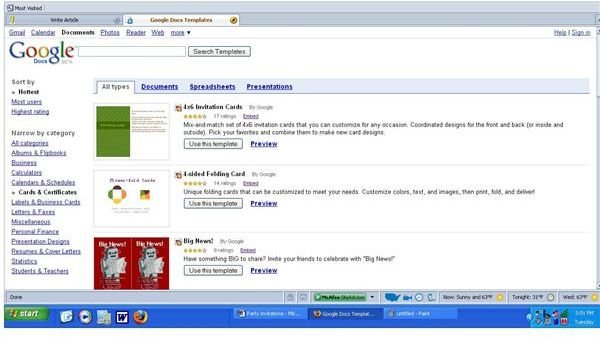
To start creating your party invitation, you need to go to https://docs.google.com/templates . This will take you to the Templates section of Google Docs. Before you start creating your invitation, however, you must have a Google account . It is a free service so you don’t have to worry about buying a subscription.
Once you create your account and head to the Google Templates section, you should click the Cards & Certificates link that is mid-way down the left-hand side of the page. This will take you to a selection of card templates with both pictures and descriptions of the card.
From here, you can either preview what the card will look like by clicking the Preview link. Or, you can go ahead and click the Use this template icon underneath the description of the card.
When you click the Use this template icon, you will either be taken directly to the editing page for the card or the login page for your Google account. If you are not already logged in, you will have to login prior to creating your card. This allows Google to save the card to your account.
Once you’re on the editing page, you can customize your card by changing the text. Change the text simply by clicking on the text of the card. This will open up the text box and will allow you to change the font, letter size, text color and background. You can also add links here as well by clicking the Link button at the top.
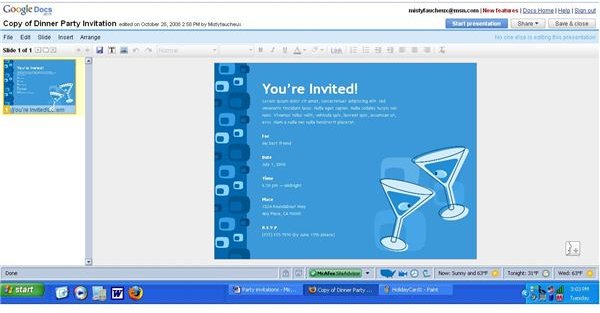
You also have the option to add pictures and video. To add a picture, go to the Insert dropdown menu and choose Picture. Then just specify from where you would like the picture pulled. To add video, go to Insert > Video. This will take you to YouTube, where can search for your videos or even videos that belong to others.
Since the program is set up like a PowerPoint presentation, you can add slides and view your presentation. But, most people will simply want to print it out and mail it to their friends either via mail or Email. To Email your presentation, go to Share with others and Email presentation. From here, you can add the Email addresses of those that you would like to receive the invitation.