Google Docs makes it easy to survey large groups of people. Create your survey, and then distribute it by email or Web. Google Docs automatically logs data into a spreadsheet. You can then easily track who has answered and what they’ve said. Optional fields ensure recipients can remain anonymous.
Google Docs Forms
Google Docs gives users an easy way to gather information from many people at once. By creating a Form, you can write each question one time, and then send the form to each person from whom you need a response. Forms will also help you analyze the information that you receive. Forms are great for research, human resources surveys and event planning
Getting Started
To open Forms and start creating questions:
- Log into your Google Docs account.
- From the menu, select New - > Forms.
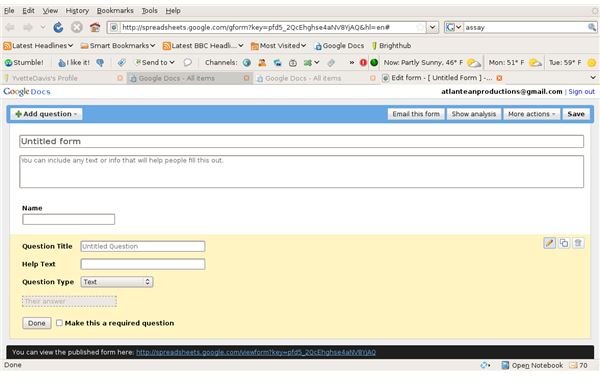
- A blank form will open in a new window. In the text box labeled Untitled Form, type your desired Form Title.
- In the second text box, type directions for filling out the form and include any special information that the user may need.
- Question Title: Type your question here.
- Help Text: Add any additional information needed to answer the question.
- Question Type: Select the type of question that you need from the drop down menu. The rest of the section will change based on your selection. You can choose from the following question types:
- Text
- Paragraph Text
- Multiple choice
- Checkboxes
- Choose from a list
- Scale
Fill in any additional information like multiple choice answers, lists or items to scale.
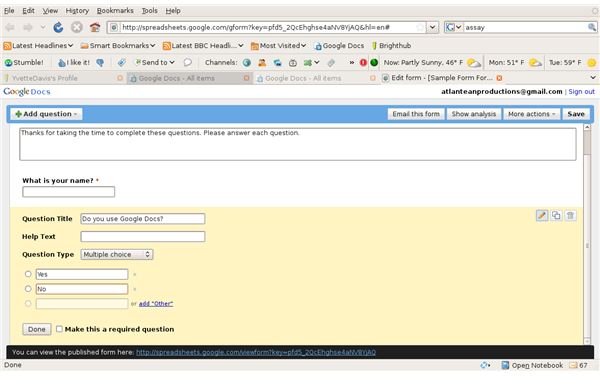
If all respondents must answer this question, select the checkbox, Make this a required question.
When you’re finished with this question, click Done.
Adding and Editing Questions
To add questions, click Add Question in the upper left of the window. From the drop down menu, select the type of question that you’d like to add. Type the question information.
To edit a question, move your mouse over the question that you’d like to edit. On the right side of the screen, three icons will appear: a pencil, two overlapping rectangles and a trash can.
Distributing Your Survey and Getting Responses
In order for people to answer your survey questions, you’ll first need to make it available for responses. There are two ways to do this.
- Click Email this form in the upper right of the screen. Fill in the email address of each recipient, or select Choose from contacts to select from your Gmail address book. Click Send.
- Send recipients the unique Web address for your Form. You’ll find this Web address at the bottom of your screen in the black bar.
Getting responses
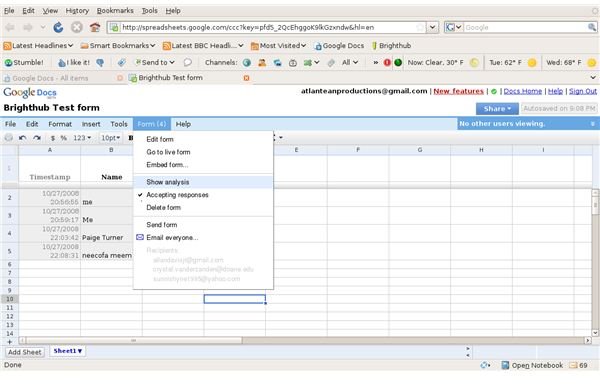
As people answer your survey, their responses will automatically be recorded by Google Docs. To access this data, do the following steps:
-
Open Google Docs.
Advertisement -
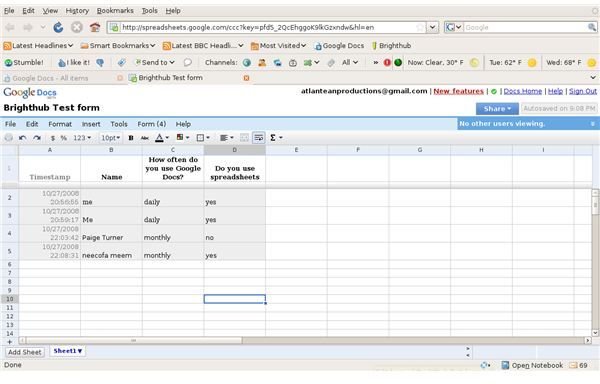
Open the file with the same name as your form
 Advertisement
.
You will see results in spreadsheet form.
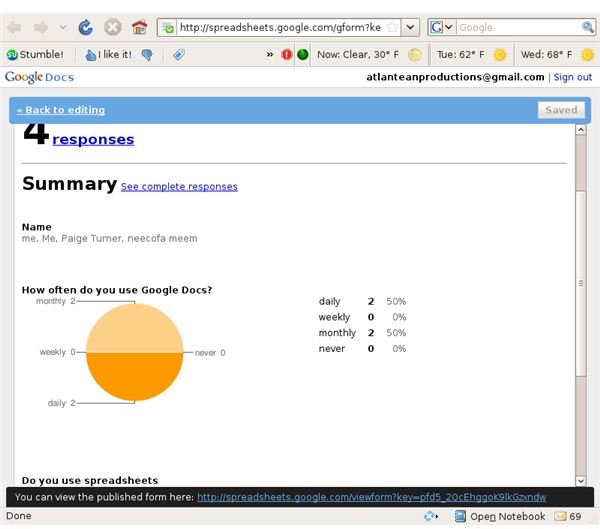
To access this information in the form of a pie graph, select Form - >Show Analysis.
That’s all there is to it. Taking surveys, asking questions and tracking invitees has never been easier!