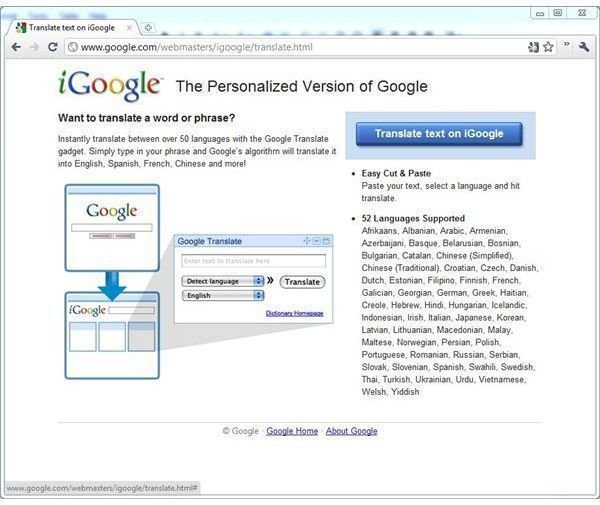
You can use iGoogle gadgets to translate words, phrases and Web pages directly from your iGoogle homepage. Google provides an official Google Translate gadget that you can add to your iGoogle page for free, or you can install one of the many third-party gadgets from the iGoogle gadget gallery.
Official Google Translate Gadget
Open Google’s official iGoogle translation page here . Click the “Translate Text on iGoogle” to add the official Google translation gadget to your iGoogle page. If you’re logged in, it’ll save the gadget to your Google account’s iGoogle page that you can access from any computer.
You can drag and drop the title bar of the Google Translate gadget to position it anywhere you like on the iGoogle page. Everything on your iGoogle page is a gadget you can move in this way.
Using the Gadget
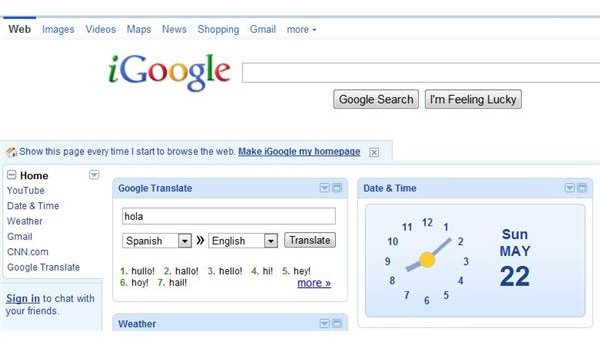
Select the language you want to translate from by clicking the first box and clicking a language in the list – you can even click “Detect Language” at the top of the list of languages to have the gadget automatically detect the language. Select the language you want to translate to by clicking the second box and clicking a language in the list.
After you’ve chosen languages, just type or copy and paste a word or phrase into the text box in the Google Translate window and press “Enter” to translate it. Click the “More” link that appears below the translated text.
You can also translate a Web page by typing or copy and pasting its address into the box in the Google Translate gadget. iGoogle will open a new Web page with the translated Web page.
Click the “Maximize” icon located on the right side of the gadget’s title bar to expand it to fill your entire iGoogle page and see more options.
Other Gadgets
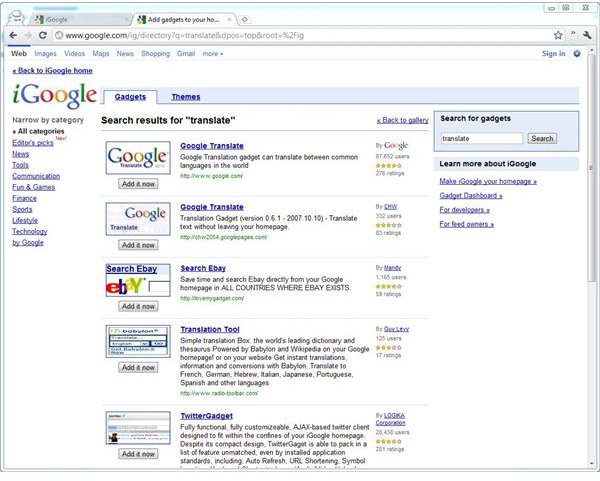
If you’d like to try a different translation gadget, you can click the “Add Gadgets” link at the top-right corner of the iGoogle Web page to access the gadget gallery. Type a phrase such as “translate” into the search box at the top-right corner of the page and press “Enter” to see other available translation gadgets.
You can install everything from differently-designed gadgets that use Google Translate to translate text to gadgets that use third-party translation services such as WordMonkey or Babylon.
Click a gadget you want to use on the search results page and click the “Add it Now” button on that gadget’s page to add it to your iGoogle page. Click the “Back to iGoogle Home” link at the top of the page after adding the gadget to return to your iGoogle page and see it in action. If you don’t like a gadget, you can remove it by clicking the arrow icon at the top-right corner of that gadget’s pane and clicking “Delete This Gadget.”
References
Google: Add and Remove Content: Add Gadgets and Feeds; https://www.google.com/support/websearch/bin/answer.py?hl=en&answer=25555
Screenshots provided by writer


