Easily read text using other languages with Google translator toolbar for Internet Explorer and Firefox. Also, learn how you can use the 1-click translator option.
Google Translate and Toolbar
Google translator is a feature in Google toolbar that runs on Windows, Linux and Mac computers with Firefox or Internet Explorer web browsers. It’s a free translation service that provides instant translation between 57 different languages. This service is offered to make information universally useful and accessible, regardless of the language in which it is written or published. In the next sections of this article, you’ll see how to use Google translator from toolbar in browsers.
Download and Install Google Toolbar
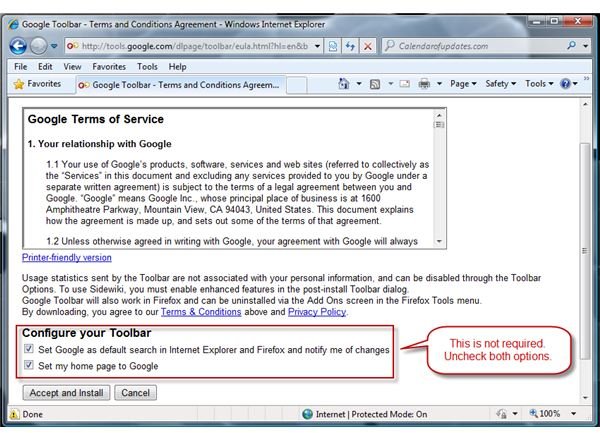
Installing Google Translate is easy. You only need to download and install Google Toolbar for IE and Firefox. Installing Google toolbar using IE will also install the program in Firefox. If you don’t use Internet Explorer or don’t want Google toolbar for IE, get the extension for Firefox.
- Visit toolbar.google.com using IE to install the toolbar for IE and Firefox.
- Visit https://www.google.com/toolbar/ff/ to only install the toolbar for Firefox, but not in Internet Explorer.
Note that by installing Google toolbar, you are also using Google Updater - which will automatically check and install program updates for the toolbar. You should also remember that it is not required to allow Google toolbar to modify your browser’s search and home pages. Some software installation packages includes Google toolbar and is why many users have the toolbar by Google without their knowledge. For more on Google toolbar installation , read the linked article.
Instant Translate and 1-click Translation
One of the neat features in Google toolbar is to instantly translate highlighted text in different language. Simply highlight a text and hover the mouse over the selected text; you’ll see Google use the toolbar to instantly translate the word for you:
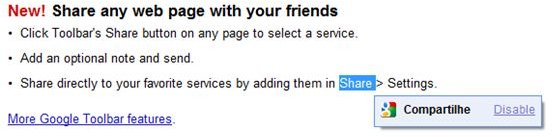
You can also take advantage of the 1-click translation feature in Google toolbar. Simply view a webpage and then click the Translate button.

Google Translate Setting
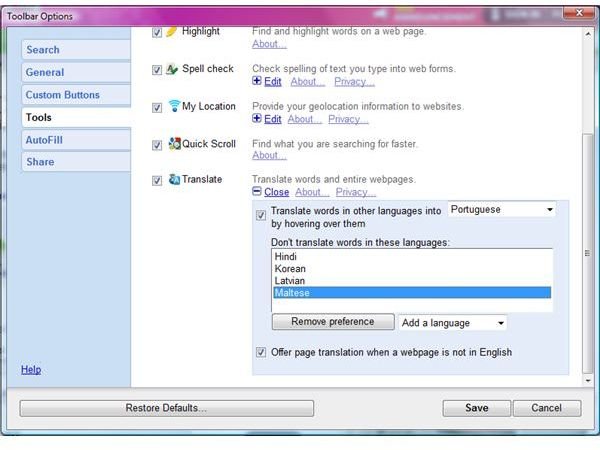
The settings for using Google translate are quite simple to use. The default option is actually ready to use, which means you don’t need to configure unless you don’t want Google translate to translate text or webpages in every other language, but in selected languages only. This feature in setting up Google translate is quite useful for people who only want to use the free translation service to one or two languages.
Options for Translated Webpage
The text in a webpage that has been translated by Google Translate in its toolbar also offers extra options:
-
Translate in other language after Google has translated to specific language.
-
Hover the mouse in a translated webpage to view it in original language it is written.
Advertisement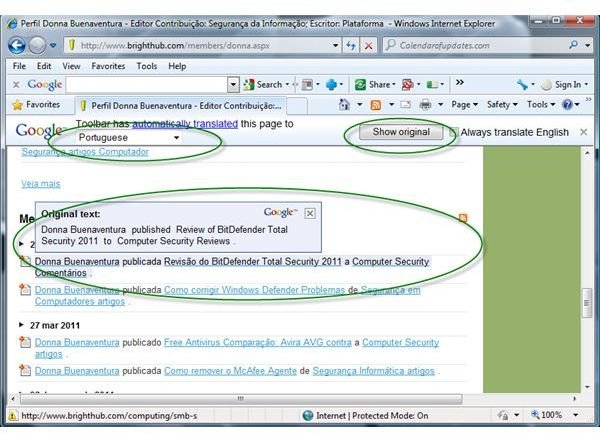
-
Show original webpage it is written or published.
Advertisement
Google Translate with No Toolbar
People who don’t want to install Google toolbar but do want to use Google translate service, can get the single translation script from https://translate.google.com/translate_tools or visit https://translate.google.com website to translate a text or sentence, even a paragraph. Another option in using Google translate service is by taking advantage of Google Translator toolkit. This service allows the uploading of documents to translate, download translated documents and much more. If you are using another browser; e.g. Opera, you can’t use Google toolbar to translate a page, so just use the built-in translation feature in Opera browser using Babelfish translation service.
References
- Screenshots taken by the author, courtesy of Google.com
- Information based on Google documentation and tested by the author.


