This is the second in a series of articles on how to add “audio” (music or speech) to your PowerPoint 2000/2003 presentations. In this article, we show you how to add music from a CD to your presentation.
Adding CD Audio to PowerPoint 2000/2003Presentations
This is the second in a series of articles on how to add “audio” (music or speech) to your PowerPoint presentations. The articles are designed for those of us who use PowerPoint 2000/2003 and who have neither the desire nor need to change to PowerPoint 2007.
In this article, we assume you want to play an audio CD as background music to your presentation.
In the simplest case, you want the CD to start playing from the first track when the presentation begins and continue playing until the presentation ends.
Here’s how you can do this:
Insert the CD you want to play in your CD drive.
Open your presentation in PowerPoint; the first slide should be displayed. If you want the music to start from a different slide, just go to that slide.
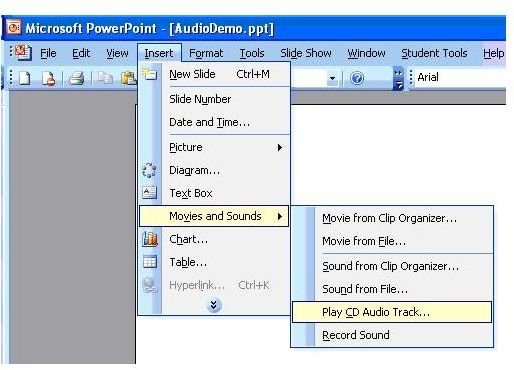
From the menu bar at the top of the screen, click on Insert > Movies and Sounds > Play CD Audio Track…
(To see a larger view of any image, click on the image.)
This should bring up the following screen:
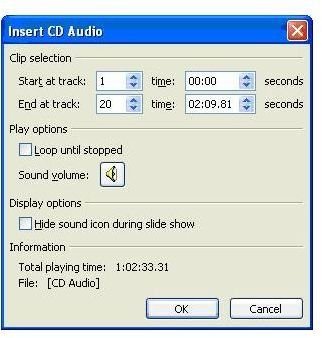
This recognizes that the CD has 20 tracks with a total playing time of 1 hour, 2 minutes and 33.31 seconds. The last track has length 2 minutes 9.81 seconds.
Troubleshooting hint: If you have more than one drive capable of playing a CD and the CD information does not display, try putting the CD in another drive.
If you leave the settings as they are and click OK, the CD will play from the first track to the last or until the presentation ends, whichever comes first.
If you select “Loop until stopped” the music will repeat until the presentation ends.
Using the up and down arrows, you can specify that the CD begin playing from any position on any track and end at any position on any track. For instance, if you want the music to start at 1 minute into the 5th track and end at 1 minute and 45 seconds into the 10th track, you can use the arrows to set the boxes as follows:
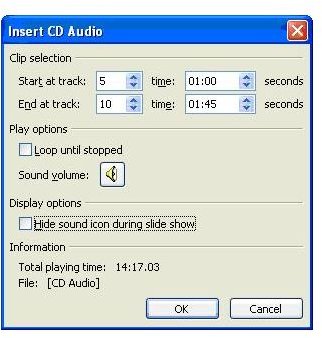
Again, if you select “Loop until stopped” the selected music will repeat until the presentation ends.
When you click OK, the following will pop-up:
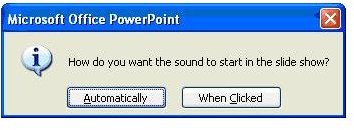
If you choose “Automatically”, the music will start as soon as you begin your presentation. If you choose “When Clicked”, the music will start when you click on the “music icon” that will be placed on your slide (see below) provided you left the “Hide sound icon during slide show” box unchecked. This allows you to choose exactly when you want the music to start.
For now, assume you choose “Automatically”. The following icon (shown selected) will be placed on your slide. You can resize it or drag it to any convenient position on the slide.

You are now ready to view your presentation. Press F5 (or select Slide Show > View Show) from the menu bar. The first slide comes up and the music starts to play.
Suppose you advance to the next slide by clicking the mouse. Surprise! Surprise! The music stops. Not quite what we wanted, is it?
How to play the music for all slides
Stop the presentation (right-click and choose “End Show”); this takes you into Edit mode. Right-click on the CD icon and choose “Custom Animation…” (You can also choose it from the Slide Show menu.) This will bring up the following box on the right of your screen:
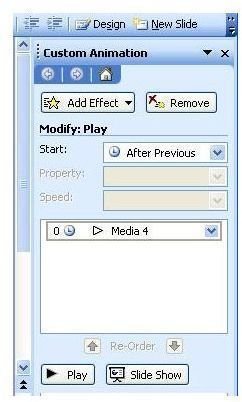
Click on the drop-down arrow in the “Media 4” box (the name on your screen may be different) and choose “Effect Options…” from the options that appear. This brings up the following:
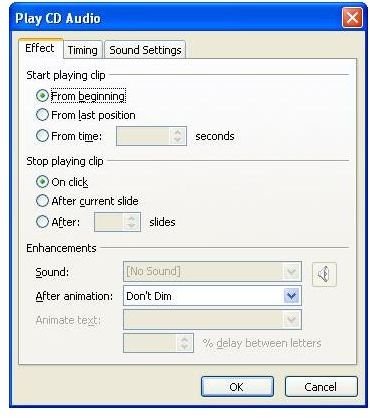
Click on the “Effect” tab if it is not already selected. Now we see the reason why the music stopped when we clicked the mouse to go to the next slide. Here it says “Stop playing clip On click”.
Suppose your presentation has 10 slides. Select the radio button next to “After” and use the “up” arrow so that the box reads “10”. (You could also type ‘10’ in the box.)

Now the music will stop after 10 slides – the end of the presentation.
Note: if the presentation is longer than the length of the music chosen, the music will stop before the presentation ends. If you want the music to continue, you can either choose more music or select “Loop until stopped” (see above).
In our next article, we will explain how to use the music stored in a file (for example, an MP3 file) in your presentation.
Interested in more tips and tricks? Be sure to take a look at the other PowerPoint user guides and tutorials found here on Bright Hub’s Windows Channel.
This post is part of the series: How To Add Audio To PowerPoint 2000/2003 Presentations
Ever wondered how to get your presentations to talk and sing? Welcome to a series of articles on how to add “audio” (music or speech) to your presentations. These articles are designed primarily for those who use PowerPoint 2000/2003 but the principles are all applicable to other versions.
- Getting Started With PowerPoint 2003 Audio
- Adding CD Audio to PowerPoint 2000/2003 Presentations
- Adding File Audio to PowerPoint 2000/2003 Presentations
- How to ‘Voice’ Your PowerPoint Slides with a Recording
- Play Voice Recordings Automatically and Across Slides in PowerPoint
- How To Create A Self-Running Presentation in PowerPoint 2000/2003
- How To Control When Elements Appear In PowerPoint 2000/2003


