Not interested in receiving automatic updates for your operating system? Wondering how to turn them off? For further instructions, read on.
Listed below is a step-by-step process to disable automatic updates for Windows XP. Keep in mind that any changes you make are not permanent. In the future if you decide to re-activate automatic updates, you can do so.
Click on any of the images to open them in a new window.
Step 1
To make this process easier, it’s best if you minimize or close inactive programs before doing this. That way, you won’t have other windows interfering with you while you’re trying to make these changes.
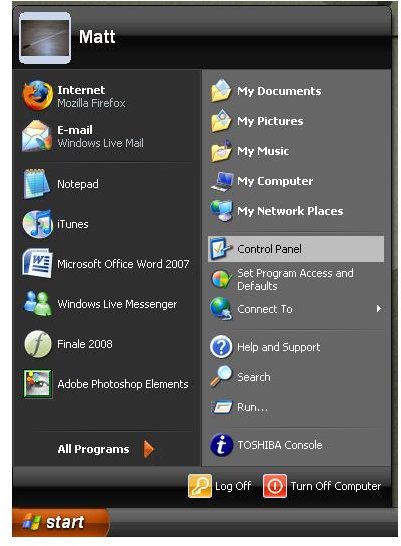
First, you’ll need to access the Control Panel. It’s found in the “Start” menu.
Step 2
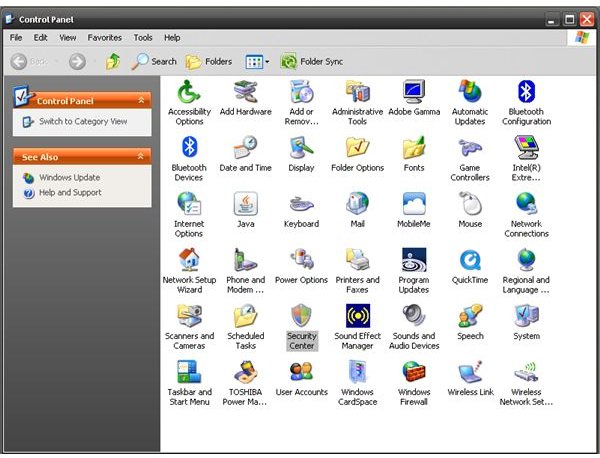
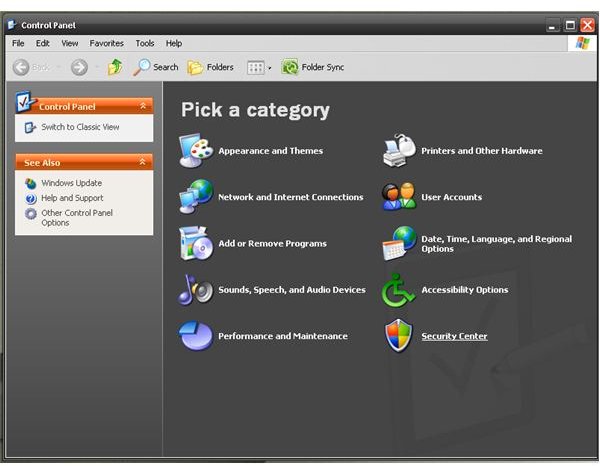
In your Control Panel, depending whether or not you have options listed as “Category” or “Classic” view, the option you want – “Security Center” – can be found instantly at the bottom. This is where you have to go so you can change your automatic update settings.
Step 3
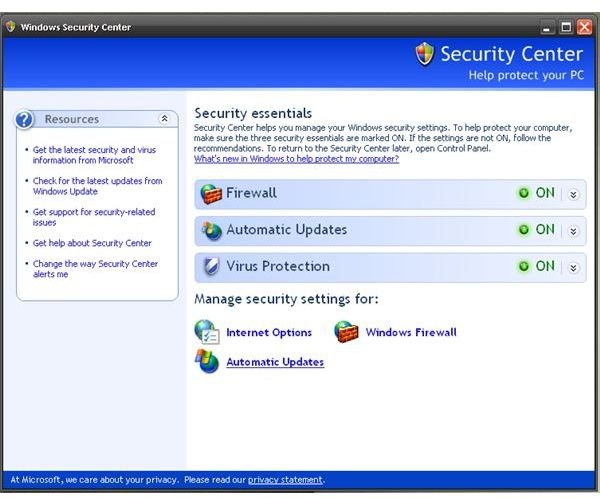
You’ll see a list of options for firewall and anti-virus settings. You don’t need to worry about these settings. Instead, on the bottom of the window you’ll see the option “Automatic Updates”. Click on this. There is a bar in the center of the window that also says, “Automatic Updates,” but from here you won’t be able to change your settings. Be sure to choose the option towards the bottom of the window.
Step 4
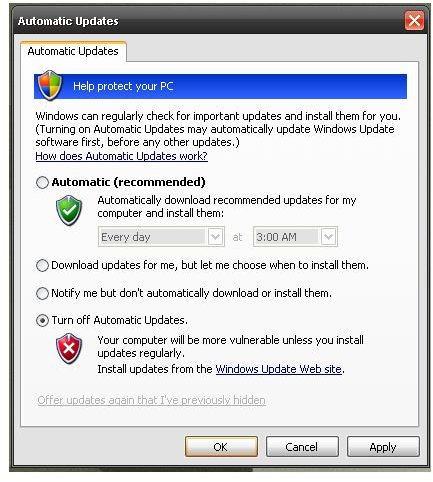
In this window, you’ll see “Automatic” by default. There are other options to choose, but since you want to turn off automatic updates, choose the option that says “Turn off automatic updates.” You’ll also notice that Microsoft provides you with a link that you can direct your web browser to. In the future, if you want to check for updates on your own, you can return to this window to get the link.
Alternatively, if you want to check for automatic updates on your own, click on “Start” and go to “All Programs.” Among the list of programs, you’ll see “Windows Update” near the top of selectable programs.
If you ever choose to turn automatic updates back on, just follow the same steps mentioned above, and re-select “Automatic”.
That’s it! You’re done!


