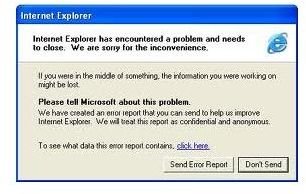
Are your web browsers such as Internet Explorer and Mozilla Firefox constantly crashing? This article will help you troubleshoot these problems.
Introduction
The honeymoon is over. The browser you were so happy to install when it came out is now slow. It freezes up sometimes, and other times it simply closes with no explanation. What happened to the pristine Internet Explorer and Firefox? Why are they crashing? Let’s consider some possible reasons and how to remedy them.
Causes
Both Firefox and Internet Explorer have proven to be reliable browsers. There are a number of problems that cause them to crash when you expect it least. It’s not hard to troubleshoot them, but be prepared to lose some ‘features’ that you might be used to. Toolbars, extensions, malware, and other influences can make the most stable and reliable browser to come to a halt unexpectedly.
The number one cause of crashes for either browser is extra add-ons that are not required. Perhaps you installed a piece of software and it wanted to add a toolbar to your browser. You may have skipped right past the option to not install the toolbar. As a result a toolbar gets installed that you don’t need and didn’t really want. Sometimes numerous toolbars can be installed at once. I once witnessed an installation of Internet Explorer that had so many toolbars that it was not possible to even see the web page!
Another consideration are the various add-ons and extensions. Add-ons and extensions are not the same as a tool bar. The Adobe Flash player, Java, VLC media player, and many other programs add extensions to your browser. These are extra programs that run inside of your browser. For example, most antivirus programs install a feature in your browser (an add-on or extension) that allows your browser to have some sort of built in virus protection. Other add-ons may make it easier to go to your favorite Facebook or Zynga game.
Last but not least, there are plenty of malicious software (malware) out there that will sneak in and mess up your browser fairly well.
Solutions

Thankfully both Internet Explorer and Mozilla Firefox have fixes for instability and crashes. But before you get too far, let’s make sure that you have the latest version of Internet Explorer and Mozilla Firefox.
In Internet Explorer, go to the Help menu and click on “About Internet Explorer.” If you don’t have a menu bar, click on the question mark just to the right of “tools” and then click “About Internet Explorer”. At the time of this writing, the latest version is 8. You can also go to Windows Update and make sure that there are no updates available.
Firefox generally updates itself within versions, but you could be running a very old version. Click on “Help” and then “About Mozilla Firefox” and make sure that the version you have matches the latest version available at https://www.getfirefox.com . If not, download and install the latest version.
Lastly, you can reset the browsers to their default states. In Internet Explorer, go to Tools, Internet Options, Advanced, and then click “Reset” and “Reset” again. That will reset IE to its default state without any extra addons. Your preferences and personal data will be retained.
For Firefox go to your start menu in Windows XP, or just click Start in Vista and 7. In XP, click on “run” and then type in “firefox -safe-mode” and press enter. In Vista and 7, just type “firefox -safe-mode” and press Enter. Select the option “Reset all Preferences to Firefox defaults” and then click “make changes and restart”. Done!
Conclusion
Hopefully this article has enlightened you as to how you can help fix Firefox and Internet Explorer. Here are a couple of links that will help you with more advanced troubleshooting:
For Firefox:
https://support.mozilla.com/en-US/kb/firefox+crashes
For Internet Explorer:
https://support.microsoft.com/gp/pc_ie_intro
Those sites will take you through more steps than this article has room for. And remember, if your problem has a specific error messages, use Google to do a search for the exact wording in the crash message. Often it’ll help you find a specific fix that won’t require resetting the whole browser to its default settings.


