Seeking information on Microsoft Office Document Imaging OCR? You’ve reached the right place. In this article you will learn how to use Microsoft Document Imaging to extract text from digital copies & send that text to Word for editing. Continue reading about Microsoft Document Imaging OCR Guide…
Using Microsoft Document Imaging For OCR
Microsoft Document Imaging comes bundled with Microsoft Office 2007. It is not included in Office 2010, but can be downloaded. For more information on downloading it to your computer see the Microsoft site: https://support.microsoft.com/kb/982760 . MODI lets you perform optical character recognition (OCR) on your documents. There are many scenarios when you might want to perform OCR on your documents. For instance, you may want to scan text from faxes and copy it onto your PC, scan documents for archiving or extract text from a tiff image.
Microsoft Office 2010 OCR is a very easy-to-use feature for turning your documents, such as faxes, time sheets, tax documents, handwritten notes, etc. into digital form and then extracting text from them. So, how would you use this program to perform OCR on your documents, and how can you edit the recognized text? Well, anyone who has basic computer skills can perform OCR in Office 2010 and edit the recognized text.
OCR Office 2010
To perform OCR on your documents with Document Imaging, here are the steps you will need to take:
-
Place your document in your scanner
Advertisement -
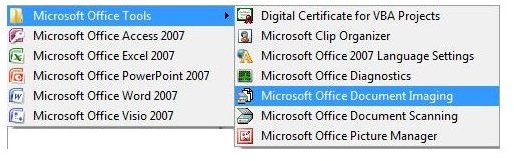
Launch the Document Imaging program. You’ll find the program in Start -> All Programs -> Microsoft Office Tools
-
Open the File menu and click on Scan New Document.
Advertisement -
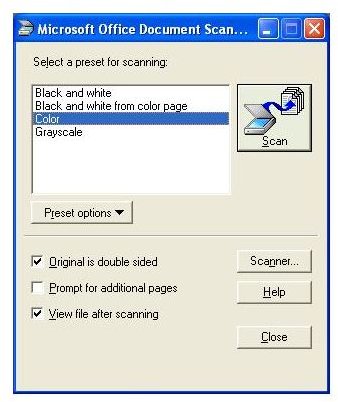
In the dialog window that opens, select your preset for scanning and then click the Scan button. Document Imaging will now scan your document and show it in the main window
- When the scanner finishes scanning your document, the digital copy of your document will appear in the program’s window. Click the Send Text to Word button on the toolbar to perform OCR on that document. Once you click this button, in a short while, the text will be extracted from the scanned document. Microsoft Word will open, showing the extracted text from your original document.
Troubleshooting Office 2010 OCR
You will notice that the recognized text likely contains some errors and scrambled characters that correspond to the graphics in the scanned image. Now you can use Microsoft Word’s features to make corrections, delete the scrambled characters or to format the text, as required.
If you find that the recognized text contains too many errors, however, there is not much you can do about that You can try changing the preset setting for scanning, i.e. Black and white, Color, Black and white from color page or Grayscale (available from File menu -> Scan New Document) and then again perform OCR on your document. Running OCR with the most appropriate settings gives the optimal results to the ability of the software to perform OCR.
If you are still not satisfied with the quality of the recognized text after changing these settings, you may wish to try a number of other OCR solutions like Abbyy FineReader Pro . If you are a Mac user, find a list of Mac compatible OCR software here .
References
Gross, Tricia, “Microsoft Office Document Imaging Troubleshooting”. Tricia Gross Aug 18, 2009
Images Credit: screenshots provided by author


