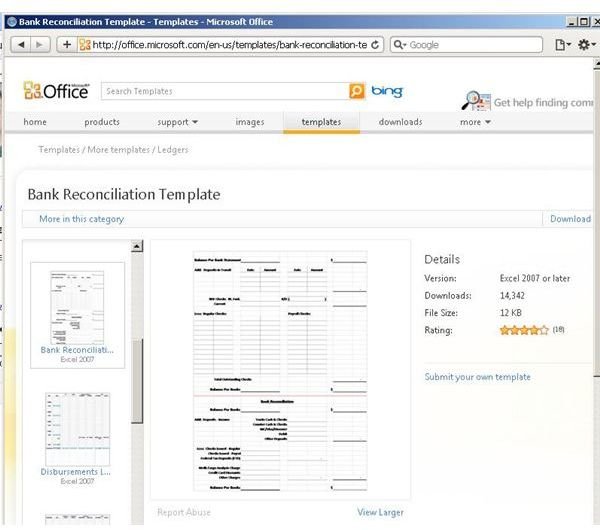
A Microsoft Excel reconciliation template makes it easy for you to reconcile your bank statements. Below you can learn how to find and use a Microsoft Excel reconciliation template for your personal or business use.
Getting Started with the Microsoft Excel Reconciliation Template
Before you get started with this Microsoft Excel tutorial, you will need to have Microsoft Excel installed on a computer that meets the minimum system requirements for the program. This process assumes the use of Excel 2007 or later, a requirement for the Microsoft Excel reconciliation template demonstrated here.
Download the Microsoft Excel Reconciliation Template
To get your free Microsoft Excel reconciliation template, visit the Microsoft Office template download site.
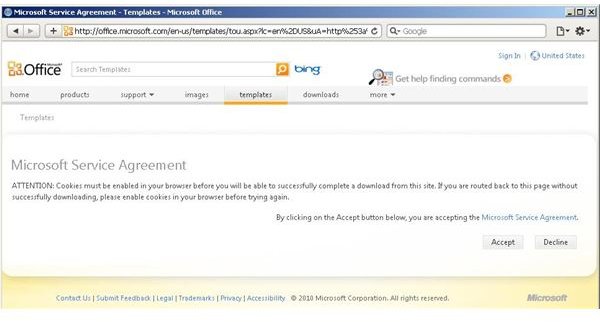
On the next page, accept the license agreement by clicking the Accept button.
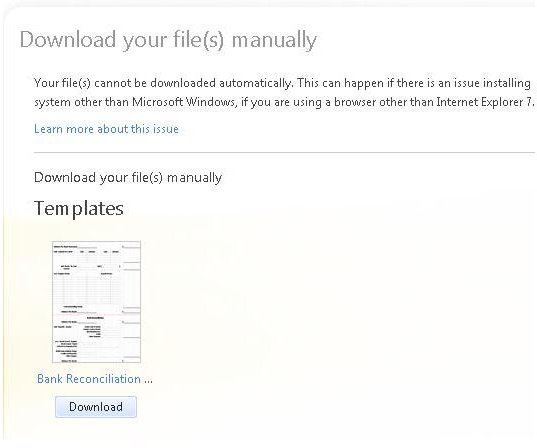
If you are using a non-Microsoft browser, the download may not start automatically. In such a case, click the Download button.
When your download starts you probably will have the chance to open / run the file (it will open in Microsoft Excel) or save it. You may want to save the file to make sure you know where it resides on your computer, but it’s OK to open / run it if you want to.
Using the Microsoft Excel Reconciliation Template
Now that you have downloaded the Microsoft Excel reconciliation template, go ahead and double click on the file. This will launch Microsoft Excel with the reconciliation template opened as an unsaved document.
You may want to change the company name to match your company or personal name.
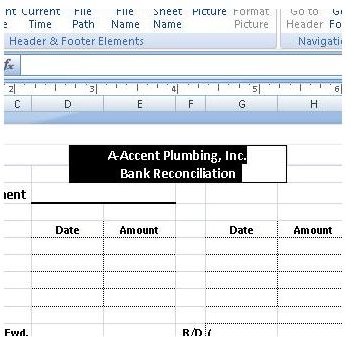
The rest of the template is straightforward. You enter your last statement balance and then type in any deposits and checks not cleared up to the time of your reconciliation. When that is done, you can fill out the daily reconciliation to account for the day’s business including checks issues, credit card charges, bank fees, etc. If the lower section of this template bothers you, you are in luck because there is another Microsoft Excel reconciliation template that you can try.
You can download another Microsoft Excel reconciliation template from Samplewords that may be a little simpler for you to use.
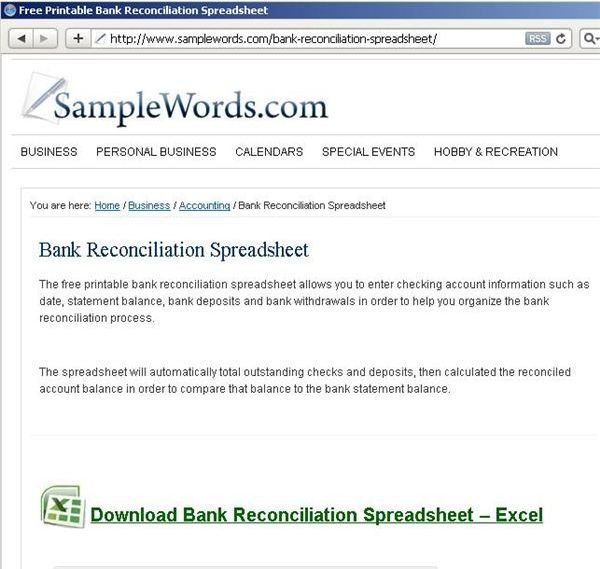
To use this reconciliation template, all you have to do is click the link to download. When the file opens it is in read only mode, so you will have to save the file to a new name when you get started.

The file works a lot like the first template you saw. You enter the month the reconciliation is for, and the date of your statement. After that, type in your statement ending balance.
After that, you enter the deposits made that do not appear on your statement or that have been made after the statement date. When that is complete, you list all the checks and other debits made to your account since that time. The Microsoft Excel reconciliation template will then automatically calculate your balance. You then compare that result with the balance in your register and make adjustments as necessary.
These Microsoft Excel reconciliation templates are two methods to help you get a handle on your finances.
Image Credits: Screenshots taken by Bruce Tyson


