Microsoft has removed the Quick Launch bar from Windows 7. In this tutorial, I will explain how you can get the Quick Launch bar back in your Windows 7 installation.
Quick Launch in Windows 7
If you have been using Windows 7, you must know that it doesn’t have the Quick Launch bar that was present in Windows XP and Windows Vista.
Quick Launch was used as a shortcut bar to quickly launch applications using their shortcuts. It was placed just next to the Start Menu on the Windows Taskbar and was very handy. With Windows 7, Microsoft removed the Quick Launch bar and instead added a “Pin to Taskbar” option which allowed you to add shortcuts to the Taskbar. You could add shortcuts to the Taskbar by dragging the icon onto the Taskbar. However, whenever you open those applications, they are merged in those shortcuts with a different graphic. So it becomes confusing for some to know which applications are open and which are shortcuts.Changing your Windows 7 theme won’t get it back either.
If you want to get the Quick Launch bar back on your Taskbar, just follow this simple tutorial.
The Quick Launch bar is just a shortcut to a folder which is located at this path
C:\Users\[user-name]\AppData\Roaming\Microsoft\Internet Explorer\Quick Launch
All the shortcuts in that folder are placed as shortcuts in the Quick launch bar.
How to Get the Quick Launch Bar in Windows 7
Just right click on your taskbar and remove the tick on Lock the Taskbar.
Right click on the taskbar again, go to Toolbars and click on New Toolbar.
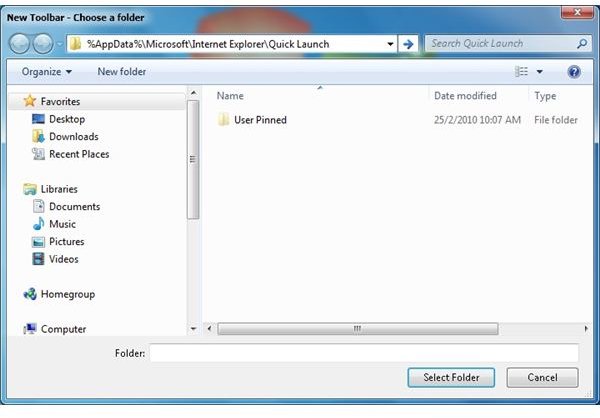
In the address bar on the top, copy this path
%AppData%\Microsoft\Internet Explorer\Quick Launch
The Quick Launch folder should open. Click on the Select Folder button.
You should see a new Quick Launch shortcut on the taskbar to the right. Drag it to the extreme left and limit its bounds by dragging the dotted lines too.
To remove the text, right click on the Quick Launch bar and deselect the Show Text and Show Title options. Also, go to View and select Small icons or Large icons, as you wish.
Also, drag the dotted lines to the right and give sufficient space to your Quick launch bar to display all the icons. You can also keep it on the right to avoid confusing it with the open applications.
After you are done, just right click on the open area of the Taskbar again and click on Lock the Taskbar to fix the positioning of your icons

You now have a Quick Launch bar on your Windows 7 PC. To add shortcuts to the Quick Launch bar, just drag them on the bar and place a shortcut. You could also copy a shortcut to the path mentioned above - %AppData%\Microsoft\Internet Explorer\Quick Launch.
To remove the Quick Launch bar from the taskbar, right click on the taskbar, go to Toolbars and remove the tick on the Quick Launch option. If you want to get the Quick Launch bar again, you will have to redo the whole procedure.


