A multiuser, networked implementation of a Microsoft Access database can become challenging when you need to find out who entered particular data. By creating a Microsoft Access network name function, you can get this information easily and enter it automatically into an edited record.
Creating a Function in Microsoft Access
To find a way to implement a Microsoft Access get network user full name update, you will have to create a function that will capture the variable. The function can then be called whenever you need to check the network user ID of the current Microsoft Access user. this Microsoft Acccess tutorial assumes a basic knowledge of Microsoft Access.
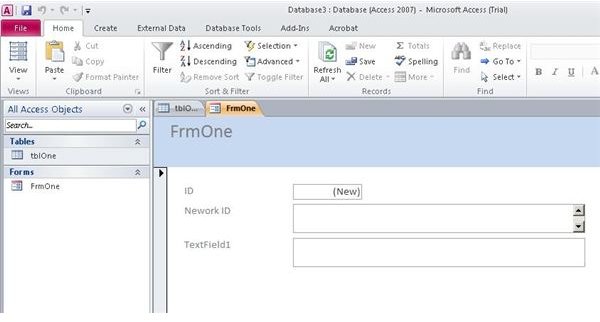
In a sample Microsoft Access database, create a table, tblOne, with text fields of “Network ID” and “TextField1.” Use the Microsoft Access Form Wizard to quickly create a form that includes these fields. Your database should now look like the image below.
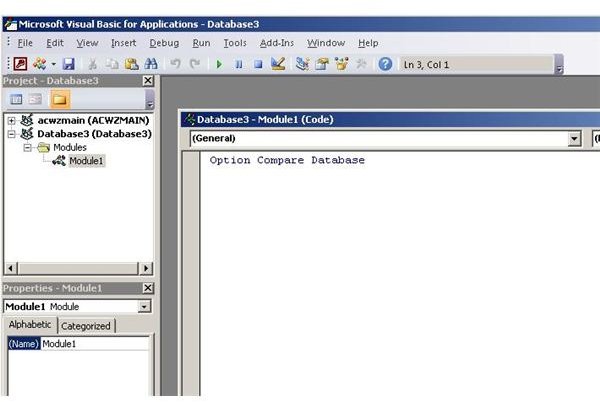
Now, click on the “Create” menu on the ribbon and choose the “Module” option. You will see a Visual Basic window open where you can enter code. This is where we will create the function that will capture a the network login name of the user entering data.
Enter in the following code. This code was originally written by Dev Ashish and can be found on a post at mvps.org. According to the licensing terms, you are free to use this code as part of an application as long as you leave intact the code attributing the creation of this function to him.
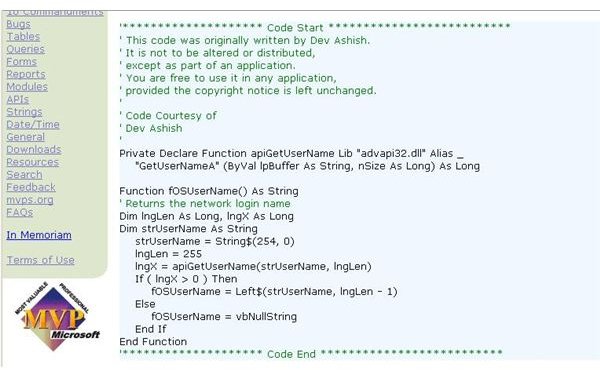
Type the code from Dev Ashish into your module and save it as “Module1.” Close Module1.
Image Credits: Screenshots taken by Bruce Tyson.
Modify Your Form to Change Default Value
Now that you have created the function that will capture the network ID of an Access user, you can modify your form to accept this data automatically whenever the data on the form is modified.
1. Open your form (FrmOne) in “Design View.” You will need to change the default value of your “NetworkID” field in order to record who created the record.
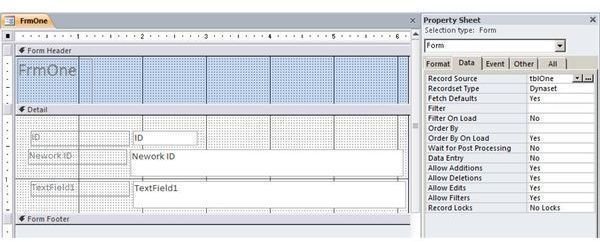
2. Select the “Network ID” text field control. In the “Defaut Value” field of the “Property Sheet,” enter “=fOSUserName().” This makes the network ID of the user populate the field when the form is edited.
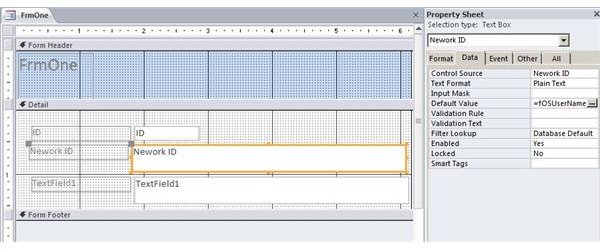
3. Right click on the “frmOne” tab and select “Save.” Right click on the “FrmOne” tab again and choose “Form View.” You will see the network user ID of the current user (you) appear in the “Network ID” field. This forever establishes you as the one who entered the data on the form.
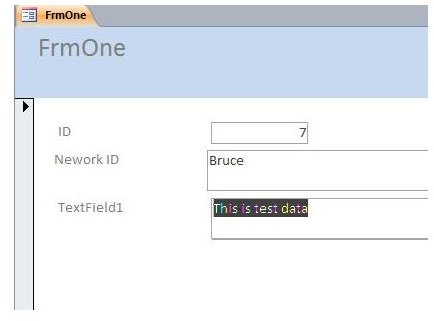
If you wish, you can use the form property sheet to update the “NetworkID” field every time the data on the form is updated.
You now know that creating a Microsoft Access get network user full name function is quite easy and can prove to be an amazingly valuable tool in helping you track down who is responsible for entering and editing the data in Microsoft Access databases.
Image Credits: Screenshots taken by Bruce Tyson.
References
The Access Web. “API: Get Login name”, https://access.mvps.org/access/api/api0008.htm


