Ever had problems with old software or drivers? Wondered what this Windows 7 compatibility mode was all about? Read on to find out.
Introduction
Before talking about compatibility, you should know that most programs originally written for XP or Vista, will also work on Windows 7. However, some specific programs or drivers might indeed have some compatibility issues with the new operating system. The most problematic applications are often the ones dating all the way back to Windows 98 or Windows 95, but now they have the opportunity to work in Windows 7.
There are two things we’re going to discuss - Executables Compatibility Properties and the Program Compatibility Assistant.
Running Programs in Compatibility Mode
Every application can be run in a specific compatibility mode. You can adjust those settings from the program’s shortcut or from the executables themself. I would suggest to apply those settings to shortcuts so that you can avoid messing something up later on.
Step 1: Right click a program shortcut or executable, then choose properties from the context menu.
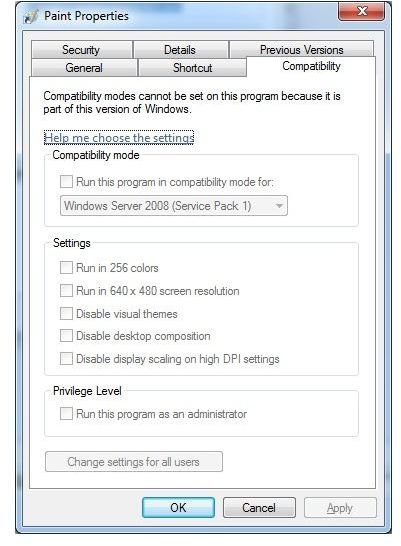
Step 2: After the properties dialog appears, navigate to the Compatibility tab.
As you can see we have some options here and you never know which one is going to work best for you. For this reason we will take a closer look in them and hopefully helping you choose the proper settings.
Compatibility Mode: A combo box which allows you to run the application using settings from a previous version of Windows. This is the main setting to work and experiment with when having compatibility issues.
Run in 256 colors: Because of the fact that some old programs are designed to use very few colors, this option helps you run them with a limited set of colors.
Run in 640x480 Screen Resolution: This option runs the program in a small-sized window, specifically 640 pixels width and 480 pixels height.
Disable Visual Themes: Disables specific theme options on the programs, useful if you have interface issues with some application.
Disable Desktop Composition: Turns off transparency and other display features, might sometimes help with display problems.
Disable Display DPI Scaling: Turns off the automatic resizing of programs if you have customized the font size. Use this setting if somehow the larger fonts are interfering with the program appearance.
Keep in mind that MSI Files are not capable of running in a manually selected compatibility mode. The operating system will automatically choose the best options to run the program with.
Additionally, you can change the compatibility settings for all users on a single computer by pressing the “Change settings for all users” button. If you plan to do this, be sure you press the button first because it has a completely separate dialog window and it will not import any settings from the main compatibility window.
Program Compatibility Assistant
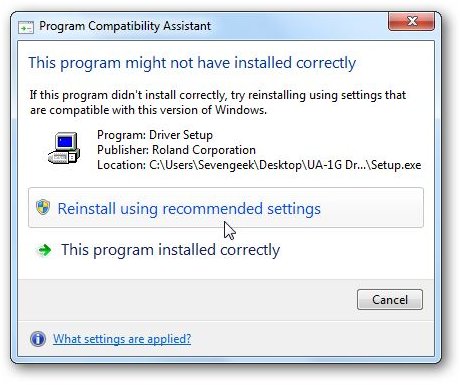
The Program Compatibility Assistant is one of the features in the whole “Compatibility Packet” that automatically detects known compatibility issues in older programs. Microsoft seems to have a large database with known compatibility issues and they often provide you with a solution, especially when the problem is serious and Windows is blocking this application from running.
It will also detect problems with drivers and suggest you reinstall them using recommended settings.
In addition to this feature there is also the Program Compatibility Troubleshooter which comes handy in the times where you just have no idea why the program is causing you problems. Windows will then eventually identify the problem and try to run it with the recommended settings or navigate you through a troubleshooting wizard where you can specify what exact problems you experience.


