Are you struggling with Outlook running at 100% CPU? Read on and this guide will help you get Outlook running smoothly again.
Outlook Running at 100% CPU Usage
There are many reasons why Microsoft Outlook could be running at 100% CPU. This can be a frustrating problem as it can cause Outlook to run very slow. Listed below are some of the reasons why Outlook could be running at 100% CPU and the fixes for each.
Outlook Add-Ins
Sometimes Microsoft Outlook add-ins can cause problems with the CPU running at 100%. Let’s look and see what add-ins you have running.
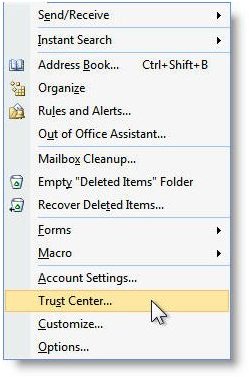
Open Microsoft Outlook and click on Tools and then Trust Center.
On the left of the screen look for Add-ins and click on it. Next click Comm Add-ins from the drop-down list and select Go.
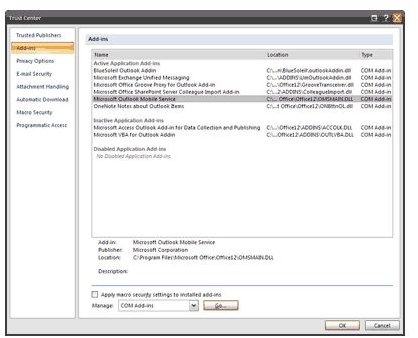
You will see a list of add-ins that you have installed. Go through this list and uncheck the add-ins that you don’t need. You may or may not see add-ins such as Google Desktop, iTunes Add-in, Acrobat PDF Maker, etc. that you no longer use.
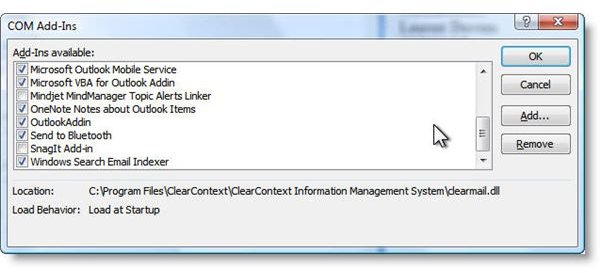
The following add-ins are installed when you install Microsoft Outlook and should not be disabled.
- Microsoft Access Outlook Add-in for Data Collection and Publishing
- Microsoft Exchange Unified Messaging
- Microsoft Office Groove Proxy for Outlook Add-in
- Microsoft Office SharePoint Server Colleague Import Add-in
- Microsoft Office Outlook Mobile Service
- Microsoft VBA for Outlook Add-in
- OneNote Notes about Outlook Items
- Windows Search E-mail Indexer
Disable RSS Feeds
When you install Microsoft Outlook 2007 it automatically installs RSS feeds. These RSS feeds can cause Outlook to run at 100% CPU and it’s best to remove them if you don’t use them. These RSS Feeds can slow down Outlook because they constantly synchronize with the Web.
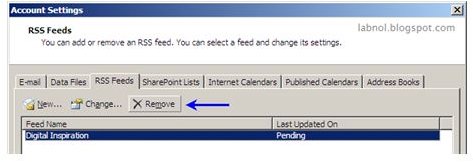
Open Outlook and click on Tools and Account Settings. Next click on RSS Feeds. Select the RSS Feeds you don’t use and click on the Remove button.
Reduce the Size of the Outlook Personal Folder
The PST file can get very large because every time you delete an email in Outlook it moves to the Deleted Items folder. When people empty the Deleted Items folder it seems the messages are gone. They are gone from this folder but they are still in the PST file. If you have emptied out the Deleted Items folder a lot or moved a lot of email to it such as spam, etc. then it’s time to reduce the size.
Open Outlook and Click on File then Data File Management. Choose the correct PST file and click Settings. Click Compact Now to reduce the size of the file.
Archiving emails is something that is good to do on a periodic basis. This article gives you a lot of information.
https://www.brighthub.com/office/home/articles/10550.aspx
Uninstall Applications
If you have applications that you don’t need running on your computer that use Outlook it can be part of the cause of the 100% CPU usage. One example is Apple Mobile Device Support. If you have an iPod or an iPod Touch, etc. this application downloads to your computer. It Syncs your iPod calendar or emails with Outlook. If you don’t use it then remove it. Do this with any other programs you don’t need if it uses Outlook.


