Windows 7 features the best onboard firewall tool to date, offering a comprehensive set of options and even advanced settings that can be customized to tailor the behaviour of applications and ports.
Using the Windows 7 Firewall
Windows 7 features an enhanced version of the Windows Firewall, offering protection from Internet based threats by assigning rules to inbound and outbound traffic.
As with any firewall, it is only as good as the instructions that it is given – as a result, Microsoft has equipped the Windows 7 firewall with several degrees of control, depending on your ability as a user.
The majority of Windows 7 firewall rules are setup automatically by the operating system by asking the user one or two questions. A low-level, manual change can be made to the firewall quite easily, while in very specific and unusual situations advanced alterations can be made.
The Purpose of Windows Firewall
The Windows 7 firewall comes as part of the operating system, and is designed to protect you and your computer from online threats. Whether these come as part of a webpage, via standard online communication between your PC and the ISP or via software that you have installed, the latest Windows Firewall is capable of neutralising these threats by imposing a set of rules and conditions upon inbound and outbound traffic.
As the firewall is reasonably intelligent, the majority of rules are setup automatically based upon the selected profile describing your network and the software you have installed, although it can launch wizards to gain further information from the user.
Configuring Windows 7 Firewall Rules
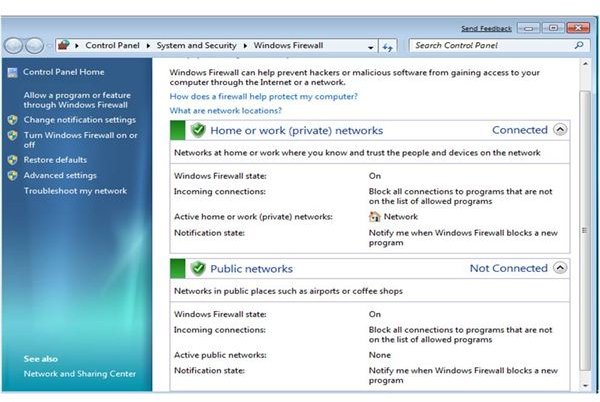
Windows 7 Firewall rules can be configured easily via the Control Panel. To get started, go to Start > Control Panel > System and Security > Windows Firewall.
In the next screen, you will see the current configuration of the Windows Firewall. On the left pane, the following are listed:
• Allow a program or feature through Windows Firewall – configure the firewall to allow connections to the rest of your network or the Internet by a specific program
• Change notification settings – alter how Windows 7 firewall alerts you to problems
• Turn Windows Firewall on or off
• Restore defaults – reset Windows Firewall
• Advanced Settings – setup complex firewall rules
Each of these can be used to configure how the Windows Firewall behaves in a various situations. For instance, the Advanced Settings screen can be used to set Inbound Rules and Outbound Rules.These are usually configured automatically, but by using the Advanced Settings screen Windows 7 firewall rules can be manually setup.
Creating a Windows 7 Firewall Rule
Using the Advanced Settings option, new rules can be set for both inbound and outbound traffic.
Rules can be created via the Actions pane on the right, or the Action > New Rule… menu item.
When creating a new rule, you must first specify whether the rule is for a Program or a specific Port on your computer and whether it is a Predefined rule or a Custom rule.
Whichever one of these you choose, a further set of choices needs to be made, depending on the type of rule you create. All rules require an Action to be configured, which will involve instructing Windows 7 firewall to allow or block a connection depending on a set of conditions.
It can be potentially devastating to your PC’s online connectivity to use the Advanced Settings in Windows Firewall – as such, don’t use this option unless you are familiar with what you are doing.


