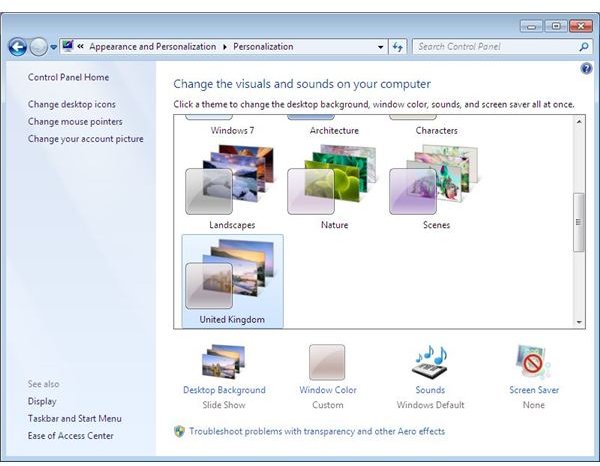
Windows 7 Aero themes are usually greyed out due to insufficient hardware - you might be using a system with low RAM or a video card that simply isn’t powerful enough. Alternatively your PC might be suitably equipped - this guide explains how to force enable Aero themes in Windows 7.
Aero Themes Explained
Windows 7 boasts a new version of the Aero system introduced in Windows Vista which offers the user a slick and graphics intensive user interface which can be switched on or off.
Aero is also scalable, which means various elements are enabled or disabled based on the system spec of the PC or laptop.
Among the cool enhancements Aero offers are Windows 7 themes – greyed out themes usually indicate that the host PC or laptop isn’t up to the task of running Windows 7 with Aero active.
If you’re experiencing problems with Aero running as intended under Windows 7, you should first of all take a look at your PC or laptop system specs.
Reasons Why Windows 7 Aero Themes Greyed Out
To begin troubleshooting Windows 7, consider the following:
- Is your graphic card DirectX 8 or lower?
- Is your graphic card equipped with less than 128 MB RAM?
- Is there less than 1GB RAM installed in your PC or laptop?
- Does you PC CPU run at under 1GHz?
- Are you running Windows 7 Home Basic?
- Is your motherboard equipped with an Intel 910 or 915 chipset?
By answering yes to any of the above, you can establish that your PC is not equipped to run Aero. If however you have answered no to all of the above, the first thing you should do is check with your GFX card manufacturer for up to date drivers.
If after installing the updated driver your themes are still greyed out, a problem with the Windows Display Driver Model (WDDM) might be the cause.
Windows Display Driver Model
To resolve issues with the Windows Display Driver Model, Windows 7 features a useful wizard that can help to determine the cause.
Go to Start > Control Panel > System and Security > Find and Fix Problems. From here, choose Display Aero desktop effects. The wizard will then run through several steps that should fix the Aero themes.
If this fails to work, there is one other useful method that can force Aero to run. This would most commonly be done if your graphics hardware is up to the job but doesn’t specifically support WDDM.
To force Aero to work correctly, go to Start > and type notepad. In the resulting Notepad window, paste the following:
Windows Registry Editor Version 5.00
[HKEY_CURRENT_USER\Software\Microsoft\Windows\DWM]
“UseMachineCheck”=dword:00000000
“Blur”=dword:00000000
“Animations”=dword:00000000
Save the file as aeroforce.reg and double click the icon to add the details within to the Windows 7 system registry.
By doing this, you have altered how the Windows system registry handles commands to use the Aero system - as long as your PC or laptop has the necessary hardware, Aero themes should now be available to you!


