You can remove almost everything from your Windows Desktop by right-clicking the item and choosing Delete. But is it OK to use this method to remove My Documents, Network, Control Panel, folders you’ve created on the desktop, and other icons?
Cleaning the Desktop
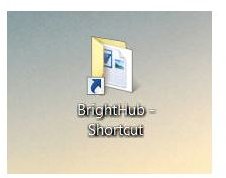
Removing shortcuts from the Desktop is as easy as right-clicking and choosing Delete. They just go away; no harm done. You can tell an item is a shortcut if it has a little arrow beside it, as shown here. [See Image 1]
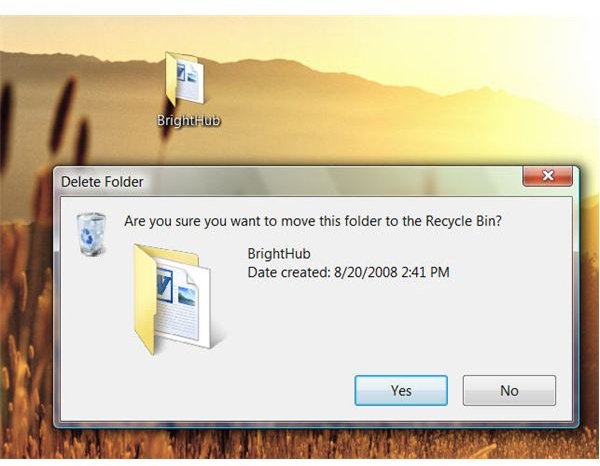
You can also right-click and delete default folders like My Documents, My Network Places, My Computer, and Internet Explorer in Windows XP, and Documents, Network, and Computer in Windows Vista. Even though these aren’t technically shortcuts, they’ll be safely removed and their contents won’t be deleted and moved to the Recycle Bin. However, if you want to remove a folder that you created on the Desktop and the folder is not a shortcut to another folder, you have to be more careful. If you delete a folder you’ve created on the Desktop, its contents will be deleted as well. [See Image 2]
Therefore, if you have created a folder on the Desktop and added data to it and you later decide that you don’t want it on the Desktop anymore, your best bet is to drag and drop the file to another area. You can drag it to the My Documents (or Documents) folder, to somewhere in Windows Explorer, to a separate hard disk, or even to a network drive. Dragging and dropping moves the file from the Desktop without deleting its contents.
Run the Desktop Cleanup Wizard
Once the Desktop is nice and neat and everything is organized just the way you want it, configure the Desktop Cleanup Wizard to run every 60 days so that you can avoid some of the major pitfalls in keeping your Desktop clean. The Desktop Cleanup Wizard scans the shortcuts on your desktop and determines if they’ve been used in the past 60 days or if they haven’t. If they haven’t, you’ll be prompted to let Windows safely remove them.
To run the Desktop Cleanup Wizard and to configure it to run automatically every 60 days, follow these steps:
- Right-click an empty area of the Desktop (by now that should be easy), and click Properties.
-
Click the Desktop tab and click Customize Desktop.
Advertisement -
Verify that Run Desktop Cleanup Wizard Every 60 Days is checked.
-
To run the wizard now, click Clean Desktop Now.
Advertisement
Images