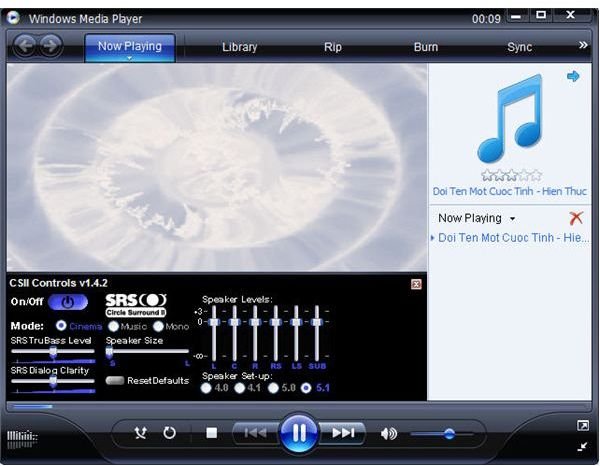
Windows Media Player is not flawless. Some may even argue it is not the best choice for playing media files. If you can’t play videos in Windows, chances are, it is a problem with Windows Media Player. Here are some fixes and alternatives to get your videos going again.
Why it Happens
Sending and receiving media files through the web requires some compression in order to keep bandwidth to a minimum. Media files are compressed into several different formats and most often than not, kept like that after they reach their destinations.
That is when your problem occurs. A very small amount of media files out there speak Windows Media Player’s native languages, WMV (Windows Media Videos) and WMA (Windows Media Audio) file extensions.
Windows Media Player will play most common media formats, such as MP3, WAV and AVI (perhaps a few others depending on the version of your Windows operating system). However, even for media files under the AVI file extension there are many exceptions. AVI files can be compressed using different codecs. Some of these are DivX or XVID, and depending on the parameters used to compress the media file, an unlimited amount of variations can result.
That means that because of Windows Media Player’s limitations you can’t play videos in Windows.
Supplying the Codecs
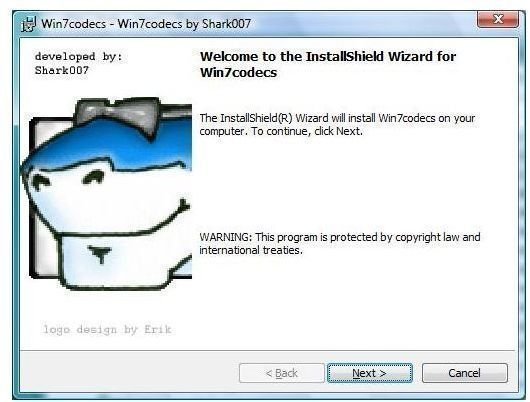
Fortunately, what Windows Media Player lacks in resources, it makes up in flexibility. Since Windows Media Player is natively incorporated into the Windows operating system, it will search for the necessary codecs for each media file it is attempting to play in the same location where other media players store their codecs.
This allows the patching of Windows Media Player to make into a super “play-it-all” media player, given you give it enough “juice.”
The way you do this is not by installing every single media player known to man (although that could work … if you have a lot of time to waste), but by working smart.
Download and install Codec Bundles that will pretty much take care of all the hard work for you with only a few clicks.
Here are two great choices:
Shark007’s FREE Codec solutions
And
Simply download and install them. Yes, it is that easy.
Top 3 Best Alternatives to Windows Media Player
-
**
 Advertisement
**VLC Player : Hands down the number one solution for Windows Media Player’s tantrums. The quality and reliability of this robust media player almost makes you forget about its handsome Microsoft competitor. Sure it does not have all the bells and whistles you may be accustomed to, but it will get the job done with no complaints… AT ALL.
-
KMPlayer: A good marriage between reliability and features. If you cannot see yourself too far away from Windows Media Player’s “pretty” features, this would probably not make you feel too bad. It is highly customizable and will allow you to associate those media files you ARE able to play with Windows Media Player so that it only rises to action if necessary.
Advertisement -
Media Player Classic: It belonged to Microsoft, until Gabest decided to maintain it and make it open source (free). It plays the vast majority of media files and enchants you with its charming simplicity… Perhaps it is the feeling of longing for when playing a movie was so much easier.


