Although cookies are usually harmless text files, some people prefer to clear out their Internet Explorer 8 cookies to maximize privacy. Learn how to clear IE8’s cookies both manually and automatically.
Since they first made their appearance on the web, cookies have always had an air of controversy surrounding them. At first, they were taken for viruses and other malware but actually, cookies are nothing more than text files that cannot be executed like a program or macro.
Whether you want maximum privacy or you just want to clean up your hard drive, there are two ways to clear cookies from Internet Explorer 8 (IE8) . Manually clearing cookies allows you to choose when the cookies on your computer are deleted. Setting IE8 to automatically delete cookies when the program closes is the best way to ensure privacy without your intervention.
Clear IE8’s Cookies Manually
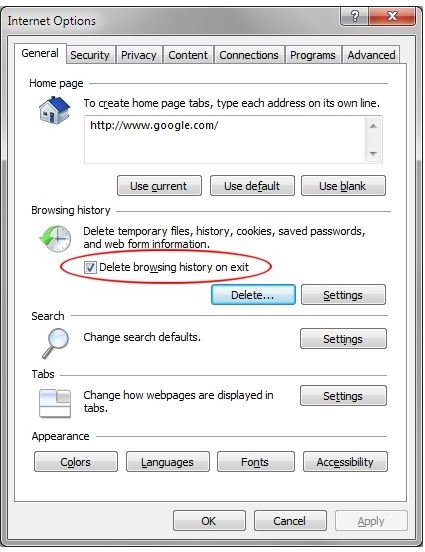
If you just want to occasionally clear cookies in IE8, begin by opening up the program and clicking on Tools and then Internet Options. Click on the General tab if it is not already selected and locate the area of the window labeled Browsing History.
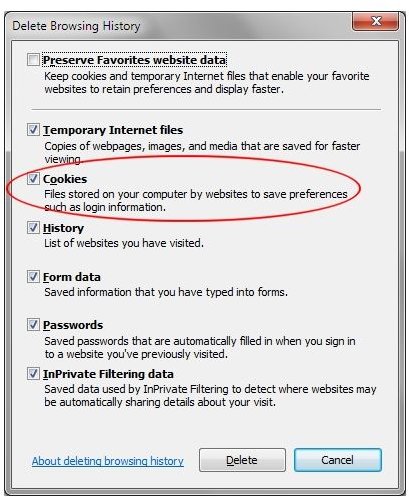
Click on the button titled Delete and you will open the Delete Browsing History window. Place a check mark next to the option titled Cookies and click the Delete button. It may take IE8 a while to delete your cookies if you have a lot of them stored on your hard drive. If you haven’t deleted them in a while and you do a lot of browsing, you could have thousands of cookies on your computer.
Clear IE8’s Cookies Automatically
For maximum privacy, you can set Internet Explorer 8 to delete cookies automatically whenever you close the browser. This means that websites will be allowed to save and you will be allowed to use cookies during your browsing session, but when the browser closes, IE8 will delete all cookies.
To set up automatic cookies deletion in IE8, begin by opening the program and clicking on Tools and then Internet Options. Click on the General tab and click the button labeled Delete under the Browsing History section.
In the Delete Browsing History window, select the option titled Cookies. As a personal preference, you may wish to select other options here . Click on the Delete button. Back on the Internet Options window, check the option labeled Delete Browsing History On Exit and click the OK button.
Close IE8 and then restart it up again. From now on, Internet Explorer 8 will clear all cookies from your computer whenever you close the application.
Conclusion
Although they’ve been around for a long time, there is still some controversy surrounding what cookies are and what they do to make our browsing experience more convenient. If you want to maximum privacy or you just want to clean up your hard drive, Internet Explorer 8 offers two ways to clear cookies from your computer. Whether you choose the manual or automatic method depends on your needs at the time. If you need more information, learn about the purpose of first- and third-party cookies and how they affect your browsing experience.


