If you find that Outlook 2007 is not responding, there are a few troubleshooting steps you can try to fix the problem…
Fixes To Try When Outlook 2007 is Not Responding
With so much information passing through it on a daily basis, it is little surprise that Outlook 2007 runs into problems from time to time. From emails to RSS feeds, calendars, tasks, notes, integration with Microsoft Word, and the potential of third party add-ins causing issues, Outlook is one of the busiest applications available for Windows.
As such, a variety of elements and influences can result in Outlook 2007 not responding.
Below are a couple possible fixes to this issue – for more on the matter of Outlook 2007 troubleshooting you might also find assistance in the article Troubleshooting Outlook - Outlook 2007 Won’t Open. Before continuing however, if you have Google Desktop installed, uninstall it and check to see if Outlook starts to works before trying any of the following.
Outlook 2007 not Responding? Try this First
If it seems that something is preventing Outlook from launching correctly, this “something” could well be a part of the application itself.
Preventing Outlook from checking certain files upon launch can help to fix this issue, and can be done relatively simply by renaming the files in question.
To do this, follow the file paths below.
(In Windows XP)
**
C:\Documents and Settings\[username]\Local Settings\Application Data\Microsoft\Outlook
(NB: [username] denotes the folder that matches the username used to sign in to the computer)
(In Windows Vista and 7)
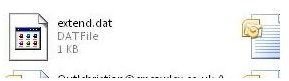
C:\Users\[username]\AppData\Local\Microsoft\Outlook\extend.dat
C:\Users\[username]\AppData\Local\Microsoft\forms\ FORMS\FRMCACHE.dat
Rename these files to extend.old and frmCache.old.
You might need to change your view in order to display hidden files and to show file extensions – In Windows Vista and 7 this can be found in Windows Explorer > Organize > Folder and search options > View – from here select the Show hidden files, folders, and drives button and clear the checkbox against Hide extensions for known file types.
In Windows XP, the same options can be accessed from Windows Explorer > Tools > Folder Options > View.
By preventing Outlook from checking these files, you should find that the application is now loading as expected.
Use Scanpst.exe
It is highly possible that a corrupt mailbox folder has resulted in Outlook 2007 not responding.
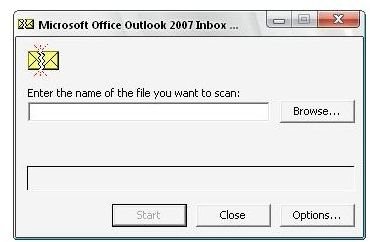
If you cannot open the Outlook window, you may need to scan the PST and OST files. Outlook features additional software to allow this – right-click on your Outlook desktop shortcut, select Properties and go to the Shortcut tab. From here, select Open File Location.
Typically, this would be the folder C:\Program Files\Microsoft Office\Office 12\ if you’re using Office 2007.
Next, look for scanpst.exe and scanost.exe. When you have found these utilities run each in turn – they will ask you the name of the file you wish to scan. You must browse for a “.pst” file type with scanpst.exe, and a file ending “.ost” for use with scanost.exe.
“File consistency” and other elements of the file will be scanned, and the tools will then offer to repair any errors found in the mail file. Once the files have been scanned and repaired, retry Office Outlook 2007.


