Utilzing JavaScript you can take advantage of a powerful scripting language and control Microsoft Word from your browser!
Append Documents with Javascript
Utilizing JavaScript is a great way to automate various tasks in Microsoft Office. For instance, JavaScript can be used to open a Word (.doc) document, add text to a document or even a combination of both.
This might be particularly useful when you have plans to allow document file creation from a webpage. You might intend to create a browser interface for some repetitive office tasks, or use a text input dialogue to enter the required text into a word document. The contents of the Word document can also be displayed in the browser.
This article explains how to use JavaScript to append to an existing Microsoft Word document.
With just a few lines of code, a plain text editor and a copy of Microsoft Word and Internet Explorer, this can be set up in minutes.
JavaScript Code for Opening and Editing Word Documents
To begin with, you will need the following code:
(Code via codetoad.com )
Using a plain text editor (for instance the Notepad tool that can be found in Windows) you can create the required HTML page by copying the code above and saving the file. Call it test.htm to begin with.
Don’t worry about the non-JavaScript phrases above – these are commented out with double slashes “//”. These comments explain what certain lines do.
For instance, the line w.Visible = true; can be set to true or false, and determines whether or not the Word document is opened. The default setting is “true”.
The line w.Selection.TypeText(“Hello world!”); can be altered should you choose – you can enter anything in the double quotes – you might change “Hello world!” to “Hello me!” or any number of alternatives. If you plan to add more text, note you will need to leave a space between the exclamation mark and the quotes (! “) in order for the output to look tidy.
Finally, open Microsoft Word and save a blank file as blank.doc. Once you have done this, close the file.
Running the File
The JavaScript is executed whenever the file test.html is opened in a browser. You should only use Internet Explorer for this task.
In your browser, open the file test.html – you may see the yellow Information Bar asking you to confirm that the item is safe. Agree to this, and any other messages that are displayed.
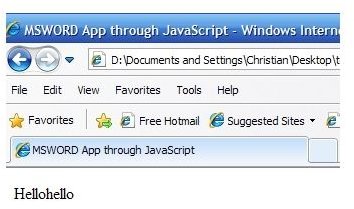
As the page opens, Microsoft Word will open. The phrase “Hello world!” will be displayed in the first line of the blank.doc file, as well as in the web page!


