Windows allows you to setup multiple user accounts so that two or more people can share a computer and its resources. Here we explain how user accounts work? As well as the major changes introduced in Windows Vista.
What are User Accounts?
Windows allows you to setup multiple accounts on the same computer. These ‘accounts’ are nothing to do with a subscription to a paid service. Instead they allow each user to have their own settings for the wallpaper (background picture), the programs listed in the Start Menu, the icons on the desktop and so on. This makes it easier for people sharing a computer to customize Windows for the particular way in which they you want to use it. User Accounts also give each user their own ‘My Documents’ folder, making organization easier.
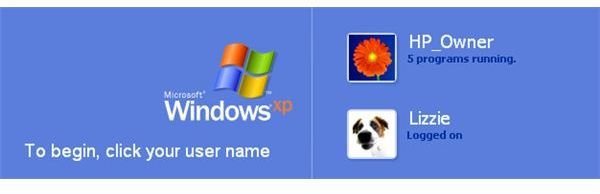
XP introduced Fast User Switching, which means both users can be logged in at the same time. This makes it much quicker to switch between users (without having to close down all the programs you are using). The only downside is that it uses more system resources, which can slow things down on older machines.
How do I set up and control user accounts
Open the Control Panel and select User Accounts.
‘Create an account’ will get you started: all you need to do is pick a name.
‘Change an account’ lets you choose an icon, set a password, and select an account type. Administrator gives you all the controls you would normally expect in Windows, and it’s possible to have more than one Administrator account. A ‘Limited’ account restricts or stops the user from making system changes such as installing some types of software. This doesn’t really serve much purpose for adults, though it can be handy for children.
If you opt to delete an account, you will get the option of saving all of the user’s My Documents files to another location on your computer.
To switch between different accounts, you need to click on Start and then Log Off. This is a bit confusing as you don’t actually have to log off: the menu that comes up also gives you the option to switch users. Any programs you have open will continue to run when you switch to another user, though it’s always worth saving any open files just to be on the safe side.
What about User Account Controls?
This is a new feature introduced in Vista. Previously the Administrator settings had been designed as a security measure, but didn’t really make that much difference.
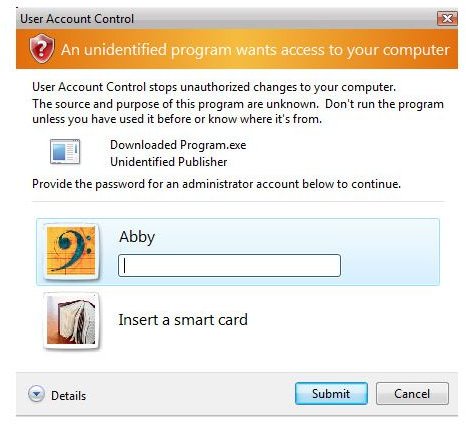
In Vista, the security settings apply to programs as much as people. Any new software you install may be limited until a user with an Administrator account specifically authorizes it to get full access to your computer. The idea is that any malicious software which gets installed without your knowledge won’t be able to do as much damage.
Another security measure under User Accounts Control is that many common tasks, such as changing Firewall settings, will bring up a prompt asking you to confirm that you want to carry out the action. This stops any malicious software changing such settings itself.
Some users find these prompts very annoying. There are also problems with some software triggering the prompts during installation. However, Microsoft says this is a deliberate measure and is designed to ensure that software producers make their programs more secure.
Images
Related reading
>» About Windows Vista UAC and how to disable it.
>» How To Use the Guest Account in Windows
>» Using Administrative Tools to Protect your Small Business PCs
>» How To Create a Desktop User in Windows


