Remote Desktop is a great feature but can cause a lot of frustration if your connection fails. This article will show you how to troubleshoot issues connecting to another machine via Remote Desktop.
Overview
Remote Desktop is one of the more useful features of modern Windows operating systems – allowing you to remotely connect to another machine on your network – giving you full control of that machine. When you first install Windows however, Remote Desktop is turned off by default. Network problems can also cause issues connecting, so here are some quick tips for troubleshooting your Remote Desktop connection.
Turn it on!
If you receive an error when you attempt to connect to your remote machine, the first thing you should check is whether or not Remote Desktop is enabled.
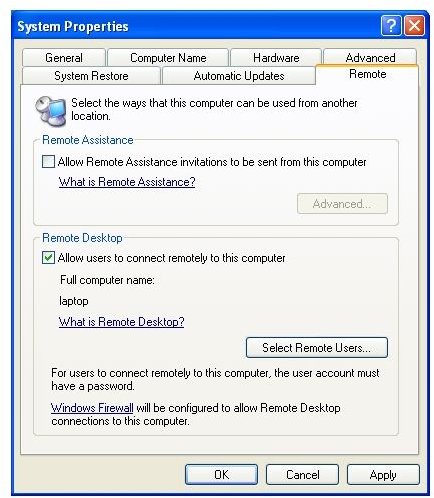
To make sure Remote Desktop is enabled, on the remote machine, right click on My Computer and select Properties. Click the “Remote” tab. Under the “Remote Desktop” heading, make sure the “Allow users to connect remotely to this computer” check box is checked (Figure 1).
Next, you need to make sure the account you are connecting with has permission to connect. If you are using the Administrator account or other account in the local administrative group, you won’t need to specifically add them. If you are connecting using a non-administrative account, click on the “Select Remote Users…” button (Figure 1) and add local users as needed.
If you still have issues, we’ll want to troubleshoot your network connection.
Checking Network Accessibility
This may be obvious, but if your local computer can’t reach the remote machine via the network, Remote Desktop isn’t going to work. The first thing to check is whether or not you can ping the other device.
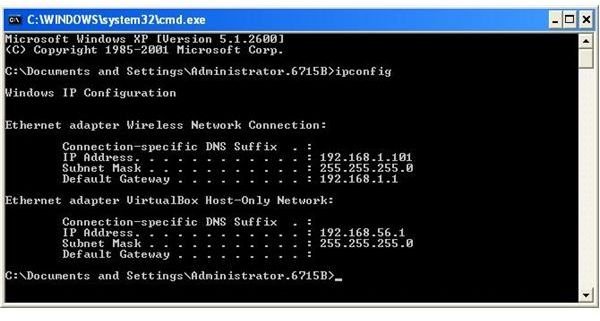
You will need to know the IP address and subnet of each machine. To determine these pieces of information, you need to open a Command Prompt by going to Start, Run, typing “cmd” and hit Enter. In the command prompt, type “ipconfig”. You should see something similar to that of Figure 2. Take note of the IP address and Subnet mask.
We’ll now see if you can ping the remote machine. Back at your command prompt, type “ping xxx.xxx.xxx.xxx” where each x is replaced with the IP address of the computer. You should see the remote computer respond and will be noted with “Reply” statements.
Note that if you have a firewall on your computer, it may block ping requests.
If you find the subnet mask is different on each computer, you won’t be able to ping (or Remote Desktop) since they are technically on two different networks. You’d need to either change the computers so they’d have the same subnet mask or you’d need to set up a route.
Hopefully with these few tips in your hands you’ll be able to get Remote Desktop working!


