There is nothing worse than having to re-install Windows. Read this article to make sure it really is the last thing you need to do. Explore the Windows Recovery Console, learn how to use it to prevent boot problems and return your system to working order once more.
The Windows XP recovery console is a useful set of tools to help troubleshoot operating system problems. It is a last resort before the format and re-install, and every computer enthusiast should know how to access and use it.
Microsoft advises that the recovery console should only be used by advanced users. While it certainly isn’t for someone new to Windows, it isn’t that difficult to get a grasp of how it works. It is however only suitable to use once booting into Safe Mode and all other attempts have failed.
The console is accessed through the Windows XP install CD. The only caveat with using it is that the version on the CD must be the same or higher than what is on the machine. For example if you have a Windows XP SP1 CD, it won’t work on an SP2 or SP3 machine. So if you downloaded the service packs electronically, you won’t be able to use the Recovery Console from the CD.
To use the tools you will need to set your computer to boot from the CD. To do this, set the BIOS to use the CD as the first boot device and press a key when prompted.
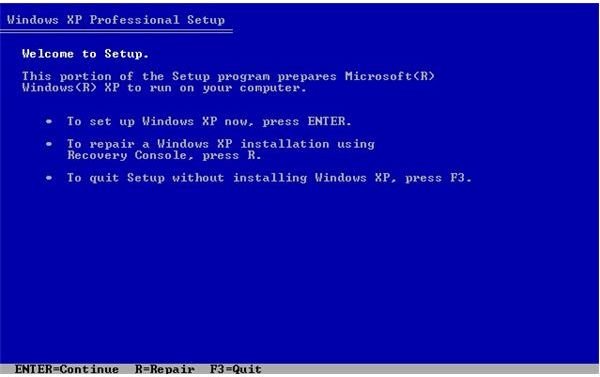
Once the boot loader has finished you will be presented with an MS-DOS window. Press “R” to access the recovery console. The program will scan for the install to repair. Once it has selected the version you want to repair, usually option 1, you can begin the repairs.
If you’re unsure of the commands available, type help, to view a display of them on screen.
My suggestion, when troubleshooting boot problems is to do these tests in order.
First type fixboot into the console. This will attempt to repair the boot record, which is a common problem with Windows.
Check the disk by typing chkdsk /p c: which will check your drive C: for problems. This is an exhaustive check and may take a while. You can use chkdsk to troubleshoot problems from within Windows, but the /p switch is only available from the recovery console.
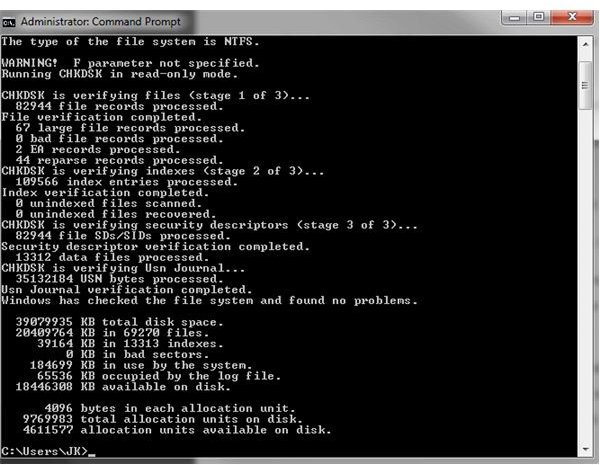
If you still can’t boot, try chkdsk /r c: which is a lower level disk check on reboot.
If either of the chkdsk commands return errors, run them again until they return clean. In most cases that should be enough to get your system up and running again. If not then read on.
If that doesn’t work, type fixmbr. This is a slightly riskier command as it tells the system to repair the Master Boot Record. This is a file containing essential boot information that can become corrupted. The risk is that anything the system doesn’t understand will be deleted.
If these commands don’t work for you then a format and re-install may be in order. Nine times out of ten the chkdsk commands will address any boot problems with XP, but not always. Fixmbr is a command of last resort, but can be effective if the boot record has been damaged.


