Businesses considering moving up to Windows 7 might worry that the custom and specialized, vertical applications they use that are not compatible with Vista would have to be abandoned and replaced. Maybe not. They may still run in Windows 7 in XP Mode.
Windows XP Mode is a utility in Windows 7 Professional, Ultimate, and Enterprise that allows the user to run native Windows XP applications in a “virtual machine” on the Windows 7 desktop. Unlike other applications that allow such capability, XP Mode is designed to be easy to understand, use, and install. Here we’ll show you how it’s done.
Getting Started
First, have you verified that your PC and CPU support virtualization technology? If you’re not sure, please read “Can My Computer Run Windows 7 XP Mode ?” and then come back to this article.
Other Requirements
- 1 GHz 32-bit or 64-bit CPU
- 1 GB of RAM (although 2 GB is recommended)
- 15 GB of hard drive space per virtual drive
- Windows 7 Professional, Enterprise, or Ultimate
Download and Install Windows Virtual PC
There are two downloads involved for installing Windows 7 XP Mode. The first is the virtualization engine, which is called “Windows Virtual PC.” After it’s installed and the PC rebooted, the actual Windows XP image can be downloaded and installed. The menu shortcut to the image is called “Windows XP Mode.”
Virtual PC works on both 32-bit and 64-bit versions of Windows 7. Please note that it is intended to run productivity and vertical business applications and is not optimized for playing demanding games that did not run under Windows Vista.
To get started, first download the Virtual PC installer. Go to this page , select your system type (32- or 64-bit) in the drop lists, and click the “Download Windows Virtual PC RC” button.
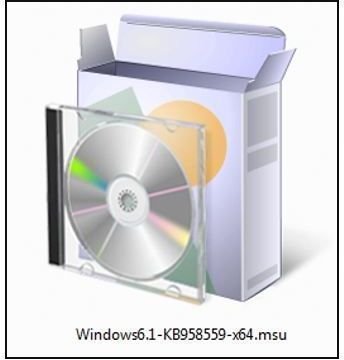
It will arrive as a standalone Windows Update file with an .msu file extension.
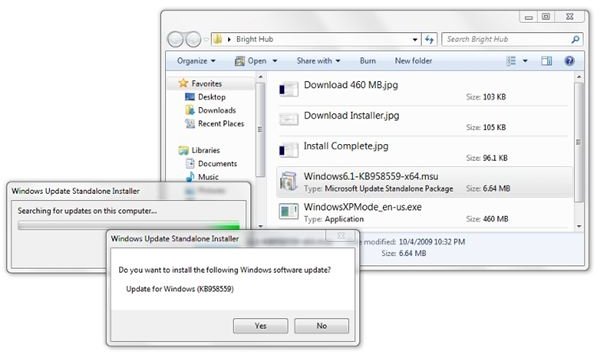
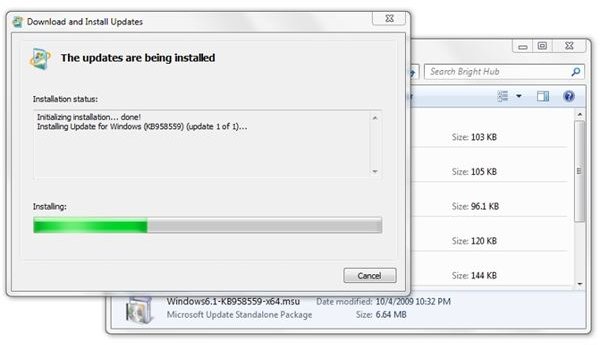
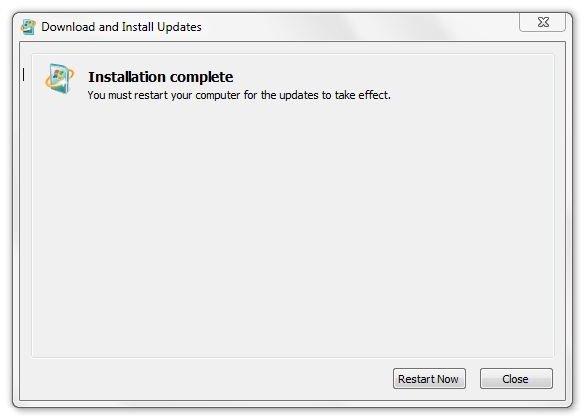
Double-click it, and Windows will start Windows Update for download and installation. From here on, it’s like any number of (major) Windows updates. It will ask for a reboot and continue to install during the shutdown and restart. (This will be a long reboot.)
Download and Install XP Mode
The link to download XP Mode is on the same Microsoft page as Virtual PC , but it’s labeled “Download Windows XP Mode RC.” It is an image of a startable Windows XP install disk, so it’s large (460 MB) and may take a while to arrive.
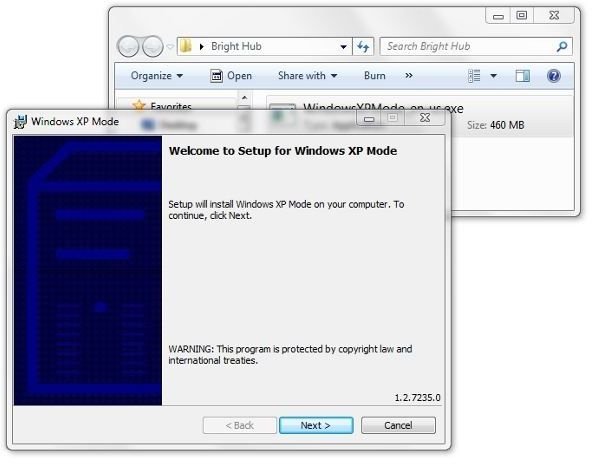
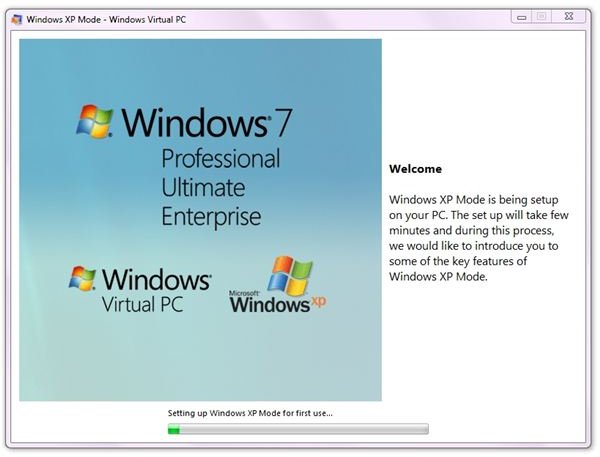
After starting, the installer switches to a graphical mode. The contents actually appear to be HTML files and graphics kept in the C:/Program Files/XP Mode folder.
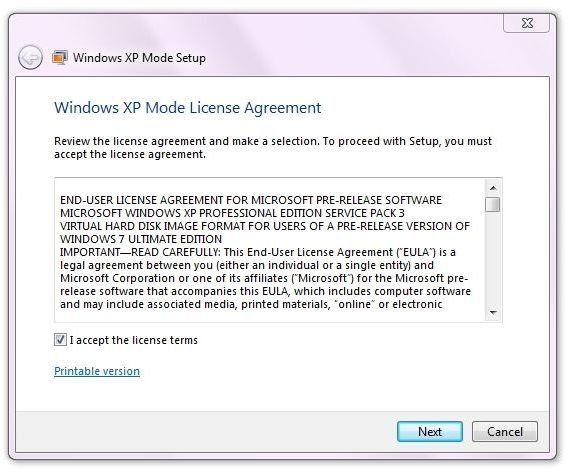
The license screen and regular “I agree” button appear next.
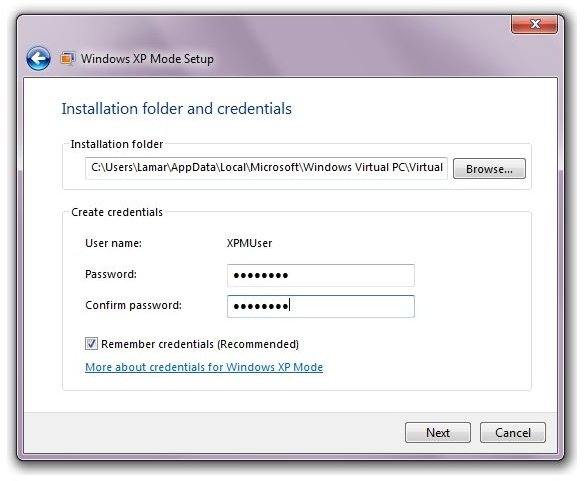
And then there’s a credentials and installation folder screen. I used the same password that I use to log into the account, and I clicked “Remember credentials” so I didn’t have to bother to enter them each time I start a virtual machine session.
The installer then suggested that I turn on automatic updates. I prefer to be advised of new updates and see what they are before they are installed, so I selected “Not right now.”
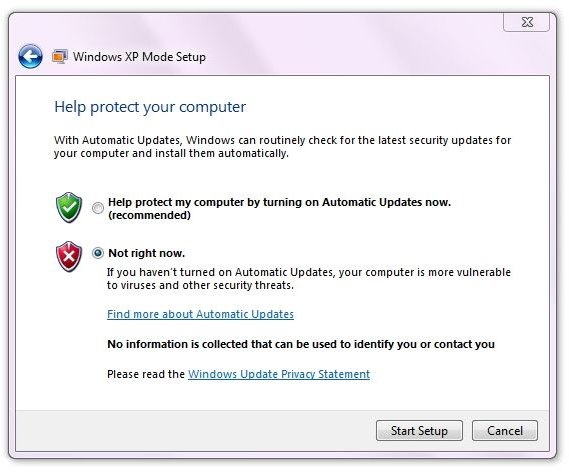
A brief, but useful tutorial runs as the installation progresses. Finally, it announces that the installation is complete. On the last screen, “Launch Windows XP Mode” is pre-checked.
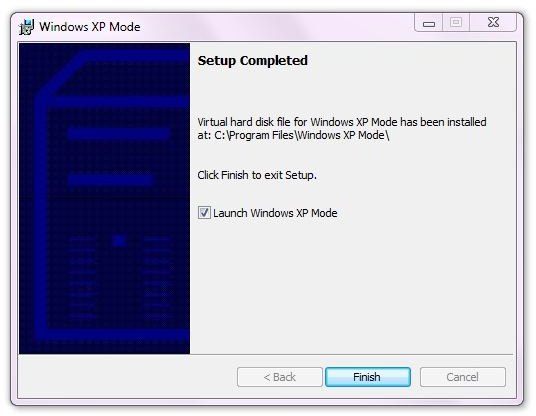
And the installation is done.
Conclusion
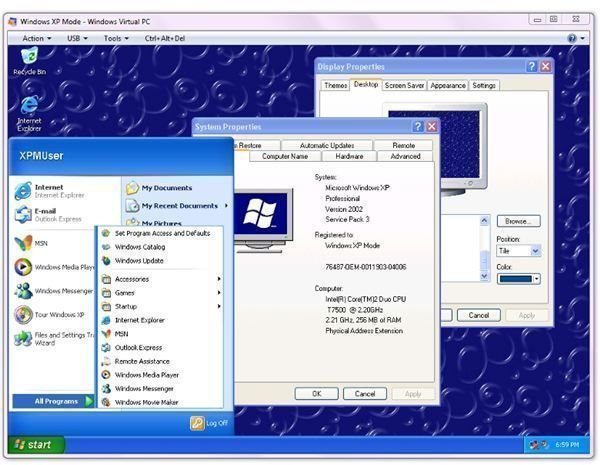
Here’s what XP Mode looks like running in Windows 7 Ultimate (RTM).
Microsoft has said that XP Mode will be available through Windows Update on October 22nd, 2009, which is Windows 7’s public release date. Then, presumably, the download and installation will all take place within Windows Update. (We will update this article then to reflect the new reality.)
Why is Microsoft not providing XP Mode in the base install for Windows 7 Professional, Ultimate, and Enterprise? I think it’s because of where the application is aimed. It’s not intended to be used for playing games or running applications that are CPU-intensive or time-critical. Instead, it’s to allow small and medium sized businesses to continue to leverage their investments in software, including customized vertical applications, that might not have been able to run in Vista.
Thus, there’s no reason for most businesses to stick to using Windows XP. A faster, prettier, more secure operating system awaits.


