Windows Media Bonus pack is a free set of tools from Microsoft built around providing utilities and extras for various types of media. The focus of this article will cover one of the free tools included in the Bonus Pack that allows you to convert from MP3 to WMA format.
Overview
The first question that you may be asking is why you’d want to convert from MP3 to WMA – don’t most people do it the other way around? Do a Google search for “convert audio” and most results are focused on how to get your CD ripped to MP3 or how to move from Microsoft’s audio format (WMA) to MP3.
One of the biggest reasons to consider WMA format is the file size when compared to MP3. MP3 device compatibility is probably more popular than WMA, but if you do have a WMA compatible device, you may want to consider converting.
I took a group of 30 MP3s and noted that they took up 216MB of space. I then performed the conversion I’m going to cover in this article and the file size was reduced to 110MB of space – less than half the size of the MP3s - all without a noticeable difference in sound quality.
Using the Windows Media Bonus Pack
-
Download the Windows Media Bonus Pack for XP here - https://www.microsoft.com/windows/windowsmedia/player/bonuspack/default.aspx
Advertisement -
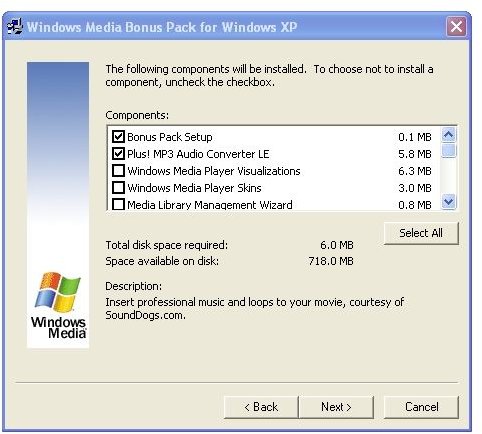
Run the install and select the “Plus! MP3 Audio Converter LE” while deselecting other items (Figure 1). Note that you must install the setup files.
-
Once the install is finished, start up the “Plus! MP3 Audio Converter LE” by going to Start, Programs, Windows Media Bonus Pack for Windows XP.
Advertisement
-
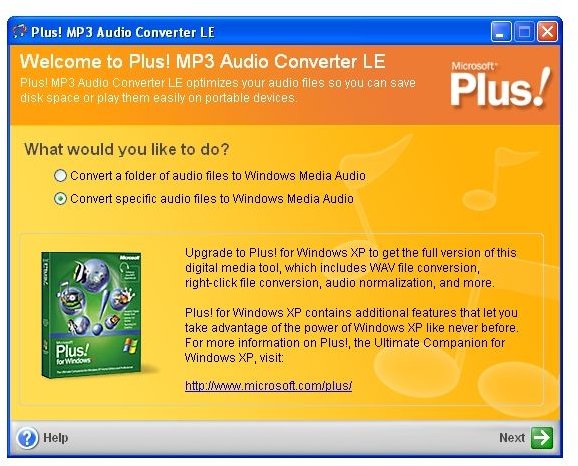
On the main window, select whether or not you want to convert specific files or a set of folders (Figure 2). In this example, we’ll just convert a single file. Click Next when ready.
-
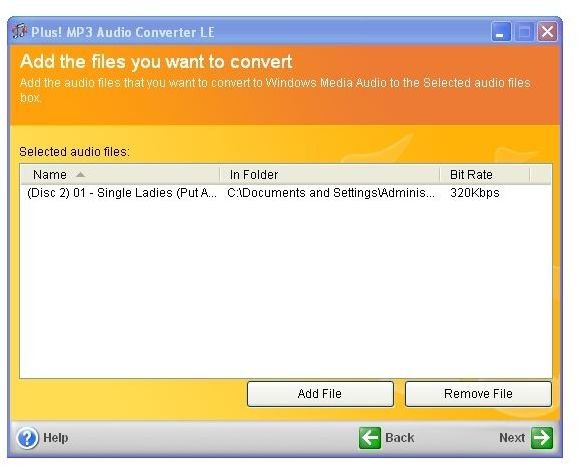
On the “Add the files you want to convert” window, click the “Add files” button and browse for the file you wish to convert (Figure 3). Click Next.
Advertisement -
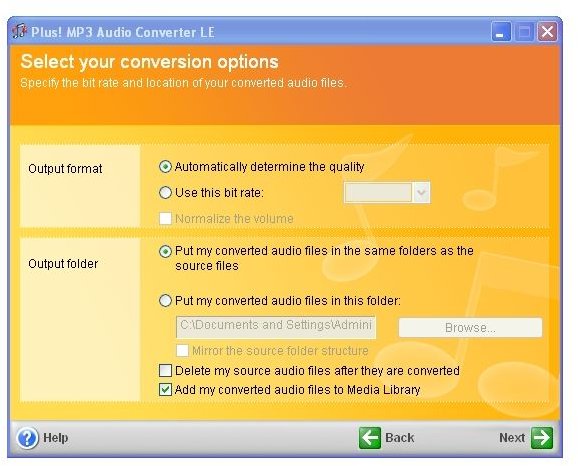
You are able to change output options, but I found the default to suffice. Note that your original MP3 file will remain in the same place (Figure 4). Click Next.
-
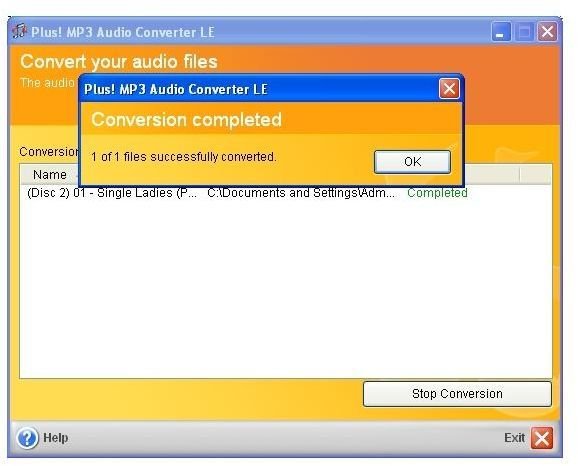
On the final window, click the “Start Conversion” button. After a moment, you should get a success notification (Figure 5).
Advertisement
You’ve now successfully converted your first file. You can go back and convert your other files and folders with ease. Even though Microsoft is trying to sell Plus! for Microsoft XP, the MP3 Audio Converter LE works pretty well so you shouldn’t mind the advertising for Microsoft Plus!
Images