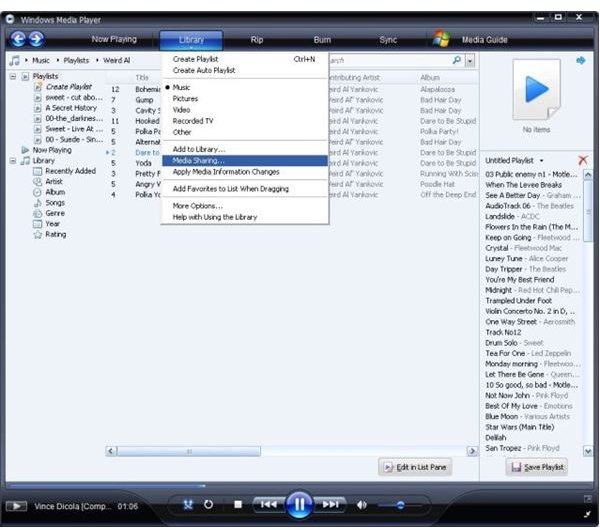
Media sharing with Windows Media Player can be tricky – whether you’re sharing across a network or just with an MP3 player, if you don’t have it set up 100% correctly then you’re going to run into problems. This guide covers reasons why media sharing might fail, and how you can resolve these issues.
Media Sharing Not Working?
There are a number of reasons why media sharing via Windows Media Player might fail. For instance you may be using a version of Windows XP media player that doesn’t support media sharing, or an early release of Windows Media Player 11 that requires the latest updates from Microsoft to resolve any known issues, or you may have a problem with your network connection to other PCs or devices or a faulty USB cable connecting your MP3 player to your PC.
Alternatively, you might have a firewall blocking your attempts at media sharing, whether it be a software firewall on one or both PCs that you’re trying to share with, or a hardware firewall in your network router.
Getting Started
The first thing to do is make sure you have the latest release of Windows Media Player 11 installed.
To check this, launch Windows Media Player, find the Help menu and go to About Windows Media Player. From here you can check which version you’re on.
If you’re using an older version, visit the Windows Media Player download page in order to get hold of a free copy. The download is around 25 MB and will need installing once download has completed. Restart your PC if prompted.
You might be using Windows Media Player 11 and be suffering from sharing issues – if this is the case the first thing to do is check Windows Updates – go to update.microsoft.com and follow the onscreen instructions to check for relevant updates. Any updates available for Windows Media Player 11 can then be downloaded.
Checking Your Firewall
If you’re using Windows Firewall, Windows media sharing is automatically configured – however if you’re using a third party firewall solution you may need to configure it to allow media sharing to take place.
The following ports, protocols and processes should be set up to allow traffic in the specified direction:
Port | Protocol | Process | Direction
1900 | UDP SSDP | svchost.exe | Inbound/Outbound
2869 | TCP SSDP UPnP | svchost.exe | Inbound
10280-10284 | UDP WMDRM-ND registration | wmpnetwk.exe | Inbound/Outbound
10243 | TCP HTTP | wmpnetwk.exe | Inbound
These settings are for software firewalls - if you’re using a hardware firewall, there should already be some presets that you can apply.
Checking Your Router
If you’re using a hardware firewall within your router or suspect the issue might exist within your router, you should check your device documentation to clarify whether the router will accept or can be configured to accept media sharing connections.
Should you be attempting to share media with an Xbox, visit support.xbox.com for further information on connecting an Xbox 360 correctly to your network.
Attempts to share with MP3 or other mobile media players should work without a problem – however issues might concern your USB cable. A good way to check this is to try using a different USB cable, or try connecting your MP3 player to another PC or laptop.
Finally, depending on the nature of your media sharing issue, you might wish to test your network cabling/connection. A quick and easy way of doing this is by going to Start > Run and enter CMD to open the command line. With either the name or IP address of your router or another network device to hand Enter:
Ping 192.168.1.1 (or whatever your IP address or device name is)
The response from this should return several lines that display the same or similar speed values – but if any of these are listed as “Timed out” or with much lower figures, it is likely your network needs some reconfiguring.
The Final Check
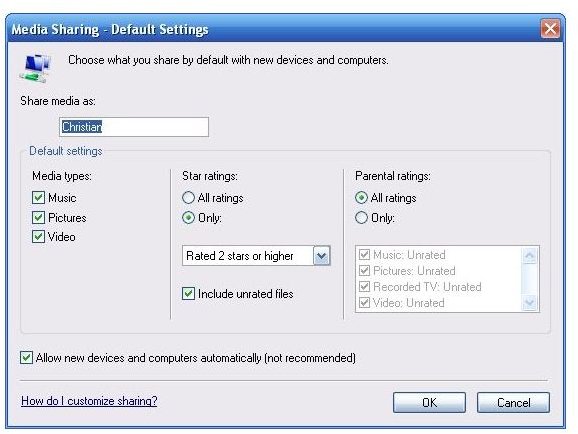
Of course after confirming your software and hardware are set up correctly, you might find that there is still a problem – it’s time to go back to Windows Media Player and make sure you have Media Sharing configured correctly.
It is important to note that there are two almost identical screens in the Library > Media Sharing screen – these are available via Settings and Customize.
Settings details the overall media sharing configuration for your network and can be set as default for each device listed in Media Sharing.
Customize meanwhile will allow you to alter the settings for the selected device on the Media Sharing screen.
It is also possible your media sharing issue is caused by a conflict between these two sets of values.


