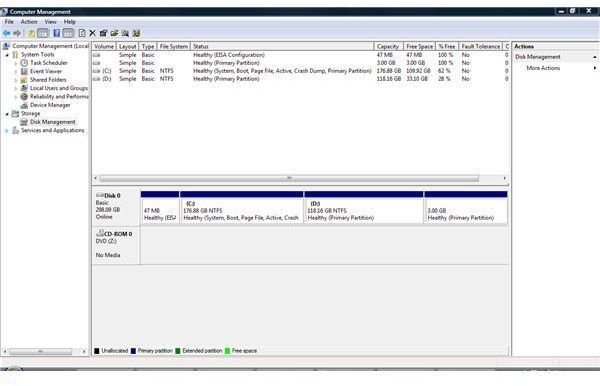
Here’s how to delete a partition in Vista using Windows’ integrated Disk Manager or the diskpart command tool, which can be run from the install media by the way. After reading this article you will be deleting partitions in Vista with ease and confidence, and know what to do in any case.
In the history of Windows managing partitions has not always been very easy, but with every new OS release Microsoft improved a bit, so that end users had less need to buy third-party tools. To delete a partition in Windows Vista there is absolutely no need for third party software. In most cases Vista Disk Management will be right, but you can also use the command prompt or the install DVD.
Using Disk Management
To delete a partition using the Windows built-in utility go to Start Search and type diskmgmt.msc. Alternatively, right-click Computer, select Manage, then navigate to Computer Management (Local) –> Storage and click on Disk Management.
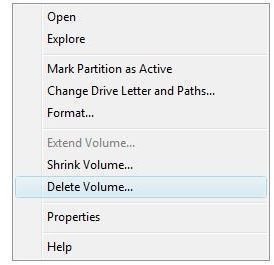
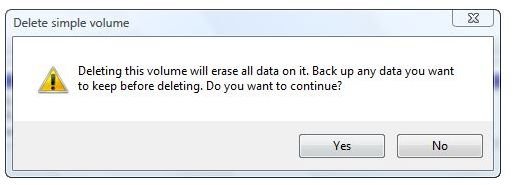
Back up any data you wish to keep. Right-click the partition you want to delete, then click on Delete Volume and read the warning message explaining that deleting that volume will erase all data on it. Click Yes to proceed.
How to Delete Partitions in Vista from the Command Prompt
To delete a partition using the Windows built-in utility go to Start Search and type diskpart. Please note that the diskpart utility can also be started from the Vista install media, as outlined in Bright Hub’s article Install and Dual-Boot Vista and XP on the Same Machine . That property of diskpart is useful for instances when there is no Vista installed or if Windows is corrupted. To delete a partition using diskpart:
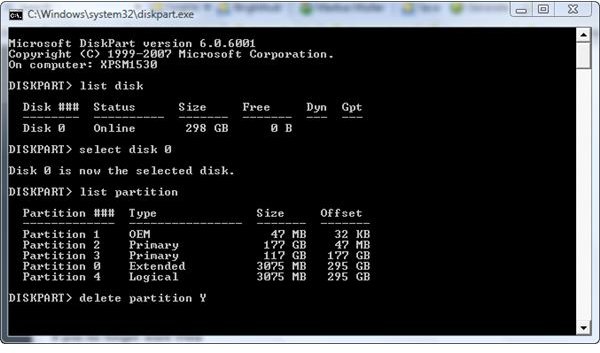
Type list disk, then hit enter.
Type select disk X; X being the Drive on which you want to delete a partition. Hit return.
Type list partition, hit return.
Type delete partition Y; Y being the partition you want to delete followed by enter or return.
The process is depicted below for disk 0 on the test system; the letter “Y” acts as a placeholder for a partition.
The Bottom Line
As a best practice, before you are going to delete a partition in Vista, think of making a backup for any case including Murphy’s Law! Please note that if you delete a partition the vast majority of information remains intact so you should wipe or erase the disk as explained in our article How to Wipe an External Hard Drive . Unless wiped or erased can a deleted partition be recovered with tools such as O&O RescueBox First Aid Data Kit .
References
-
Author’s own experience
AdvertisementScreenshots by the writer


