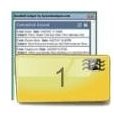
This article shows you the best Windows Sidebar Gadget to use for your Hotmail account. It has tons of features and it is completely free to download.
NewMail
For all you Hotmail users out there, I am sorry to say that there is no official Hotmail gadget for Windows Sidebar. Nor is there any gadget created unofficially to work with Hotmail. However, after a lot of effort I have managed to track down and test a POP3 webmail gadget that will do just the same as what any official program can do. It is called NewMail Gadget and it is available right here.
After downloading the gadget from the above link, right-click on Windows Sidebar and select Add Gadget. Find the NewMail gadget and drag it into the Sidebar. Right click on it to set it up. Enter in all of the pop3 and receiving options for Hotmail, which are:
Incoming server: Pop2.live.com
Outgoing Server: smtp.live.com
When you have set it up correctly, you will be able to choose how often you would like to check your mail. You will also be able to display options for the gadget that are customizable to a certain extent.
Using the Gadget
As with all email gadgets that are available for Windows Sidebar, you cannot reply directly from the gadget. This would be a mighty task to incorporate a useable word processor along with all the necessary programming for such a task into a small program like a Sidebar Gadget.
You can, however, scroll down through the emails that the gadget has detected in your inbox. You can even reply to them in your web browser or in another program such as Outlook , which can be set up using the same server settings I mentioned above.
Overall, this is a good gadget. While it does not carry the official Hotmail stamp, there is one particularly beneficial quality – you can use it for multiple email accounts. For example, if you also have a Yahoo or Gmail account (or both) you can add them into the gadget along with your Hotmail account. It will then separate each account and check them regularly.
Related Articles
For more information and tips on using Hotmail, check out the Bright Hub articles Creating a New Hotmail Account and Windows Live Hotmail – All You Need to Know . For tips and tricks on using the Windows Vista Sidebar, read The Most Useful Vista Sidebar Widgets and How to Apply a Theme to the Vista Sidebar.


