So you want to share your music with your friends or create a disk to listen to in your car. What format should you use - CD Audio, PC Data, or MP3? What software do you need in Windows XP - either built-in or third-party - to create the CD? Here we show you how.
This tutorial will explain how to copy your music and songs to a CD in Windows XP for backup purposes or to share your music with your friends. Windows XP has built in software called IMAPI CD Burner using which you can burn your data to CDs and DVDs. But it offers just the basic functionality and is not very reliable. I personally prefer to use 3rd party software like Nero or CD Burner XP to write your data to discs.
Copy Music to a CD in Windows XP
To copy your music to a CD using the built in IMAPI burner,
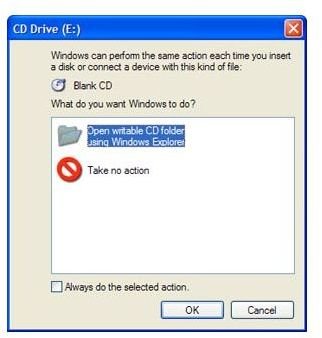
Just insert a blank disc in your CD / DVD disc recorder. Windows XP will automatically prompt you if you want to Open a Writable CD Folder. In case this alert doesn’t pop up, you can still just open your CD Drive with the blank CD inserted.
Now just navigate to whatever music files you want to copy to the CD. Copy those files and paste them in the blank CD folder. You can also drag and drop them if you want. After you have copied all the files you wanted to, just click on the Write these files to CD option in the left pane. Another prompt will come up asking you to enter the label of your CD. After that, just click Next and the CD burning process will begin and a progress bar will be displayed. Depending on the size of your music files, the process should take a few minutes.
Copy Music to a CD Using Nero
To copy your music to a CD in Nero ,
Just insert a blank CD and start up Nero Express. In the following window, select if you want to create a Data CD or a Music CD.
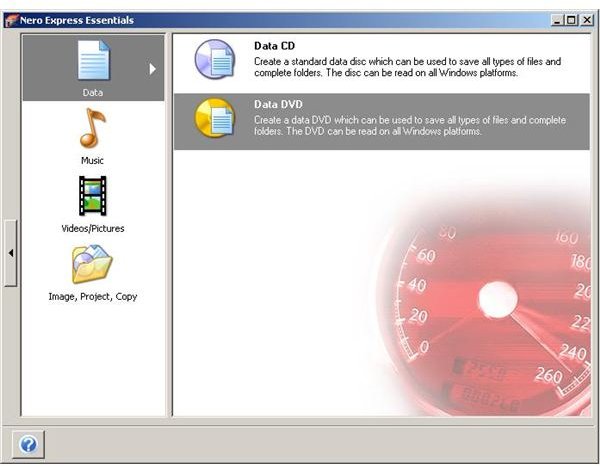
A Music CD will play on all MP3 players, even the older ones, but the file size of each written file becomes too much. Also, most new MP3 players can manage MP3 files, so you should rather write a Data CD. In the next window, just click the Add button and add all the files you want to your compilation. After you are done with it, click on the Next button.
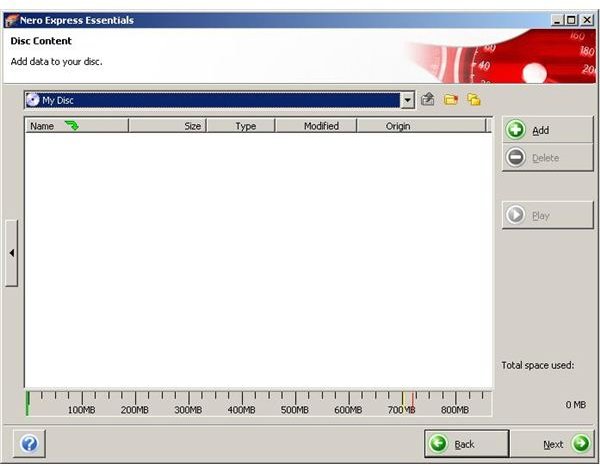
Select your DVD Burner and add the label and click on Burn. Your music files will be burnt on the CD and the recorder will eject it once the process is complete.
References
Microsoft: How to copy information to a CD in Windows XP [https://support.microsoft.com/kb/306524 ]
Nero: Nero Express 6 User’s Guide [https://ftp6.nero.com/user_guides/nero6/express/NeroExpress_Enu.pdf ]


