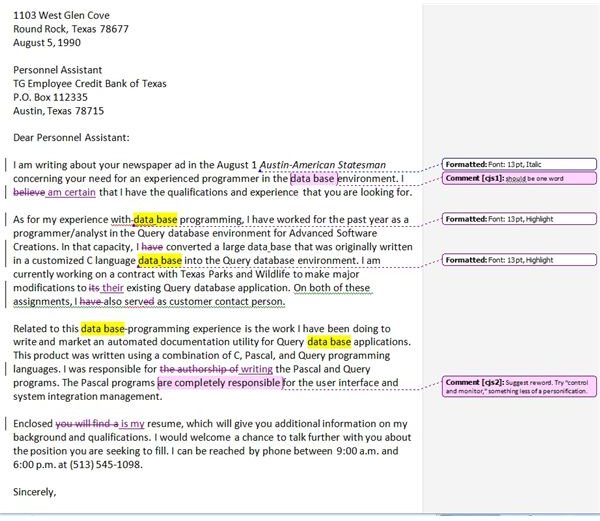
Microsoft Word 2007 can keep a running track of comments and changes made to a document by one or more editors or collaborators. Margin “balloons” track and display comments. To display changes made to a document, the editor can opt for either margin balloons or in-text markings.
Why Bother With Notes and Change Tracking?
On the job, project team members frequently collaborate in preparing Word documents (reports, summaries, important proposals, etc.). Draft documents can be posted on a network for access by individual team members. These members can open the document, click on the “Review” tab and use the Comments and the Tracking tools to comment, edit, and track their changes. Bosses, teachers, and tutors can also take advantage of “teachable moments” by making comments and constructive changes in their employees’ or students’ writing.
The screenshot below shows a sample outgoing letter with comments and tracked changes.
How to Add Comments to a Document
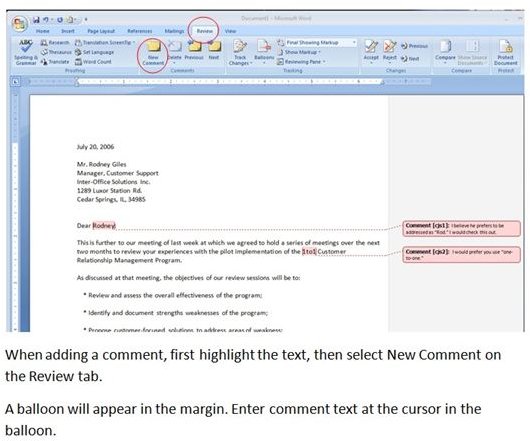
Reviewer comments either appear as balloons in the document margin or are integrated in the text, depending on the option selected from the Balloons dropdown list. Each comment is consecutive numbered with the reviewer’s initials. To add comments to a Word document, do the following steps:
· Highlight the text that will be commented on.
· Click on the Review tab on the MS Word menu.
· Select “New Comment” in the Comments group.
· Enter your comments in the balloon that appears in the margin.
Notes:
· To update or change the user name and initials entered the first time you opened MS Word, click on the Track Changes down arrow in the Tracking group to the right of Comments. Select Change User Name
· To delete an existing comment, click on the comment in the margin and select the Delete icon in the Comments group.
The screenshot below illustrates the foregoing steps.
How to Track Changes to a Document
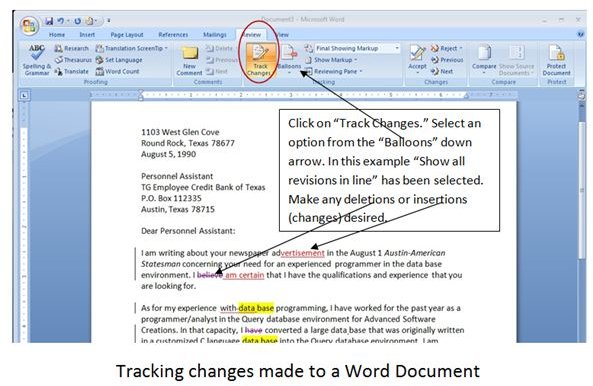
hanges in a document include text deletions, additions, altered format, etc. Selecting the Track Changes option displays both the altered original document and the changes the reviewer made. To track changes in a Word document, open the document and perform the following steps:
· Click on the Review tab on the MS Word menu.
· Select Track Changes in the Tracking group. The background color of the icon will change to orange to indicate that the Track Changes feature is active.
· Edit the document as you normally would.
Notes:
· Deleted text will appear to be colored and crossed through, but visible.
· Any changes or additions will be colored and underlined.
· A vertical line will appear in the left margin where the change was made.
· Save the document with the changes.
· Change the way the revised document is displayed by clicking the down arrow in the Final Showing Markup dropdown list in the upper right hand corner of the Tracking Group.
The screenshot below illustrates the foregoing steps.
Read more about keeping track of comments and changes in MS Word at:
Microsoft Office Online: Track changes while you edit
Microsoft Office Online: Turn on or off change tracking
Office 2007 Help - The New Paperclip: Track Changes And Comments in Word 2007


