The more frequently we use a database, the more likely we are to become inconsistent in the way we enter our data into our forms. How do we keep our data consistent and prevent others from making mistakes that corrupt our database? We do that through what is known as “field validation rules.”
What is a “Validation Rule”?
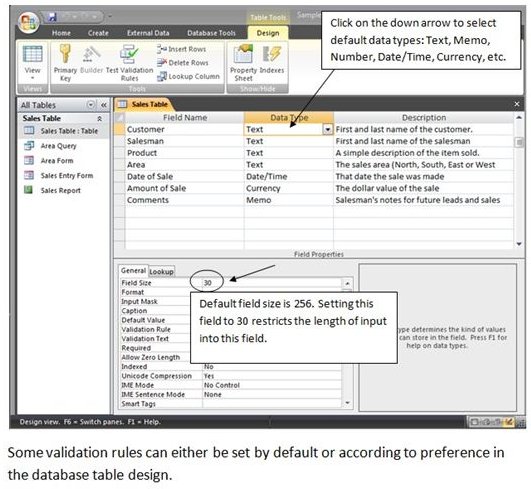
Microsoft Access uses validation rules to keep data entry consistent for each field. Some of the validation is done by default during the database table design, when fields are given their data type, size, etc. Any attempt by a user to enter the wrong type of data or exceed the field size will result in an error message.
The screenshot to the right illustrates default data validation in an MS Access table. Each field name has a designated “data type,” and each data type has other “rules” (field size, format, etc.).
User-Selected Validation Rules
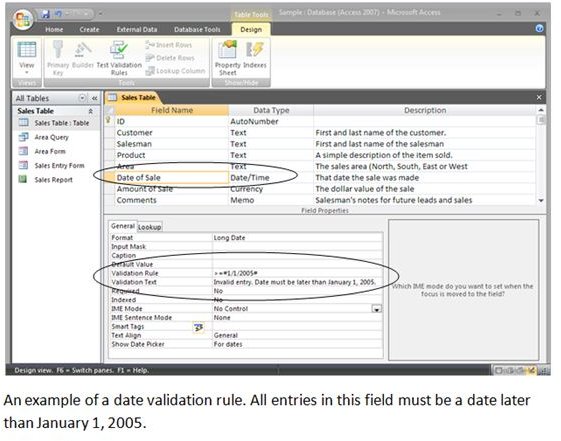
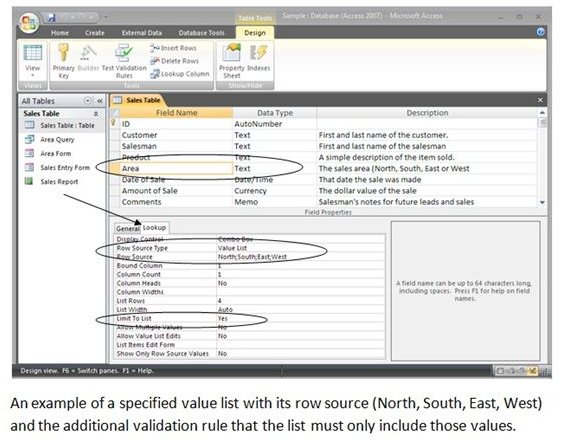
While still in the table design view, we can also set specific values or rules for our fields. For instance we specify that a field cannot be left blank (i.e., “required”) and that the entry for a number and date fields must fall within certain parameters . We can also specify that one field cannot be greater than another corresponding field (e.g., start and end dates), and so on. We can also design “lookup” fields, specify what goes into the field, and limit the field to the list we specify.
The screenshots below are examples of field validation rules that can be designed during database table design:
How Validation Rules Affect Data Entry in Forms
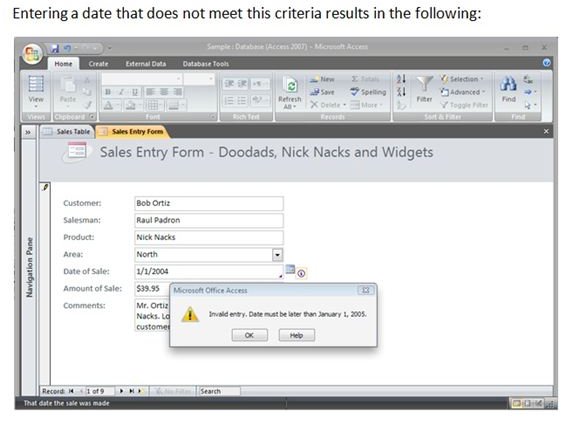
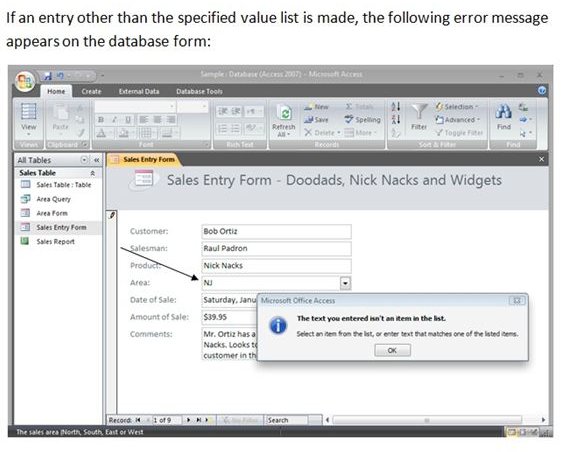
Data validation rules we specify in the table design are also in the fields in forms based on the table. Using the two examples in the previous section (date and lookup data validationrules), we can see what error messages would result on a form if the user tried to enter data that violated the “rules”:
How to Add a Validation Rule Directly to a Form
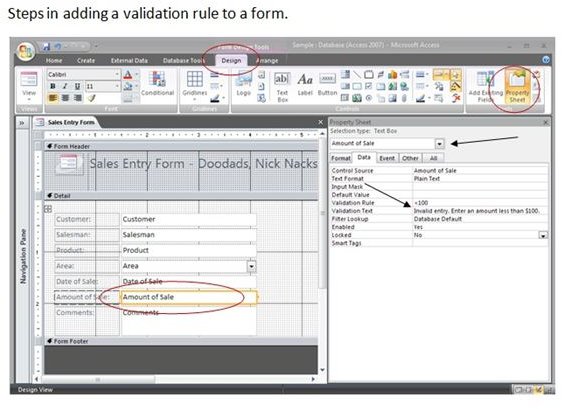
Sometimes we need to add a field validation rule directly to a form, bypassing the table design for reasons that apply to the form’s unique design and use. We can add a validation rule to a form by doing the following steps:
- Open the form in the design view.
- Click on the field where the new validation rule will be applied.
- Click on the Property Sheet Icon in the Tools Section.
- Click on the Data Tab.
- Enter the Validation Rule in the fifth row, second column.
- Enter the Validation Text (i.e., the error message you want to appear) in the next row.
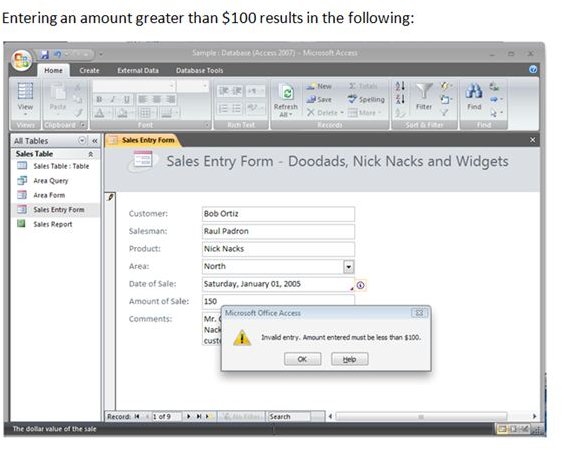
The following screenshots illustrate the design steps and the error message that would result in the form if the rule (<100) were violated on data entry:
Read more about creating data validation rules in fields at:
Microsoft Office Help: Create a validation rule to validate data in a field


