Here we discuss the Windows Server 2003 Event Viewer. This article contains all the information you need to monitor the health and troubleshoot problems on your Windows server. It will also explain how to access and interpret this data, and find further information if necessary.
The Event Viewer or the Event Logs are generally the first place anyone using Server 2003 should begin their troubleshooting. Depending on how you have them set up, they are a quite comprehensive record of what happens on your server. Especially useful when troubleshooting, the Event Viewer logs also give a good idea of system and application performance.
The standard setup will record application, security, directory services, file replication, and DNS issues.
Event Viewer has been around since the Windows NT days, but has had regular tweaks and enhancements as later versions of the operating system have been released. It is essentially a passive log collecting program that records events during normal operation as well as during faults or error conditions.
To open Event Viewer you can either right click on My Computer and choose Manage, or use Administrator Tools from the Start menu. The Administration Console will open and you can select from a group of options from the menu on the left. We want Event viewer here.
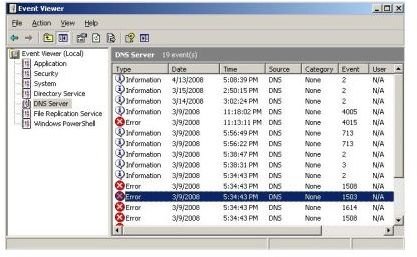
Either double click or click the “+” beside the option to drop the menu and expose the log types. If you are just having an explore, then feel free to choose any of them and expand the menu further. You should see something like this.
This is the list view which provides an overview of what’s going on within DNS on this server. The Information types are just that, information on DNS events that aren’t cause for concern. Errors on the other hand will need checking out. The next two columns are the date and time the event occurred. This is very useful if you have enough information to know when a system rebooted or misbehaved in some way. You can trace what happened around that time, which should lead you to the cause. Each column can be sorted by clicking on the description to make investigation easier.
There is a third event type called Warning. This is denoted by a yellow warning triangle with an exclamation mark in it. These are things that should be checked out, but won’t cause too serious issues in the meantime.
Double clicking on an entry will bring up another dialog box with information specific to the event.
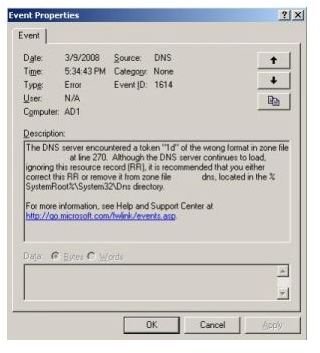
In this case a DNS error, which are common in networked servers. Here there is more information from which to investigate the fault. The Description often provides enough information to tell you exactly what happened, like in this case. However it can also be frustratingly cryptic, and even worse, just contain hex code.
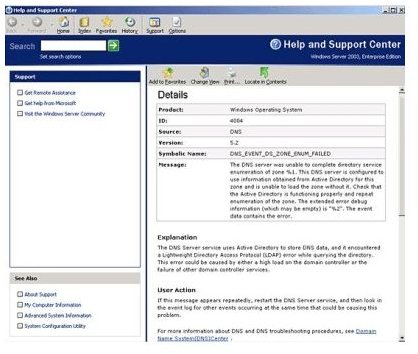
There was a lot of negative feedback from server administrators about this, so from Server 2003 onwards a new information repository was made available directly from Microsoft.
The link at the bottom of the description window contains a link to Microsoft’s Technet resource which may have more information. This site is maintained by Microsoft but is updated with information provided by users, so often has a better description, or more information than Event Viewer alone.
There will be times when Event Viewer simply doesn’t have the information for you. This isn’t always Microsoft’s fault, especially when third party applications are causing the issues. The system depends on the information it receives from each program, which is sometimes sadly lacking.
There is enough information available through Event Viewer for most people to be able to effectively monitor and troubleshoot their systems. Now you, too, know how to use Event Viewer and obtain information on how to monitor system and application performance.