
On a day to day basis, hundreds - even thousands - of web pages are visited. It isn’t immediately obvious how to check the history of previously visited web pages in Internet Explorer, but there are several ways to do this.
Why Check History?
Whether you are trying to remember the URL of that site you forgot to add to your Favorites last week or checking on what other members of your family have been looking up online, there are several ways to keep tabs on your Internet Explorer history.
Monitoring usage in this way is an important part of maintaining the integrity of your Windows installations - being aware of unusual websites might just be that vital clue to determining the origin of a piece of malware or some spam after an email address has been mistakenly or blindly entered into a web page form.
Find Internet Explorer History
Despite there being several versions of Internet Explorer over the years, the arrangement of the menu options has remained pretty consistent, with only the added functionality that comes with developing technology leading to any real changes. As such, this guide can be used for most instances of Microsoft’s web browser, and certainly version 6.0 and later.
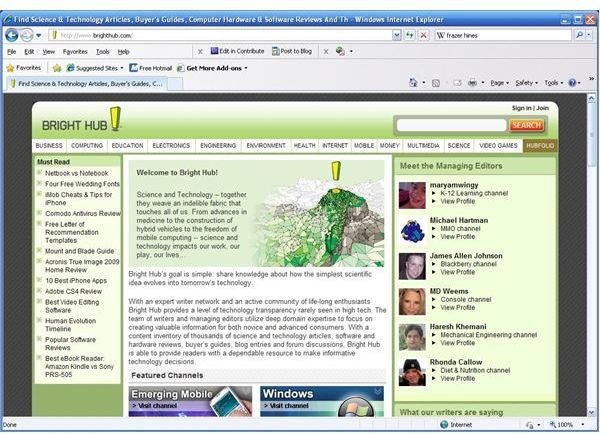
To check the History - the pages that your web browser has previously visited - first open Internet Explorer. Next, you need to identify the History button. This depends on your version. In Internet Explorer 6, find the History button, shown here.
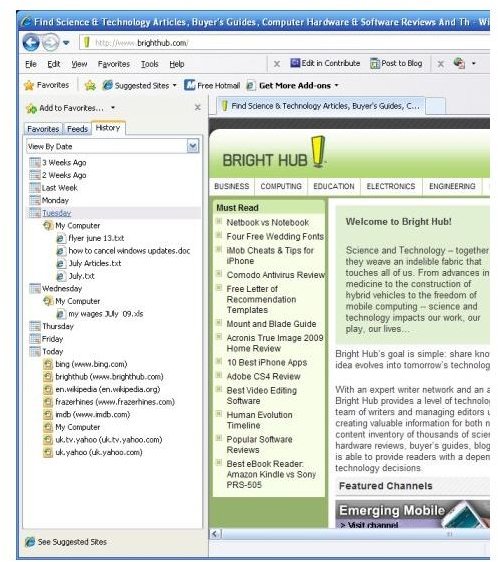
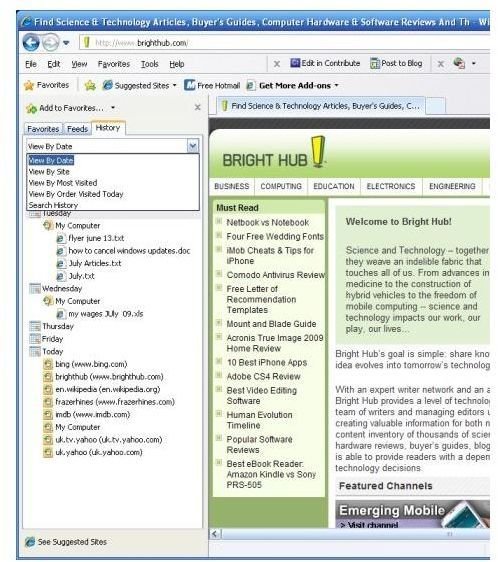
In Internet Explorer 7 and 8, access the History by clicking on the Favorites star button on the toolbar, and selecting History within the sidebar.
You can also use the keyboard shortcut Ctrl+H.
Internet Explorer History screenshots
Temporary Internet Files
This particular view of the Internet Explorer history may not be what you are looking for, however. You may want to do more than just cast your eyes over the previously visited pages.
Internet Explorer provides various advanced options for anyone requiring access to the images and other content that is downloaded with every web page - the Temporary Internet Files.
To view, go to the Tools menu and choose Internet Options.
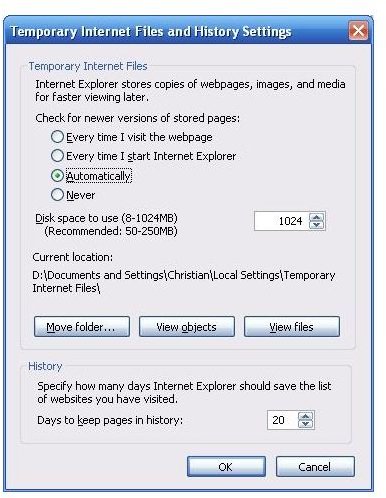
The General tab has a section for Browsing History. Here you can choose to delete all history files, or by clicking Settings, you can view storage settings (the amount of your hard disk drive that is given over to temporary internet files).
There is also the option to choose how long the Internet Explorer History should go back, as well as the chance to change the directory where Temporary Internet Files are held - and by clicking View Files, you can view every picture and page template downloaded since the earliest date in the Internet Explorer History.
What To Do Next
Internet Explorer features a good deal of customizable options - the History and Temporary Internet settings are just a small part of this. With a big enough hard disk drive, it is possible to retain History over a course of months, or delete the Temporary Internet files (also known as the “cache”) each time you exit the browser.
The latest versions of Internet Explorer also allow the clearing of saved data such as Form data (a repository of everything typed into search bars to save time when doing searches) and Passwords that have been saved.
These are all great History-related features that can be taken advantage of to enhance your use of Internet Explorer.


