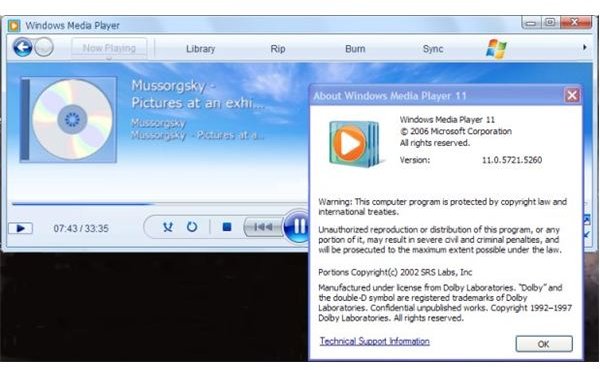
This article explains how to get your Windows XP media player to look like version 12, bundled with the Windows 7 operating system. This gives it a newer and stylized look which you might prefer instead of its previous versions.
With the leak of one of Windows 7’s builds, it has become possible to customize some aspects of the XP Operating System to look like the newest O/S released by Microsoft. For instance the addition of ‘iconized’ taskbar buttons, big tile-bar buttons, new colour scheme for the menu-bar and many other themes which can give XP the same look.
Since all that is possible, it is also possible to customise your media player to give it the same look as Windows Media Player 12. The latter is part of the new Windows 7 system and it isn’t available for XP, also due to the fact that it wasn’t a requirement for Microsoft to release any further XP updates after April 2009. It must be said that the newer-version look isn’t all that different from its previous ones, apart from looking smoother and having a lighter colour scheme.
In the following paragraph we’ll find out where to download the skins and how to apply them. It is also possible to change version info if you wish to do so.
Skins and Downloads
You can download the skin at the following DeviantArt page. The different look was created and implemented by ‘fediaFedia’ a DeviantArt user and hence it is unofficial; although it works ok, you can’t really blame anyone in case things go wrong.
fediaFedia’s Windows 7 WMP skin for XP
In order to apply you need to change some registry entries, although you don’t need to directly access the registry editor. If you wish to know how to back up your registry look here:
Back-up your Registry (middle of the page, second section)
As you open the zip you will see a couple of screenshots on how it looks and, most importantly, a file named ‘wmploc.dll’ which is the windows media player DLL (Dynamic Link Library): you need to replace this file.
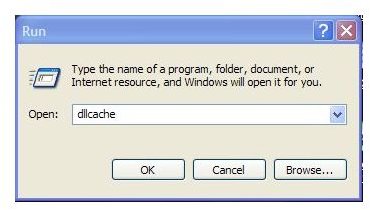
Go to ‘Start’ then ‘Run’ and type ‘dllcache’. Find the ‘wmploc.dll’ and delete if from here.
Go to your main drive (usually C) and find the folder named ‘Windows’. Now go to the ‘System 32’ sub-directory. Here you’ll find the original dll which you need to replace; should you have problems finding the file just go to the toolbar on the top, click on ‘View’ then ‘Arrange Icons’ and ‘By name’.
Once you’ve found the file, make a backup of it or simply place it somewhere else (in case things go wrong) and replace it with the file included in the zipped folder.
Check the file size after a bit, as Windows might have replaced it with the original file (about 7 meg). Re-try the process, you might have to paste the new ‘wmploc.dll’ file in the ‘dllcache’ folder. If you wish you can change version information with the program ‘ResHacker’ included in by fediaFedia, together with instructions. Just follow the instructions should you want to change the Res-info.
Finally, extract and click the ‘color settings.reg’ entry and you have a fresh look for your older versions of WMP.