There are several reasons why you may not be able to access the Windows Update website. Often, the reasons for this are due to malware of one kind or another, but if you are running a clean system with highly trusted AV software, then you should consider an issue with your firewall settings.
Vital Access
It is vital for any Windows user to be able to access the Windows Update service, particularly following a reinstall of the operating system or the addition of a new piece of hardware such as a graphics card.
However, there are occasions in which accessing the Windows Update is not possible. These circumstances could be due to a piece of software conflicting with access to the site or intentionally blocking access, such as spyware or other malicious programs.
Alternatively, your Windows Firewall could be blocking access to Windows Update. Several steps can be taken in order to resolve this.
Diagnosing the Error
First, it is important to diagnose the error correctly. Otherwise you might spend a lot of time on a fix that is not appropriate for the issue.
If you are getting Error 0x8024402C, the fault is due to proxy or firewall settings being incorrectly configured, due to either user error, application-initiated adjustment or a corruption. Neither the Windows Update management tool on your PC or a visit to the Windows Update website can bypass the error.
There are two ways that this error can be resolved:
Fix #1
The first way to resolve this is the simplest, and can be done successfully in both Windows XP and Windows Vista. Due to the speed with which troubleshooting Windows Update errors in WIndows XP can be resolved using this fix, it is recommended as the primary approach to resolving the issue.
· In Internet Explorer, open the Tools menu and select Internet Options.
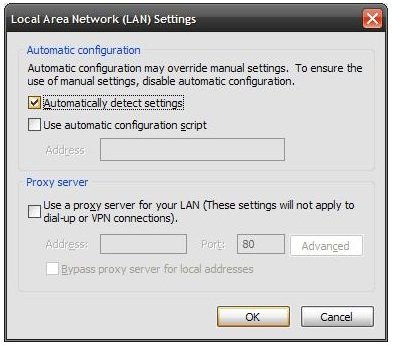
· On the Connections tab, go to the LAN Settings screen.
· Tick the Automatically detect settings checkbox, and OK out of the screen.
· You should then attempt to run the Windows Update again.
Troubleshooting Windows Update Errors in Windows XP
Fix #2
This fix involves more steps, and is suitable for Windows 2000, Windows XP, and Windows Server 2003.
- In Internet Explorer, open the Tools menu and select Internet Options.
- On the Connections tab, go to the LAN Settings screen. Click Advanced.
There may be entries displayed under Exceptions in the lower portion of the screen that should all be deleted. If you require any of these entries for certain applications, it is worth copying them into Notepad or some other .txt editor to retrieval later.
- Next, click OK to get out of the open screens in Internet Explorer and close the browser, ensuring no instances of IE remain open.
- Open the command prompt – go to Start > Run and step cmd, then click OK.
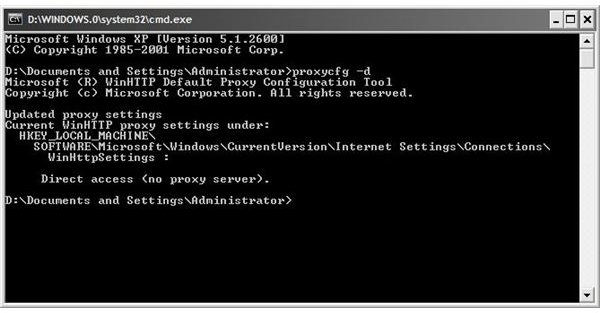
Next, enter the following commands one at a time, pressing Enter after each:
- proxycfg -d
- net stop wuauserv
- net start wuauserv
You should then attempt to run Windows Update again.
In turn, these three commands do the following:
- proxcfg –d removes any reference to a proxy server, giving the PC direct access to the Web
- net stop wuauserv stops the Windows Update service
- net start wuauserv starts the Windows Update service.
What is happening with this set of steps is the Windows Update program is being stopped and restarted, just as you might close and restart a desktop application that was not working correctly.
Now You’re Back Up and Running!
Following these steps, you should find that the Windows Update system is back up and running. Time to download those important updates to Windows, and check for updates to your vital component drivers!
Note that this particular fix may result in issues for corporate networks, and should ideally be used on home PCs and networks. If removing reference to the server fails to resolve this issue, consider either a direct connection to the internet or checking your router or modem’s firewall.


