
Is your server’s CPU running at 100%? This article analyzes the causes of why this anomaly happens and how to correct the problem. Windows Server 2003 is one of the most powerful servers in business today. CPU intensive applications can cause poor server performance and make your computer unusable
Windows Server 2003
Windows Server 2003 is one of the most powerful servers used today. Microsoft Windows Server 2003 comes in Standard, Enterprise and Datacenter Server. The primary difference in these servers is the number of CPUs and the amount of RAM that can be installed.
Although this is one of the most powerful servers that is available, computers can slow down over a period of time. This slow down can be caused by temporary files or fragmented hard drives. If this is not the case, high CPU utilization should be looked at. In order to examine CPU utilization, start the task manager by right clicking on the taskbar and select the task manager or go to the performance monitor under the control panel and analyze the CPU utilization.
Troubleshooting High CPU Utilization
If your computer is experiencing high CPU utilization, follow these steps to troubleshoot why this can be happening.
Start the task manager by right clicking on the taskbar and select the task manager. Click on the Performance tab and look at the graphs. If your computer is experiencing high CPU utilization, click on the processes tab. Examine each process thoroughly and look for any process that may be a resource hog. You can sort these processes by clicking on the Process name, CPU or Memory.
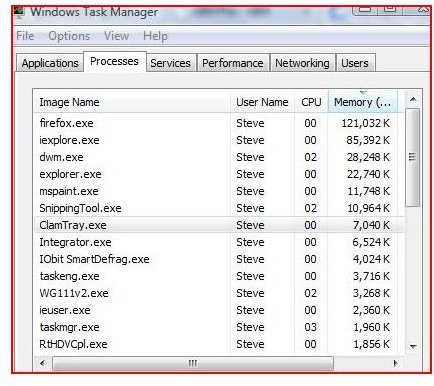
If you have an application that is using a large amount of memory or CPU; look at the manufacturer’s site for a patch or fix. Sometimes a simple uninstall or repair of the application can fix this problem.
Microsoft recognizes some issues with high cpu utilization with terminal services, indexing services, removable devices (including the process - cisvc.exe), print services and other scenarios. With each of the aforesaid items, Microsoft has hotfixes or Service Packs that take care of these issues.
Always make sure your operating system has the latest updates and service packs.
If you have all of the latest updates, look at the startup programs. Start msconfig by clicking on the start button, click on run and type msconfig. Click on the startup tab and disable all items. After you disable each of these, reboot your computer and analyze the CPU’s performance. If the CPU’s performance falls from 100%, go through the startup items again and enable one application at a time. Often the application will raise it’s evil head once you re-enable it. If this is the case, examine the application and check with the manufacturer for patches or updates. Reinstall if necessary.
Because you are troubleshooting a server, make sure you check services like WSUS, IIS and applications such as SQL. If any of these items are causing the high CPU utilization, disable the services during non production times. If any of these are suspect, make sure you have the updates for each and reinstall if necessary.
Another area to watch is the ACPI in your BIOS. With Windows Server, you can change to APM.
Process Explorer is an excellent way to analyze your system processes and figure out what is causing the high CPU utilization.
Always backup your data on any computer when working with fixes.
Helpful Links:
ProcessLibrary Information on processes
Security Process Explorer Link
Process Explorer Download


