
You really don’t know what happened, all you know is that you clicked the Favorites button on your Internet Explorer toolbar only to find them all missing. Don’t panic just yet, a simple fix may help you restore lost favorites in Internet Explorer.
Check Your Account
If you booted up your computer, logged in and opened Internet Explorer only to find your Favorites apparently lost, close everything and log off by going to the Start menu and selecting Log Off or Switch User. It is possible that you accidentally logged in as another user or perhaps are using your computer’s Guest account.
Log back in, making certain you are signing in under your user name. Once logged on, open Internet Explorer again and see whether your Favorites are still missing. If not, it was probably a simple case of mistaken identity. However, if your Internet Explorer Favorites still appear to be lost, you will need to keep troubleshooting.
Find the Folder
The next step to take is to find out if the empty Favorites folder still exists. This will determine whether the Favorites are lost or the entire folder itself is missing. To uncover which scenario you are experiencing, go to the Start menu, point to Find and select Files and Folders. Type favorites into the Named box and click Find Now. If you are using Windows Vista, click Start, type favorites into the Start Search box and press Enter.
There are three possibilities at this point:
- You find the Favorites folder, double click to open it and determine that the Favorites are still lost. If this is the case, read the section on restoring favorites to the folder
- You find the Favorites folder, and the Favorites are not missing from it. If this is the case, read the section on restoring the favorites folder to Internet Explorer.
- You do not find the Favorites folder. If this scenario fits, read the section on replacing a lost Favorites folder.
Restore Favorites to the Folder
There are two steps you can take to restore lost Favorites to the folder. If you regularly back up your system, you can restore the missing Favorites from a backup. Read Restore Application – Specific Files and Folders to learn how.
If you have not backed up your system, there is one more option that might just work. You can perform a System Restore and hope for the best. A System Restore will not bring back files that have been deleted, however it may restore user account information that was changed. This means a System Restore may or may not bring back your lost Internet Explorer Favorites, so cross your fingers.
For steps on performing a System Restore, read one of the following Bright Hub tutorials: Windows XP System Restore Points or How to use Windows Vista System Restore .
Restore the Folder to Internet Explorer
If you found the Favorites folder and it contains the items you thought were lost, the folder needs to be pointed back to Internet Explorer. Before moving on, it is imperative to mention that you should not edit the Windows registry unless you are comfortable doing so. Deleting or altering the registry incorrectly can seriously damage the system. If you are not confident about taking these steps, enlist the help of a professional.
If you are ready to make changes, open the Registry Editor in XP by clicking Start and clicking Run. Type regedit in the Open field and click Go. If you are using Vista, simply click Start, type regedit into the Start Search field and press Enter.
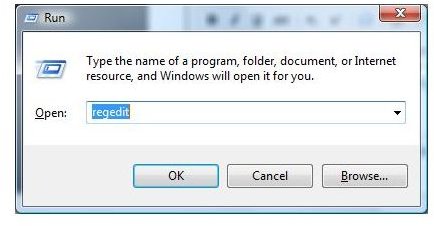
The Registry Editor will open. Find Favorites under the following Registry keys:
HKEY_CURRENT_USER\Software\Microsoft\Windows\Current Version\Explorer\Shell folders
HKEY_CURRENT_USER\Software\Microsoft\Windows\Current Version\Explorer\User Shell folders
HKEY_USERS\.default\Software\Microsoft\Windows\Current Version\Explorer\Shell folders
HKEY_USERS\.default\Software\Microsoft\Windows\Current Version\Explorer\User Shell folders
Once you find Favorites under the first key, right click it and select Modify.
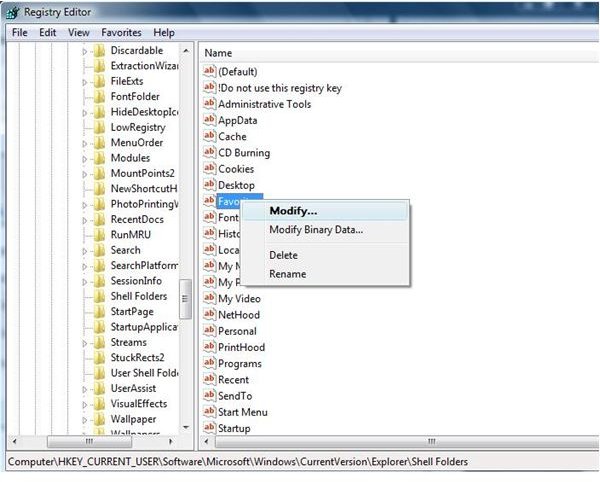
The Edit String dialog will open. The Value Data field should contain the correct location of your Favorites folder. If it does not, enter the right location to restore your missing Favorites folder to Internet Explorer.
The correct location for Windows XP is:
C:\Documents and Settings\<Current User>\Favorites\
The location for Vista is:
C:\Users\
Replace Lost Folder
If the entire Internet Explorer Favorites folder is missing, you can restore it from a backup, as noted in the Restore Favorites to the Folder section of this article. If you don’t have a backup, you can attempt a System Restore (also as noted in Restore Favorites to the Folder).
If you are unable to restore a lost Favorites folder in either of these manners, you will have to start from scratch. To make a new Favorites folder, go to My Computer (Computer in Vista), double click Local Disk (C:), and open Windows. Right click a blank area on the right side of the window, point to New and click Folder.
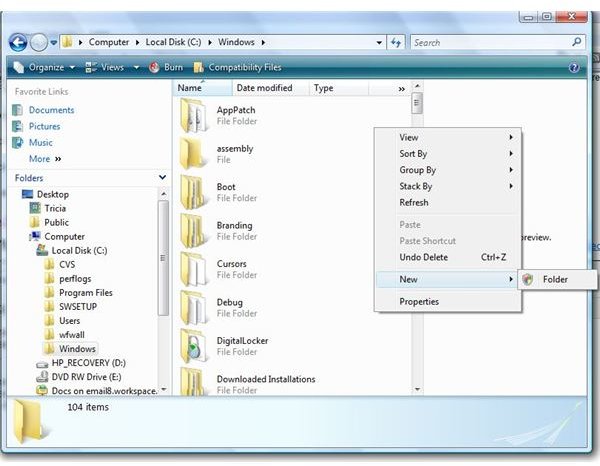
Name the folder Favorites and go to the Registry Editor to make sure that the correct file paths are entered (refer to ‘Restore the Folder to Internet Explorer’ in this article for details).


