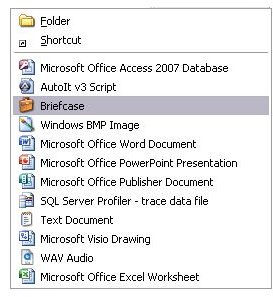
Have you ever had the problem when you right click in a folder or on the desktop and select the “New” option it takes seemingly forever to load? How about left over bits under the “New” menu from an application that was uninstalled? This article will show you how to clean up your “New” context menu.
Templates and Tweak UI
Many applications will add shortcuts, also referred to as templates to create new types of files on the File → “New” context menu. It’s a handy feature, but occasionally one of these templates will become corrupted or abandoned after its parent application is uninstalled. This can cause lag issues when trying to use the “New” menu as it spends seconds searching for the old application. Getting rid of an item like this typically requires registry editing, but luckily there is a simple to use, free tool from Microsoft called Tweak UI.
Cleaning the “New” context menu in Windows XP
First off, go to the Windows XP PowerToys download page and download the Tweak UI application.
Run the executable and follow the prompts to install Tweak UI. After the install has completed, you will find the application under Start → Program Files → Powertoys for Windows XP → Tweak UI.
-
If you haven’t already, start Tweak UI
Advertisement -
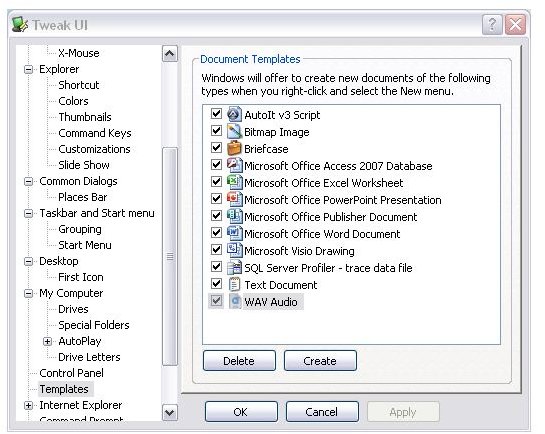
Browse to the Templates item as displayed in the picture below
-
After a moment, you will see the items that are listed in your “New” context menu
Advertisement -
You can now click on a Template and then click on Delete
-
After the Template is deleted, click OK
Advertisement -
Depending on the Template deleted, your screen may do a refresh as Windows Explorer is restarted to update the context menus
Note that some system Templates such as the “Briefcase” cannot be deleted, but they can be disabled. Follow steps 1-3 as above, but instead of selecting an item and clicking delete, just un-check the box next to it. This will disable the item from your context menu, but will not permanently delete it. If you attempt to delete a system Template such as the Briefcase, Tweak UI will go along with your request, but you will find that the Template isn’t deleted or even disabled. Entering Tweak UI again will show the Template as it was before.
Cleaning the “New” context menu in Windows Vista
Unfortunately, Microsoft has yet to release a Vista version of Tweak UI, but with a quick workaround, you can use the XP version on a Vista machine.
-
Download Tweak UI as directed earlier in the article. Do not attempt to install it yet
-
Download and install a file archiver such as WinZip, WinRAR or 7-Zip
Advertisement -
Right click on the Tweak UI installer and extract the files to a folder on your desktop
-
You should have two files once they are extracted – TweakUI.exe and PowerToysLicense.rtf
Advertisement -
Right click on TweakUI.exe and click on Properties
-
On the Compatibility menu, select “Run this program in compatibility mode for Windows XP Service Pack 2.. Click OK
Advertisement -
Double click on the Tweak UI executable. You will receive a warning regarding the compatibility – select the option to Run the program
-
You can now go to the Templates option and remove or disable the Template you are having issues with
Advertisement
Note that some features of Tweak UI won’t work under Vista so you may want to be sure to create a System Restore point before attempting to use these.


