If you are a Word user (and you probably are) learning to take advantage of Ms Word macros will help you in your work and, most important, save some precious time. Read on to learn how to record VBA macro.
Introduction
As mentioned in “VBA-Introduction,” Visual Basic for Applications is a useful tool for Word users. Moreover, it can be mastered to a certain level by almost everyone. The best way to become familiar with word VBA is by recording a macro.
The Task
Imagine that you need to make the first word of every paragraph in your document Bold, Italic and size 16-point. It will take many clicks each time in order to apply the desired formatting. Of course, you could create a special style for the first word – but this is really not necessary. You can simply record a macro and run it as needed.
Recording
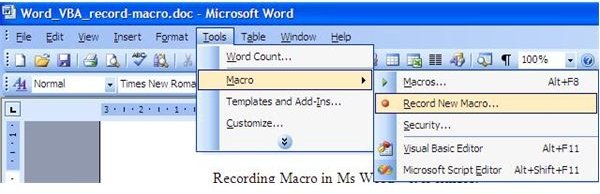
To turn on “recording” mode in Word, go to Main Menu -> Tools -> Macro -> Record New Macro in Word 2003.
If you are using Word 2007, click the Developer tab and press the Record Macro button in the top left of the screen.
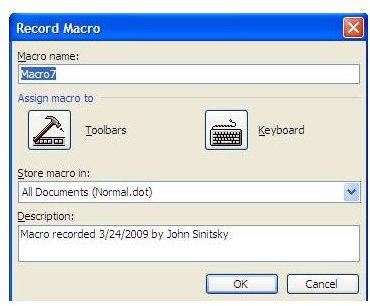
You will be taken to a screen with a macro name and possible shortcut. You can either decide on one or leave as default (just keep in mind the default name - macroSOMETHING).
Record Macro
Recording Mode
After assigning the name, you can start recording. Note that the mouse will look like a cassette tape, indicating that Word is currently recording your actions. Navigating through text with a mouse is not possible while recording a macro, so use the keyboard to move the cursor (using the Home, End, Page Down keys, etc.), selection (Shift) and various formatting options (Ctrl-B for Bold, Ctrl-I for Italic, etc.).
Perform Your Actions
Once you are in Recording mode, go to the start of the paragraph (hit Ctrl+up arrow on your keyboard). Now select the first word – that’s Shift+Ctrl+left arrow. Now, apply the formatting. You can use the Toolbars or the keyboard shortcuts: Ctrl-B, Ctrl-I, and set the font size to 16 (in the toolbar). After doing that, move the cursor to the start of the next paragraph (be sure to use the Ctrl-down arrow). When you are done, hit the Stop recording symbol. Congratulations, you have just recorded your first macro!
Running the Macro
Now, let’s run our macro. Click on any place in the document, being sure to have the cursor in another paragraph.
To use the recorded macro go to Main Menu -> Tools -> Macro -> Macros in Word 2003, or use Developer Tab -> Macros in Word 2007. Alternatively, you can press Alt-F8 on your keyboard. From the list of the macros, choose the one you have recorded. Click on it. You should see the first word of a paragraph with the new formatting applied!


