A common complaint that users have with Windows is that it stores information about us. In this regard let’s discuss one such bugbear, how to clear cached passwords in Windows XP, which is particularly useful if you share computers with others and wish to take initial steps to keep your PC safe.
When visiting a web forum or filling in a form it often happens that your browser stores each password which you type in, assuming it is set to do so. You can also enable the option to ‘login automatically’ into forums, an option which allows storage of user information in a cookie, if only temporarily.
Although storing passwords is mostly useful and time-saving, it can be considered a security risk in cases where you have a remote desktop, a large network or if you simply share your computer with another person.
Clearing stored passwords (cached) is extremely simple and takes very little time. You can also disable the option to automatically store passwords if you wish, which is equally simple. In the following paragraphs we will look at how to make these changes, step-by-step.
Clearing Stored Passwords
In order to clear stored passwords go to your control panel and click ‘Internet Options’. You can also select this from most browsers via the drop-down menus, such as Internet Explorer or Mozilla Firefox for example.
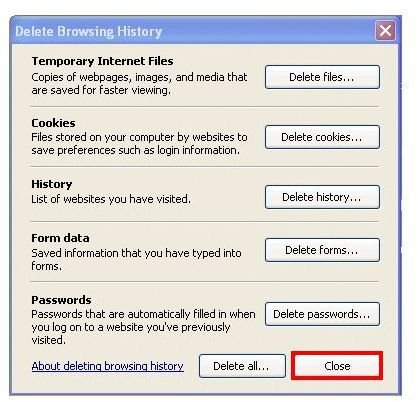
Once open, you will have the option to either delete all your browsing history or just the passwords stored, in case you want to keep cookies for the pages you visited, for faster loading.
- In the ‘General’ tab (selected automatically once ‘Internet Options’ is open, click on the ‘Delete’ button in the ‘Browsing History’ heading.
-
Under the ‘Passwords’ heading (right at the bottom), click on the ‘Delete passwords’ button.
Advertisement -
Click ‘Yes’ once the prompt appears.
Clearing Stored Passwords via the Key Manager
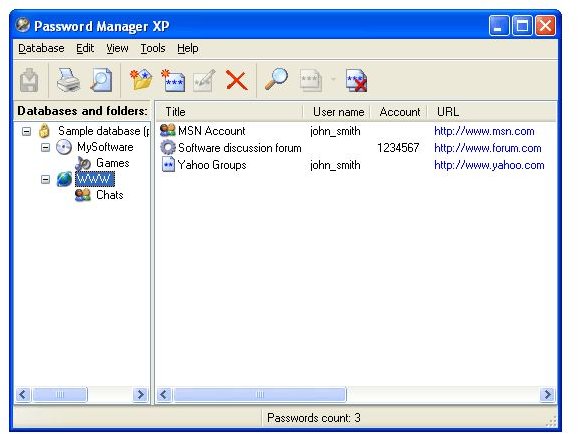
You can also clean any stored user passwords via the key manager, accessed by using the ‘Run’ command prompt from the start menu. This clears both web passwords and the ones stored for network logons.
-
Click on the ‘Start’ menu and select ‘Run’.
Advertisement -
From the Prompt, type (or paste) the following: ‘rundll32.exe keymgr.dll, KRShowKeyMgr’
-
Click OK.
Advertisement -
Select any or all the entries from the list and click on ‘Remove’.
And you’re good to go!
Disabling Password Storage and Auto-Complete (Internet Explorer)
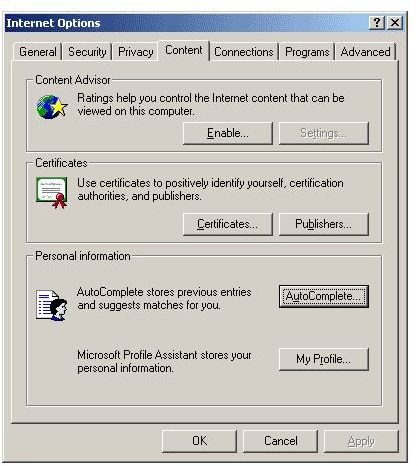
Many people consider auto-complete a security risk and choose to completely disable password storage for websites. This can easily be done via ‘Internet Properties’ again. The following applies to Internet Explorer.
- Open ‘Internet Properties’, in the control panel.
-
Go to the ‘Content’ tab (4th from left)
-
In the ‘Auto-Complete’ heading, click on ‘Settings’
Advertisement -
Untick ‘Forms’ and ‘User names and passwords on forms’
-
Click OK.
Advertisement
You can deselect all of these options if you wish, but the address of previously visited web pages won’t auto-complete if you’re typing those in manually.


