The disappearance of Vista’s visual display doesn’t mean that Vista has completed all the tasks required for it to shut down the computer. Especially if you’ve installed an older device on the system with a driver that is causing a hiccup, Vista will keep churning, trying to fix the problems.
Solution to your problem
If your Vista computer system shuts down, but continues spinning after you try to turn off Vista, and insists on making weird noises for a period before finally powering down, then you’re probably standing over your computer contemplating violence.
The solution to the problem: After you no longer see anything on the screen, Vista hasn’t always completed all the shutdown tasks that are required. Especially, if your computer uses an older device implementing a driver that is creating a difficulty, your computer will insist on operating for a time, as it attempts to fix the problems.
To solve this problem, restart your computer, pressing and holding the F8 key until the Advanced Boot Options menu shows up, and then choose Safe Mode. Shut down your computer and if it shuts down a lot faster, then you will need to fix the driver incompatibility problems.
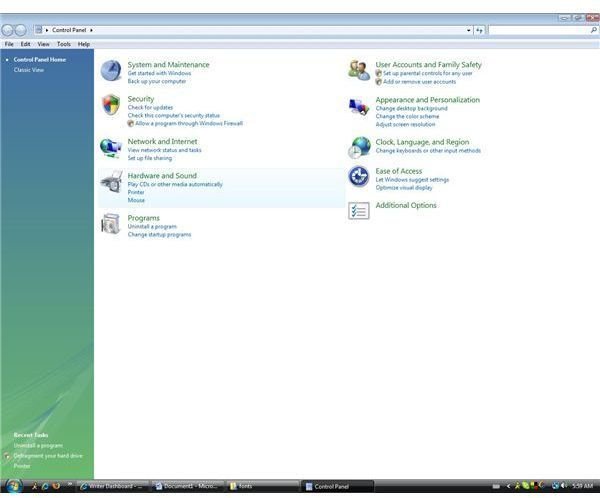
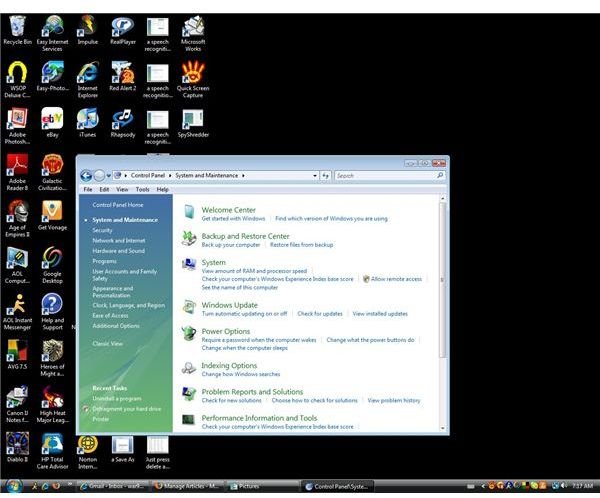
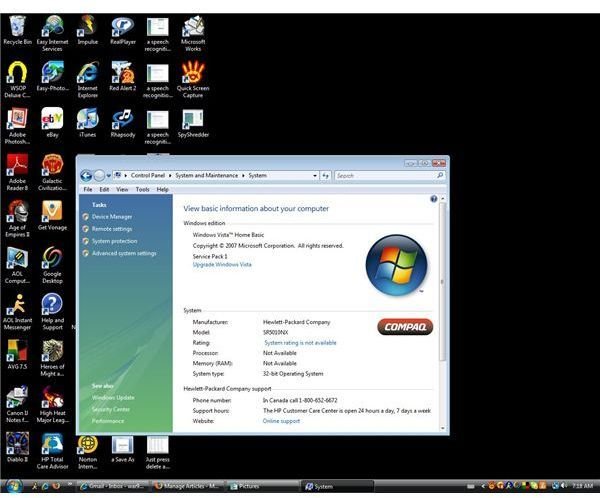
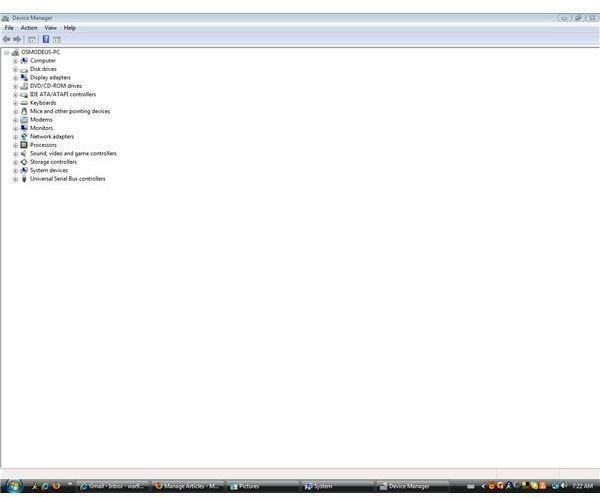
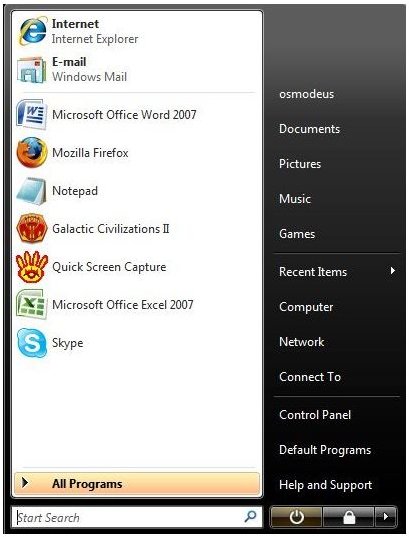
The Vista Device Manager will help you fix this, but an Internet connection is required to complete the job. To begin, click the Start button and then choose Control Panel > System and Maintenance > System, and then find Device Manager under the heading of Tasks in the left list of the System menu, and click on Device Manager to gain access.
After the Device Manager Window opens, there should be a directory of hardware currently installed. You can see the devices under each device category on the list by using the (+) signs in front of each category. You should start by updating your computer’s video driver (display adapter), its normal for Vista to install these drivers last, so this driver is the best one to begin with. Update the driver by finding the listing and right-clicking it, and then choose Update Driver Software. Vista should ask you if you want it to find the right driver for your needs at this point, select this option and this might resolve the problem.
Should the problem still exist after this, you should turn-off all devices that aren’t absolutely necessary for Vista to operate, and then restart your computer to see if this solves the problem. To do this, right-click the devices you want to disable, and choose Disable – only disable devices that are external to your computer, not your main hard drive, internal controllers, or any internal device – and the issue should be fixed. Now, turn each device back on, one at a time, until the issue turns up again, to find the culprit that is causing you problems.
You will need to uninstall the problem device by right-clicking it and then choosing Uninstall, while making sure to uninstall any related applications or programs to the device that was causing the problem – open the Control Panel, choose Programs and then Programs and Features to find the related applications or programs for the problem device. After uninstalling the problem device, turn off your PC and then unplug the device. At this point you will need to locate updated drivers and software from the creator, plug the device back in, turn on your Vista computer, and then do a quick and tidy reinstall of the device.


