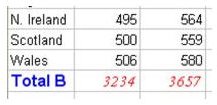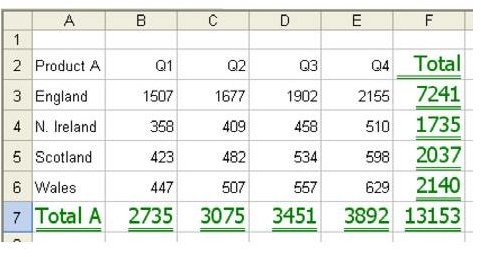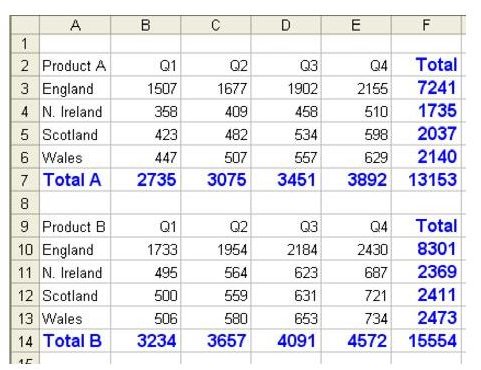
Problem: As shown in Fig. 1049, your manager wants all the totals in bold blue, Times, and in 12 point on one day, and the next day she wants you to change to green, italic, and 10 point. She changes her mind two to three times a day.
Strategy:
Calm down and put the resume away; you can tame this problem in two ways.
**
Method 1:
The first method, for Excel 2002 and later versions, is to use Find and Replace for Formats.
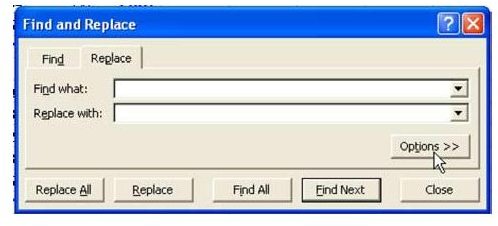
- From the menu, select Edit – Replace. In the Find and Replace dialog, choose the Options» button, as shown in Fig. 1050.
-
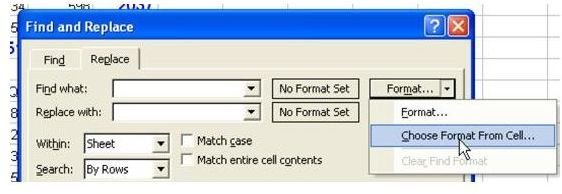
Leave the Find What and Replace With boxes blank. On the right side, choose the dropdown next to the top Format… button. Select Choose Format From Cell, as shown in Fig. 1051.
-
Using the eyedropper, select the cell with the current totals format. See Fig. 1052.
Advertisement -
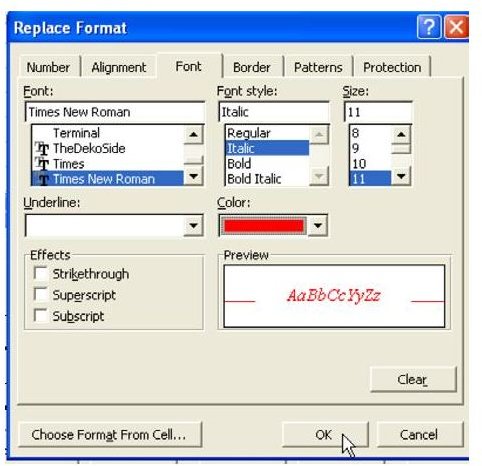
Choose the second Format… button. Specify the new format to be used for the replacement, as shown in Fig. 1053.
Tip
_
To make a format similar to the original, select Choose Format
From Cell and then change only the elements that you want to
be different.
_
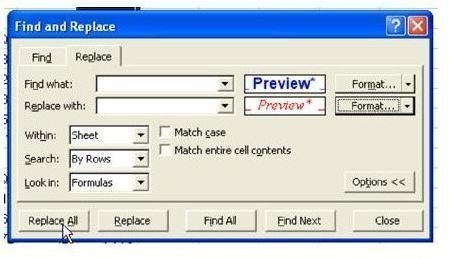
- After specifying both the original and new formats, choose the Replace All button in the Find and Replace dialog, as shown in Fig. 1054.
Gotcha:
When you choose the format from an existing cell, Excel picks up all of the formats. When you perform the Replace, if a format does not match exactly, the cell is not replaced. For example, in Fig. 1055, the cells in column A were left-justified instead of right-justified. They were not replaced.
The workaround:
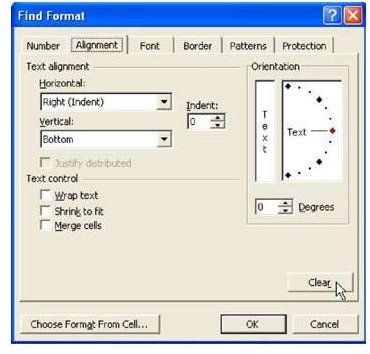
To tell Excel that you want to change all of the blue, 12 point cells, irrespective of the alignment, you can Select Format from Cell, but then use the Clear button on the Alignment tab to clear all of the Alignment choices, as shown in Fig. 1056.
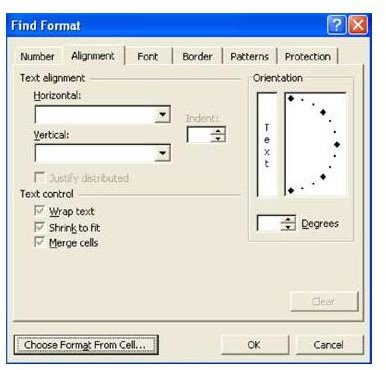
After choosing Clear, all of the choices are set to the grayed out checkbox, as shown in Fig. 1057. This means that Excel will choose formats of any alignment.
There are Clear buttons on each of the six tabs of the Find Format dialog. Choose the Clear button for any attributes that you do not need to replace.
Method 2:
Use styles. Styles are popular in Word. Since Microsoft leaves the Style dropdown off the Formatting toolbar, many do not realize that you can use styles in Excel.
-
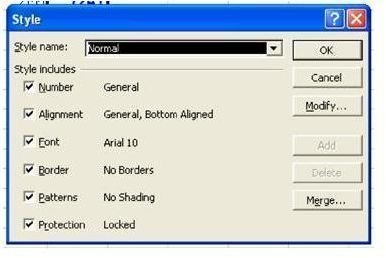
First, you need to set up a style for your totals. From the menu, select Format – Style. The Style dialog is displayed, as shown in Fig. 1058.
Advertisement -
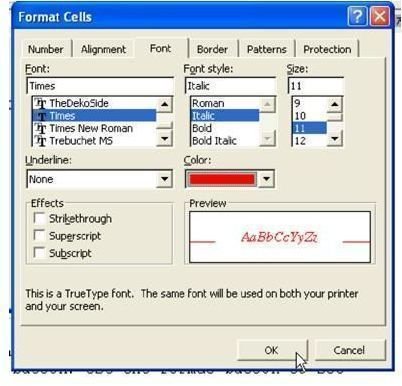
Type a new style name such as MyTotalStyle in the Style dropdown. Choose the Modify button. Use the Format button to set up the format
__
du jour
_
; Red, Times Italic, 11 point. See Fig. 1059.
Caution:
__
Since a format applies to a single cell, you cannot select Inside borders on the Border tab.
_
Important:
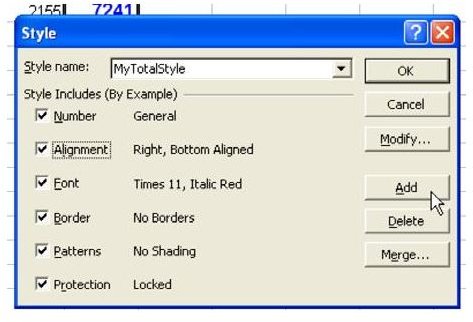
To finish adding the style, choose the Add button, as shown in Fig. 1061.
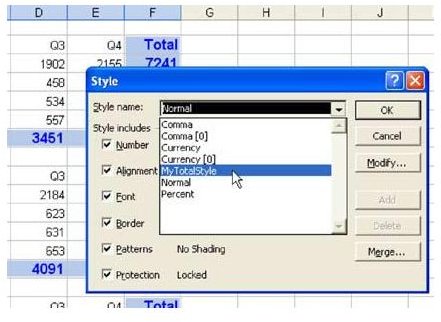
As shown in Fig. 1062, you can now select all of the total cells and choose Format – Styles – MyTotalStyle – OK.
The next day, when your manager wants the total cells to be green, 14 point Tahoma, with double accounting underlines, the process is simple. First, select one of the Total cells. From the menu select Format – Styles – MyTotalStyle – Modify. Change the format and choose OK. All cells formatted with the MyTotalStyle format will change to the new format, as shown in Fig. 1063.
Summary:
You can use Styles to manage constantly changing formats, or use the Edit – Replace – Formats option in Excel 2002 and later versions to change formats.
Commands Discussed:
Edit – Replace – Format; Format – Styles – Add; Format – Styles – Modify
_
- Choose OK to close the Format Cells dialog.
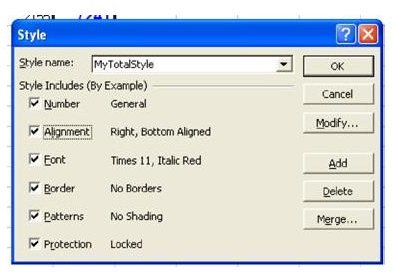
Examine the choices in the Style box. You want your style to be Red, Italic, and 11 point, but you do not want the style to include right alignment, as shown in Fig. 1060.
- Uncheck the Alignment tab.
5)
_**
Images