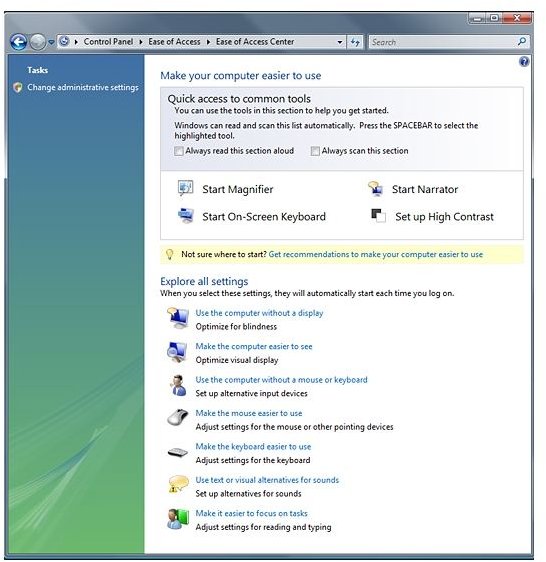
This article walks you step-by-step through the process of configuring and using Vista’s new accessibility options, via the Ease of Access Center.
Windows Vista offers many new accessibility features, which are developed not only to improve productivity, but also to facilitate computing for children as well as people with physical and mental disabilities such as visual impairment, hearing loss, joint pain or cognitive limitations.
These features are accessible via the Ease of Access Center, which replaces the Accessibility Wizard and the Utilities Manager of earlier Windows versions. Accessibility features, such as its new, built-in speech recognition program, are not designed just for those with disabilities. Read on to learn how to configure and use the Windows Vista’s accessibility options.
Ease of Access Center
The Ease of Access Center enables you to customize Vista’s accessibility features from a single management screen. It also enables you to make use of features such as the Magnifier, On-screen keyboard, Narrator and Speech Recognition.
- Click on the Vista Orb to open the Start menu.
- Select Control Panel from the menu.
- Select the Ease of Access option from the drop-down menu.
This opens the Ease of Access Center dialog window, which provides you quick access to common tools. It also enables you to explore the different accessibility options.
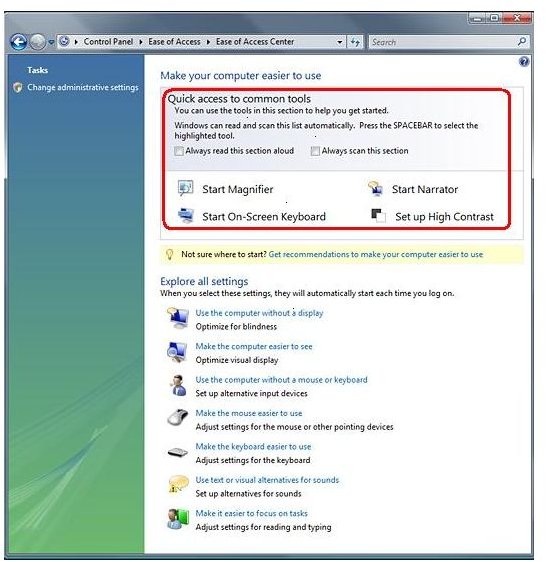
Quick Access to Common Tools
The section labeled Quick Access to Common Tools displays the icons for each of the four tools: Magnifier, Narrator, On-Screen Keyboard, and High Contrast. This section is read aloud when it is highlighted. You can select one of the four tools by pressing down the Space Bar when that tool is read out or highlighted. Once you activate one of the tools, it will remain on until you log off the computer.
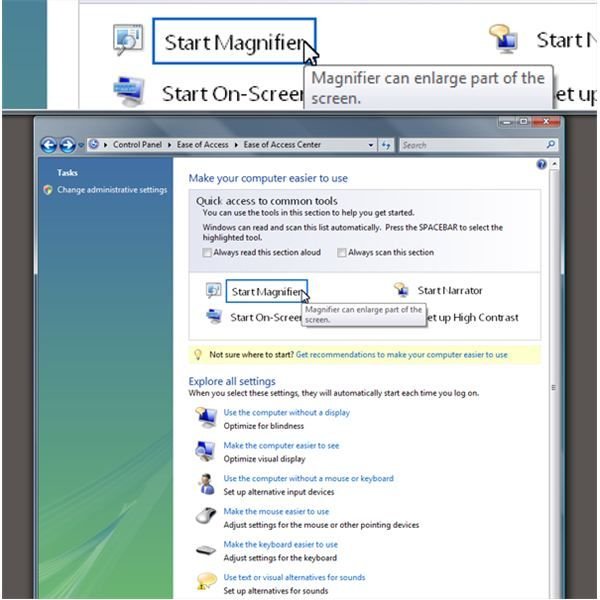
Magnifier
This tool enables you to magnify text, your cursor and different icons on-screen. It can be used to make particular sections of the screen up to 16 times larger. The Magnifier is especially useful for visually-impaired individuals.
Once you activate the Magnifier tool, you can select the scale factor from its menu. You can also select the dock position, which enables you to set the Magnifier window at the top, bottom, left, or right of the screen.
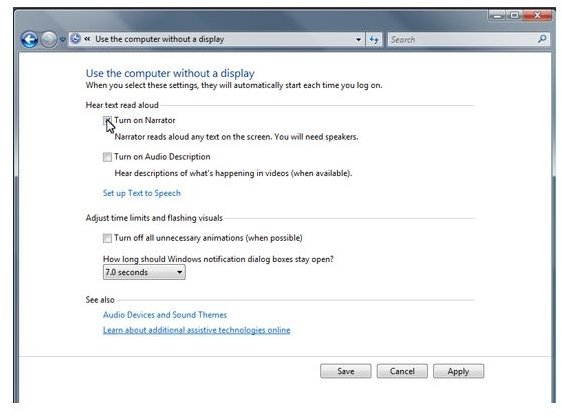
Narrator
The Narrator is a text-to-speech tool that serves as a basic screen reader, which reads on-screen text aloud. It has a more natural, less mechanical voice than earlier Windows versions.
On-screen Keyboard
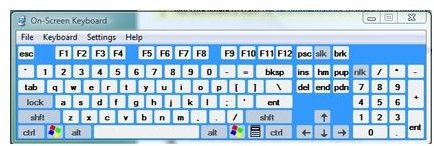
The Onscreen Keyboard is a tool that enables you to type without having to use a physical keyboard. When it is activated, a visual keyboard will be displayed on your monitor screen. This keyboard has the same standard keys as a regular keyboard, and can be selected using your mouse.
High Contrast
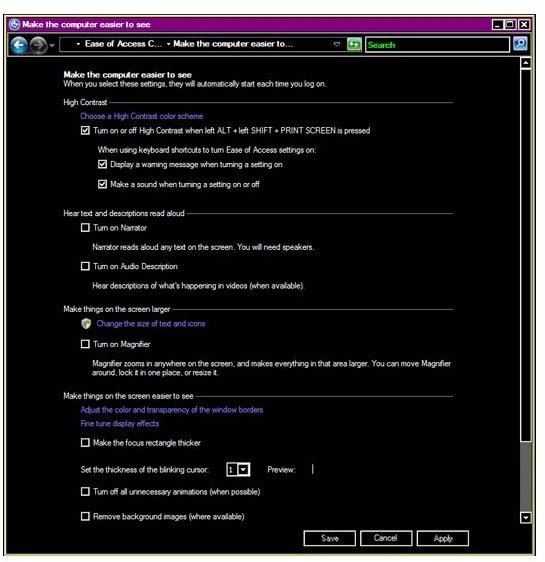
Activating the High Contrast tool increases the color contrast of the text and images on your screen. When this tool is activated, the screen will display black and white versions of the document, website, or screen you are viewing. By increasing this contrast in colors, you make it easier to see onscreen items, and it also lessens eyestrain.
You can quickly switch from high contrast to normal view by using the [Alt + Left Shift + Print Screen] keys on your keyboard.
Explore All Settings
This section enables you to explore different accessibility settings and programs available. These are organized into seven categories:
- Using the PC without a display.
- Making the PC easier to see.
- Using the PC without a mouse or a keyboard.
- Making the mouse easier to use.
- Making the keyboard easier to use.
- Using text or visual alternatives for sounds.
- Making it easier to focus on tasks.


