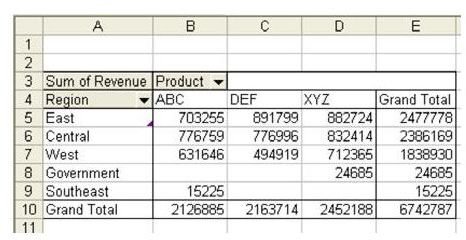
Problem: Since you had no sales of a particular product in a particular region, Excel leaves those cells in the pivot table blank, as shown in Fig. 869. This seems like a really bad idea. You’ve learned in this book that if your data has blanks instead of zeroes, Excel will assume that a column is a text column. It is really ironic that Microsoft would dare to use a blank cell in the middle of numeric results.
Strategy:
When pivot tables first came out, there was no way to correct this. After much outcry from accountants everywhere, Microsoft gave us two ways to solve the problem.
Method 1:
If you discover the problem after the fact in a completed pivot table, follow these steps.
-
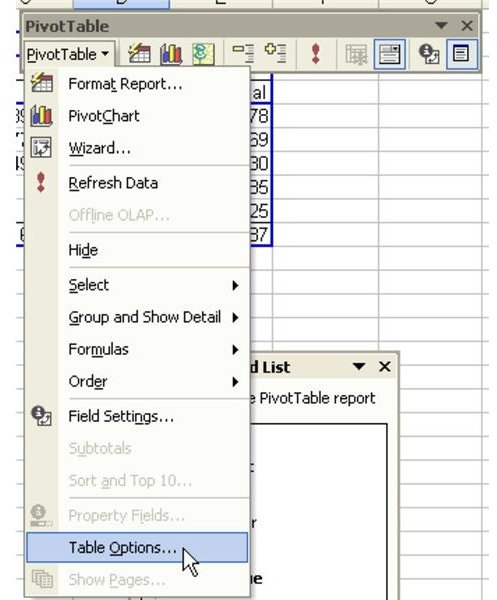
Select one cell in the pivot table in order to display the PivotTable toolbar. From the toolbar, use the PivotTable dropdown and select the Table Options menu item, as shown in Fig. 870.
-
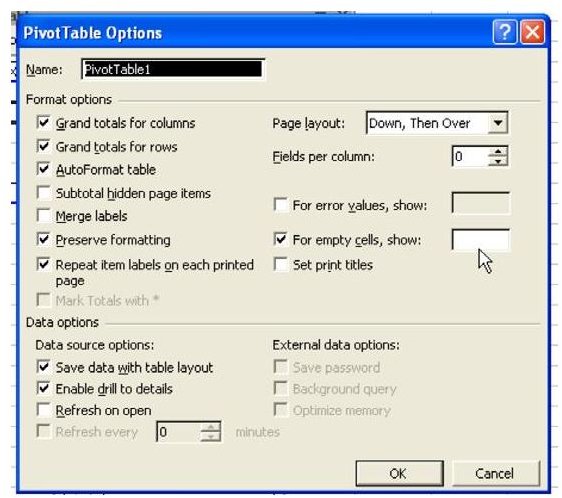
In the Table Options dialog, on the right side, locate the field called For Empty Cells, Show:, as shown in Fig. 871.
Advertisement
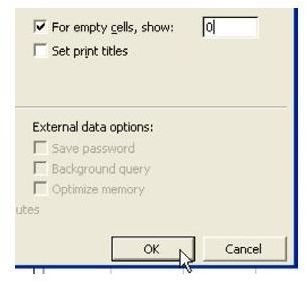
- By default, this setting is blank. Type a zero in the textbox and choose OK, as shown in Fig. 872.
Result:
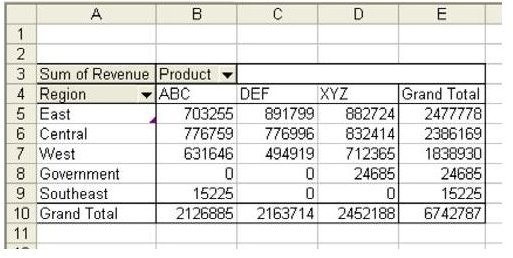
As you see in Fig. 873, blanks in the data section of the pivot table are shown as zeroes.
Method 2:
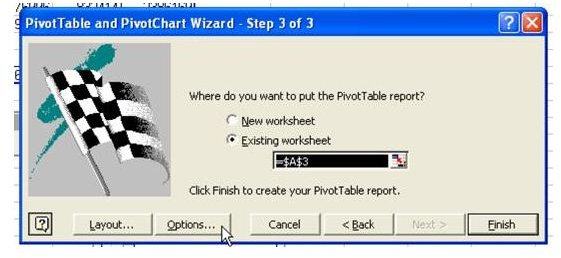
The other method for having zeroes appear is to use the Options button in Step 3 of the PivotTable Wizard, as shown in Fig. 874. This button will open the same Options dialog as shown above.
Summary:
Make sure to use the Options dialog to display empty cells as zeroes instead of blanks.
Commands Discussed:
Data – Pivot Table
Images