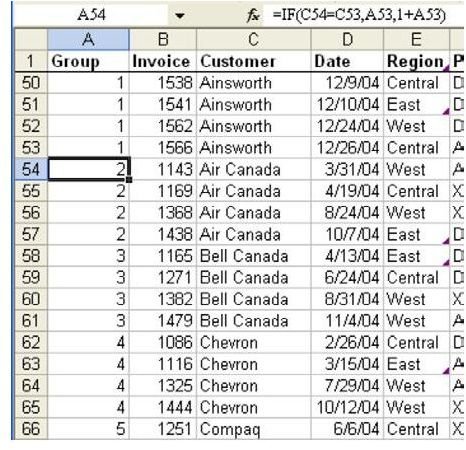
Problem: You have a list of invoice data. You wish to number the records in such a way that the invoices for the first customer all have a group number of 1. The invoices for the next customer all will have a group number of 2.
Strategy: Sort the data by customer. Add a new column A, with the heading of Group. In cell A2, enter the number 1 for Group #1. In cell A3, enter the formula that will be used for the rest of the records: =IF(C3=C2,A2,1+A2)
In plain language, this formula says, “If the customer on this row equals the row above, then use the group number on the row above. Otherwise, add one to the group number above.” Copy this formula down to all the other rows, as shown in Fig. 814.
Result: The records are all assigned a group number. Each customer has a unique group number. In order to allow future sorting, copy the formulas in column A and use Paste Special – Values to convert the formulas to numbers.
Summary: Use the IF function to add a group number to each group of records.


