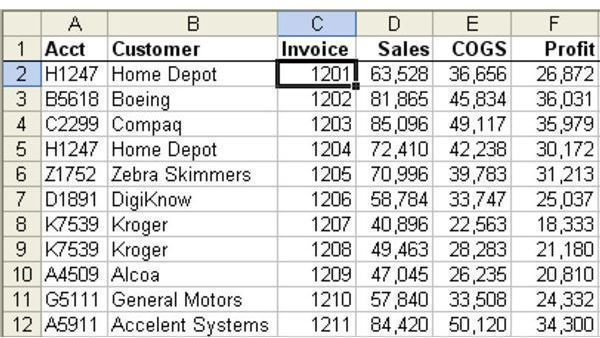
Problem: You have an invoice register for the month. The report shows Account, Customer, Invoice, Sales, Cost, and Profit for each invoice, as shown in Fig. 799. You want to combine customers in order to produce a report of sales by customer.
Strategy: You can use Data Consolidation to solve this task. It is possible to consolidate a single list by using the labels in the left column. This will produce a report with one line per customer and totals of each numeric field.
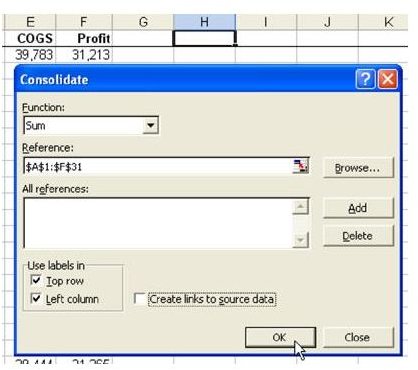
1) Select a blank section of the worksheet. From the menu, select Data– Consolidate. In the reference field, select the complete range of your data, including the headings. Be sure that the Left Column option is checked, as shown in Fig. 800. Choose OK.
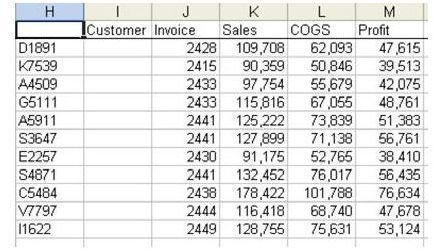
2) As shown in Fig. 801, Excel will combine all identical account numbers together. The original data did not have to be sorted by account number.
Gotcha: Note that Excel did add up the invoice numbers in column J. This makes no sense.
3) Delete column J.
4) Excel did not fill in the label in the upper left corner of the table. Enter Acct in H1.
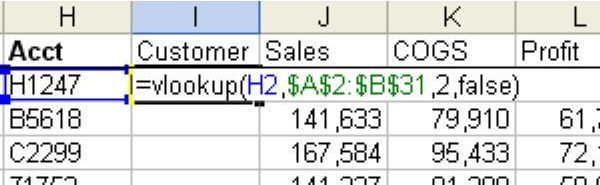
5) The Consolidate command is not smart enough to take the first or last instance of text fields. You will have to fill in the customer name, using a VLOOKUP function, as shown in Fig. 802. (For more information on VLOOKUP, see “Sorting with a Formula” on page 167.)
6) Copy the VLOOKUP function down by double-clicking the Fill handle. Change the VLOOKUP formula to values by copying I2:I16 and then using Edit – Paste Special Values.
7) The resulting dataset is in the same sequence as the customers in the original list. Choose a single cell in column I and click the AZ sort button to produce an alphabetical list by customer.
8) Finally, the column widths are not automatically adjusted as the result of a consolidation. As shown in Fig. 803, you might want to double-click the right side of the I column heading in order to auto fit the Customer column. Double-click when the mouse pointer looks like the dual-headed arrowed I-beam.
Summary: Using Consolidate is a good method for combining duplicate customers while totaling many columns of numeric data.
Images