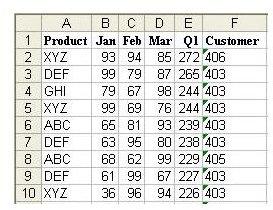
Problem: You have a large database, as shown in Fig. 651. Before you can produce a report for each customer, you need to identify the complete list of unique customers.
Strategy: There are many solutions to the Unique Customer problem. In this tip, you will use the Advanced Filter command on the data menu. Follow these steps.
-
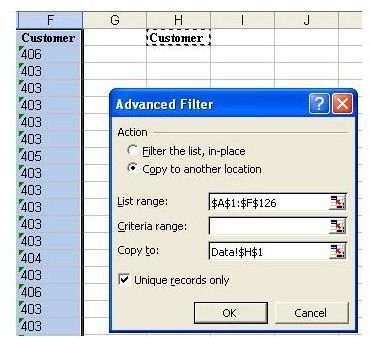
First, copy the Customer heading from F1 to a blank area of the spreadsheet, as shown in Fig. 652.
Advertisement -
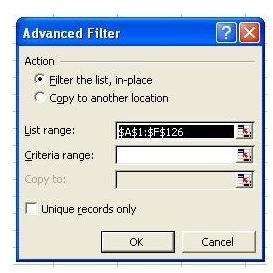
Select a single cell in your data range. From the menu, select Data– Filter – Advanced Filter. The Advanced Filter dialog contains many powerful options. By default, it will look as shown in Fig. 653.
-
As shown in Fig. 654, choose the Unique Records Only checkbox. Change the Action section to Copy to Another Location. Selecting this action enables the Copy To range. Place the cursor in the Copy To dialog box and highlight the out-of-the-way copy of the Customer heading.
Advertisement -
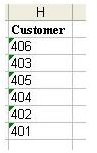
Choose OK. Excel will find the unique customer numbers and copy them to the range you specified, as shown in Fig. 655.
Gotcha: Any subsequent use of the Advanced Filter command during this Excel session will remember the List Range specified in the prior Advanced Filter.
Summary: One use of the Advanced Filter command is to generate a unique list of one particular field in a dataset.
Commands Discussed: Data – Advanced Filter
Images