
Have you upgraded to Office 2007 and been frustrated that you cannot easily create PivotTables that can be used in previous versions? This article will show you how to quickly remedy that.
Introduction
Since the release of Office 2007 for the PC, many users have been frustrated with the features that the new system offers them. One of the many reasons behind this is that they broke their semi-consistent interface model that they have had for the last 20 years (the first office came out for the Mac in 1989), and presented the most extreme changes, which includes “The Ribbon” toolbar. These extreme changes, including the following issue, has pushed many users to reinstall previous versions of office, or install them side-by-side.
That particular issue that I speak of, which has mainly plagued business users, occurs when attempting to create PivotTables in Excel that are compatible for users running previous versions.
Note: This article will assume a certain-level of experience with the Excel application and the Microsoft Office suite.
Enabling [Compatibility Mode] How-To
The trick is to get the phrase, [Compatibility Mode], to appear at the top of your Excel window next to your spreadsheet’s title. Without this mode enabled, your PivotTables will not work in 97-2003 documents, and you will receive nagging messages whenever you attempt to save a file.
_
.
-
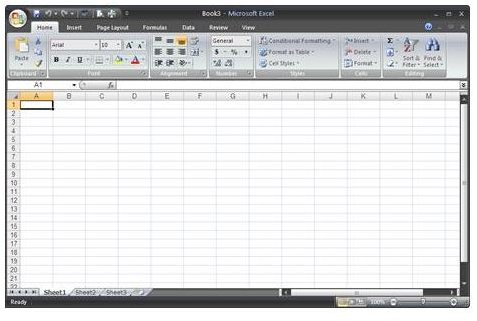
Open Excel to a new,
 Advertisement
.
-
Click on the
Advertisement
, go to “Save As”, and select “**
Advertisement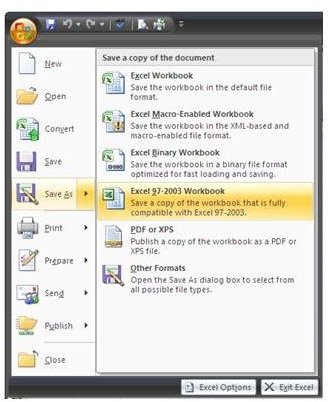
**”
Advertisementfrom the side menu that appears.
Advertisement -
Then. using the dialog box that appears, create your filename and select where it will be saved, click “Save”.
-
Next, go back to the “Office Icon” menu, and click on “Close”.
Advertisement -
Once again, go back to the “Office Icon” Menu, and click “Open”.
-
Finally, using the dialog box that appears, navigate to where you saved the newly-created workbook, and click “Open”.
Advertisement -
If done correctly, you should now see [inlineImage|link|1BF0DA2E0A2116DD2DE11612E4488A54951B44CB|[Compatibility Mode]|[Compatibility Mode]] [inlineImage|link|1BF0DA2E0A2116DD2DE11612E4488A54951B44CB|[Compatibility Mode]|] appear next to name of your workbook at the top of the screen.
You can now proceed to create your PivotTable, as normal, and will not be prompted about your PivotTable not being compatible with previous versions of Excel (97-2003) whenever you save.
Final Thoughts
At this moment in time, regardless of the release of the compatibility pack for the 97-2003 versions of Office, PivotTables remain as one of the only items that is not compatible regardless of what document version you save in: 97-2003 (.xls) , or 2007 (.xlsx). Therefore, you must go through complicated steps to get the desired end result, as you just have seen.
Hopefully, with the next release of office, they will create a wizard to assist users in this process.


