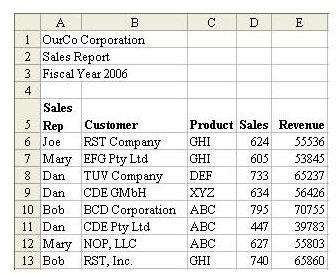
Problem: You have sales data in a worksheet, as shown in Fig. 626. You would like to sort the data by product within customer.
Strategy:
-
Select one cell within your data. The one cell can be in the heading row or any data row. From the menu, select Data – Sort.
Advertisement -
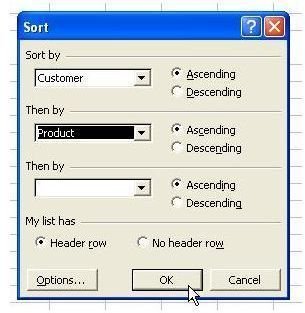
In the Sort dialog, choose up to three fields to sort by. For each field, choose if the results should be presented in alphabetical order (ascending) or in high-to-low order (descending). If your data is set up correctly as outlined in the List Format topic, Excel will properly guess that your list has a header row, as shown in Fig. 627.
-
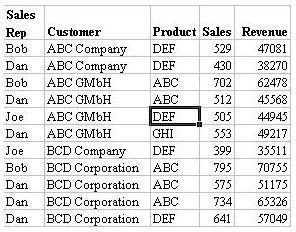
Choose OK to sort. Because Customer was the first sort key, all of the records for “ABC Company” will sort to the top. Records for “ABC GMbH” will appear next, as shown in Fig. 628.
Advertisement
Additional Detail: When there is a tie – such as the four records for “ABC GMbH” – those records will be sorted in ascending order by the product field. For instance, the ABC product record appears before the DEF product field. If there is still a tie, the records remain in their original sequence from before the sort.
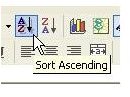
Alternate Strategy: If your data is properly set up in list format, you can select a single cell in the data and choose the Sort Ascending button in the Standard toolbar, as shown in Fig. 629.
This will sort the data by the column in which the cell pointer is currently located. Because Excel resolves ties by leaving the previous sequence in place, you can duplicate the sort shown above. First, select a cell in the product field and choose AZ to sort by product. Next, select a cell in the Customer field and choose AZ to sort by Customer. The data will be sorted by customer, with ties sorted by product.
The ZA button next to Sort Ascending can be used to Sort Descending.
Gotcha: Before trying any sort operation, you must either select the entire range or a single cell in that range. If you mistakenly choose two cells in a range, Excel will sort just those selected cells, resulting in a few cells of your data being sorted into new records – a disastrous result.
Summary: Sorting data is easy using either the Sort menu or the Sort buttons on the Standard toolbar.
Images